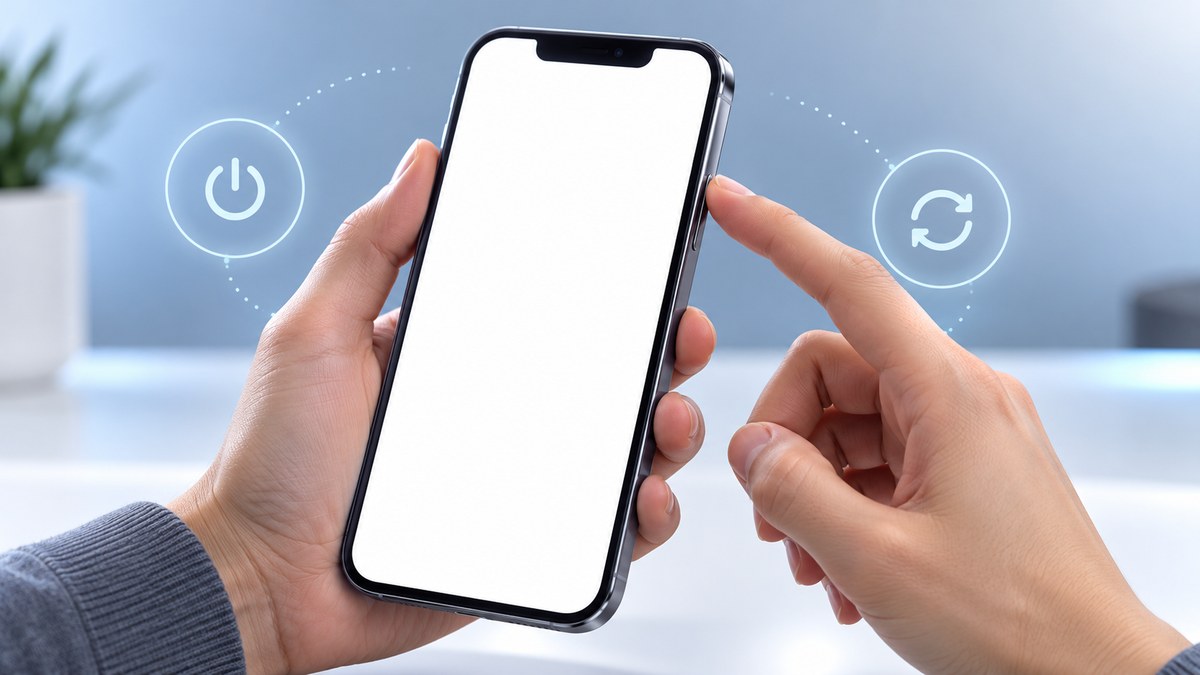
Your iPhone screen suddenly turned white and won’t respond to taps or swipes. You are not alone, and this is usually a software glitch, not a broken phone. Before you panic or search for a repair shop, try a few simple fixes at home. Most white screen issues are caused by a temporary software crash, a stuck zoom feature, or a failed update. The steps below will help you diagnose the problem and get your iPhone working again without spending a dime.
An iPhone white screen is often a software issue, not a hardware failure. Start with a forced restart and check for the zoom accessibility glitch. If those fail, try recovery mode or a DFU restore. Most fixes are free and take under ten minutes. Only consider a repair shop if all software methods fail.
What Causes the iPhone White Screen
The white screen usually means the operating system crashed or a critical process froze. It can happen after an iOS update, when an app locks up, or if the phone overheats. Sometimes the screen is not truly white. It might be a zoomed-in view of a mostly white webpage or settings menu. Here are the common causes:
- System zoom glitch: The accessibility zoom feature can activate accidentally, making the screen appear completely white.
- Failed iOS update: If an update interrupted mid-install, the phone might boot to a blank white display.
- Corrupted app or firmware: A buggy app or corrupted system file can prevent the interface from loading.
- Battery or power issue: Low battery or a faulty charging cable can cause the phone to boot into a white screen.
- Hardware damage: A cracked display or loose internal connector is less common but possible.
Try These Fixes First (No Tools Required)
Start with the simplest solution. Most white screen problems are solved in under two minutes.
1. Force Restart Your iPhone
Hold down the Power button and the Volume Down button at the same time for about 10 seconds. On iPhones without a physical home button, press and hold the Side button and Volume Down until the screen goes black, then release. Wait for the Apple logo to appear. If the white screen returns, move to the next step.
2. Check the Zoom Glitch
The iPhone accessibility zoom can make the screen appear white if it zooms in on a blank area. Try this:
- Go to Settings > Accessibility > Zoom.
- Toggle Zoom off.
- If you cannot see the screen, use a triple-tap gesture (tap the screen three times quickly) to zoom out, then navigate to Settings.
If you cannot access Settings at all, proceed to the next fix.
3. Boot into Safe Mode
Safe mode loads only essential system files. It can bypass the glitch causing the white screen.
- Press and hold the Volume Up button.
- While holding it, press and release the Power button.
- Keep holding Volume Up until the lock screen appears.
- If the screen is still white, try the recovery mode method below.
Recovery Mode and DFU Mode
If the basic fixes do not work, you need to access recovery mode or Device Firmware Update (DFU) mode. These methods let you reinstall or repair iOS without losing data.
How to Enter Recovery Mode
- Connect your iPhone to a computer with a USB cable.
- Open Finder (on Mac) or iTunes (on Windows).
- Press and hold the Volume Down button and the Power button together.
- Keep holding until you see the Apple logo and a progress bar.
- Release the buttons. Your iPhone should enter recovery mode and offer to update or restore.
How to Use DFU Mode
DFU mode is a deeper recovery option. It bypasses the operating system entirely.
- Connect your iPhone to a computer.
- Turn off the iPhone.
- Press and hold the Volume Down button and the Power button for 15 seconds.
- Release the Power button but keep holding Volume Down for another 10 seconds.
- The screen should remain black. In iTunes or Finder, you will see a message that a device in DFU mode is detected.
- Click Update or Restore to reinstall iOS.
| Method | What It Does | Risk of Data Loss |
|---|---|---|
| Force restart | Resets the current session | None |
| Zoom glitch fix | Disables accessibility zoom | None |
| Recovery mode | Repairs system files without wiping data | Low |
| DFU mode | Reinstalls iOS completely | High (wipes all data) |
Expert advice: Always back up your iPhone before using DFU mode. If you do not have a recent backup, try recovery mode first. It often fixes the white screen without deleting your photos, messages, or apps.
What to Do If the White Screen Still Shows
If none of the above methods work, the issue might be hardware related. Check these signs:
- The screen remains white even after a full battery drain and recharge.
- You see physical cracks, discoloration, or dead pixels.
- The phone vibrates or makes unusual sounds when the screen is white.
- The white screen appears only when the phone is plugged in or unplugged.
In these cases, a repair shop or Apple Support may be necessary. But before you go, try one more thing: connect your iPhone to an external monitor or TV using a USB-C to HDMI adapter. If the external display works normally, the problem is likely the internal screen connector, not the logic board.
Preventing White Screen Issues in the Future
You can reduce the chance of a white screen by following these habits:
- Keep your iOS updated to the latest version.
- Avoid jailbreaking or installing unofficial firmware.
- Restart your phone at least once a week.
- Do not force quit apps repeatedly.
- Use a surge protector when charging at home.
If you notice your phone running hot or acting sluggish before the white screen appears, it might be a sign of a deeper software issue. Check out our guide on how to speed up a slow iPhone after an iOS update for tips on keeping your device running smoothly.
When to Call for Help
Most white screen problems are software related and fixable at home. But if you have tried all the steps above and the screen is still white, it is time to contact Apple Support or a trusted repair shop. They can run hardware diagnostics and replace the display if needed. You can also check our troubleshooting guide for iPhone Wi-Fi connectivity problems if you have trouble connecting after the fix.
Your iPhone Can Bounce Back
A white screen is frustrating, but it is rarely the end of the road for your iPhone. Start with a simple force restart and work your way through the list. Most users find a solution within ten minutes. You have the tools to fix this at home, and you do not need to be a tech expert. Take a deep breath, try the steps above, and your screen should come back to life. If not, professional help is just a call away.