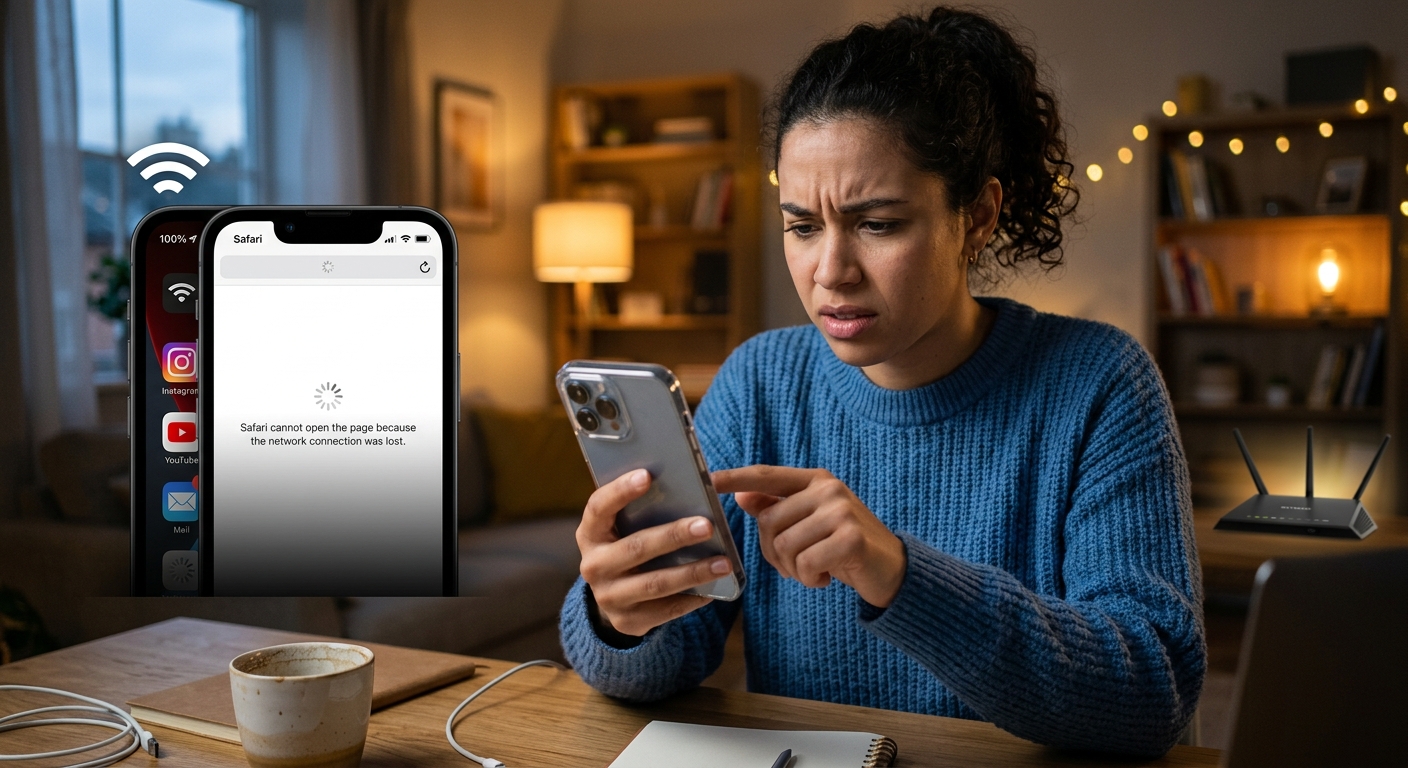
Your iPhone shows full bars. The router name is right there in your Wi-Fi list. You tap Safari and get nothing. Instagram freezes mid-refresh. Gmail won’t load a single message. That spinning wheel keeps going, and nothing on the screen tells you what went wrong. It looks like a normal connection but behaves like a dead zone, and the frustrating part is that everything appears completely fine. The good news: this happens for a handful of specific reasons, and every single one has a fix you can run yourself.
A full Wi-Fi signal and a live internet connection are two completely different things, and your iPhone can have one without the other.
- The most common causes are a stale IP lease, a broken DNS lookup, a rogue proxy setting, or a VPN silently blocking all outgoing traffic
- Most fixes take under two minutes and require no technical background
- If the simple steps don’t clear it, renewing your DHCP lease or forgetting the network handles the vast majority of remaining cases
Why a Strong Wi-Fi Signal Doesn’t Guarantee You’re Actually Online
Wi-Fi bars measure one thing: how well your iPhone hears the router’s radio signal. Nothing else. Those bars say nothing about whether your router has a live internet connection, whether your iPhone received a valid IP address, or whether the network’s domain lookup system is up and running.
Think of it like a landline dial tone. The tone confirms the physical line is active. It does not mean the call connected. Your iPhone locks onto the router’s signal and reports bars immediately, before any of the deeper checks that actually put you online. The signal layer and the internet layer are separate, and either one can fail without affecting the other.
Four things can break silently while your signal bars stay perfectly full: the IP address your phone was assigned, the DNS server that translates website names into destinations, a proxy setting routing traffic through an intermediate server, and any active VPN. Each has a different fix, and they stack in a clear order from the fastest to the most involved.
The First Steps to Try When Nothing Will Load
Start here before touching any deeper settings. These three actions fix the majority of “connected but no internet” situations in under a minute each.
- Toggle Wi-Fi off and back on. Open Settings, tap Wi-Fi, flip the switch off, count five seconds, then flip it back on. Your iPhone drops and re-requests its IP address from the router, and a fresh assignment often clears whatever had stalled.
- Cycle Airplane Mode. Swipe down to open Control Center and tap the airplane icon to enable Airplane Mode. Wait about ten seconds, then tap it again to turn it off. This resets every radio on the phone at once and forces a clean reconnection from scratch.
- Restart your iPhone completely. Hold the side button and either volume button until the power slider appears. Slide to shut down, wait ten seconds, then press the side button to boot back up. A full restart clears temporary system glitches that toggling Wi-Fi alone won’t touch.
If any one of those steps gets pages loading again, you’re done. If not, the cause runs a little deeper, and the sections below will get you there.
Your iPhone’s IP Lease May Have Expired or Gone Stale
Every device on a network gets a temporary IP address from the router. Your phone receives this address through DHCP (Dynamic Host Configuration Protocol). DHCP leasing gives every assigned address a built-in expiration timer. When that timer runs out, or when the lease gets corrupted during a brief outage or network hiccup, your iPhone still shows a signal but can no longer send or receive internet traffic in any meaningful way.
Renewing the lease is one of the most underused fixes available. Open Settings and tap Wi-Fi. Tap the small (i) icon next to your current network name. Scroll down and tap Renew Lease. Confirm when prompted. Your iPhone drops and re-requests a fresh address, and in most cases it comes back online within seconds.
If renewing doesn’t help, you can bypass automatic assignment entirely. On that same screen, tap Configure IP, switch to Manual, and enter a specific address like 192.168.1.100 with a subnet mask of 255.255.255.0 and your router’s address (typically 192.168.1.1) as the gateway. That gives your phone a fixed address it does not need to lease or renew.
A DNS Failure Can Make Every App and Website Look Broken
DNS is the system that converts human-readable website names into the numbered addresses that servers actually use. Type “youtube.com” and your iPhone silently asks a DNS server to translate that name into a destination. If the DNS server your router relies on is down, overloaded, or returning bad data, every site you visit appears to fail. Your connection is technically fine. The translation layer is what’s broken.
You can test this without any special tools. Open Safari and type a raw IP address directly into the address bar, something like 1.1.1.1. If a page loads, DNS is your problem. If nothing loads at all, the issue sits somewhere else.
To replace the failing DNS server, open Settings and tap Wi-Fi. Tap the (i) next to your network, then tap Configure DNS. Switch it from Automatic to Manual and delete any existing entries. Add 8.8.8.8 (Google’s public DNS) or 1.1.1.1 (Cloudflare’s public DNS) as your new server. Save and test a website. A working DNS server brings everything back instantly.
A Proxy Setting You Never Added Might Be Intercepting Traffic
Mobile device management profiles, corporate apps, and certain network configurations can quietly install a proxy setting on your iPhone without any visible indication. A proxy routes all outgoing traffic through a middle server before it reaches the internet. If that server goes offline, the configuration is wrong, or the proxy was removed on the network side but the setting wasn’t cleaned up on your phone, every request your iPhone sends hits a dead end.
Checking this takes about five seconds. Open Settings, tap Wi-Fi, and tap the (i) next to your connected network. Scroll to the bottom and look at the HTTP Proxy section. It should say Off. If it shows Manual or Auto with any address filled in, that proxy is intercepting your traffic. Tap Configure Proxy, select Off, and save. Test your connection right after and the difference is usually immediate.
A VPN That’s Struggling Silently Kills Your Whole Connection
A VPN changes the network identity your iPhone uses when it reaches out to the internet. Under normal circumstances, your phone uses the IP address your router assigned it. With a VPN active, traffic tunnels through a remote server in a different location, and that server’s address is what the internet sees instead. Checking whats my IP from your phone shows you exactly which address your traffic is appearing from in real time, making it easy to confirm whether a VPN is active and routing you somewhere unexpected.
The problem is that VPN servers go down, get overloaded, or run into connection issues on their end. When that happens, your iPhone stays “connected” to the VPN tunnel while all actual traffic fails silently. Apps spin forever. Pages time out. Your Wi-Fi bars look perfect because your link to the router is fine. The route through the VPN is what’s dead.
Go to Settings, then General, then VPN and Device Management, then tap VPN at the top. If the status shows Connected, toggle it off and immediately open a website. If things load right away, the VPN was responsible. You can then switch to a different server within your provider’s app, or reach out to their support team about the outage.
Forgetting the Network and Reconnecting from a Clean Slate
Saved Wi-Fi networks carry their full configuration history. A network you joined weeks ago might have had a proxy, a custom DNS, or a manually assigned IP saved to its profile. Even after you clear those settings, the saved network entry can hold onto fragments of the old configuration. Forgetting the network wipes all of that completely.
Open Settings and tap Wi-Fi. Tap the (i) next to your network name, then tap Forget This Network and confirm. Your iPhone disconnects immediately. Find the network again in the list, tap it, and re-enter your password. This rebuilds the connection from nothing, pulling a fresh IP address and using the network’s default settings for everything.
Resetting Network Settings When Nothing Else Has Worked
If every step above has come up empty, this is the deepest clean available without erasing your phone entirely. Resetting network settings returns all network-related configuration to factory defaults. Your photos, apps, messages, and contacts are completely untouched. Only network data is affected.
Here is what a network reset wipes from your device:
- All saved Wi-Fi networks and their stored passwords
- Cellular data settings and carrier APN configurations
- Bluetooth device pairings
- VPN configurations stored on the device
- Any custom DNS servers or proxy settings you had applied manually
To run the reset, open Settings and go to General, then Transfer or Reset iPhone. Tap Reset, then tap Reset Network Settings. Enter your passcode if prompted. Your phone restarts, and when it comes back up, every network setting is at zero. Reconnect to your Wi-Fi, enter the password, and load a page. This clears problems that survived everything else.
Back Online Before Your Next App Refresh
Full bars with no internet is one of those iPhone issues that seems mysterious until you understand the layers underneath. The signal only means your phone is talking to the router. Everything after that, the IP lease, the DNS lookup, the proxy path, the VPN tunnel, is a separate chain of steps that each can break on its own while leaving your signal untouched.
Starting with the simplest checks and working your way down is always the right call. Most people find the fix in the first two or three steps without ever touching a settings menu. The more involved options are there for the stubborn cases, and they genuinely work. You don’t need to book an appointment or hand your phone to anyone else. The answer is almost always sitting in your Settings app, a few taps away from being found.