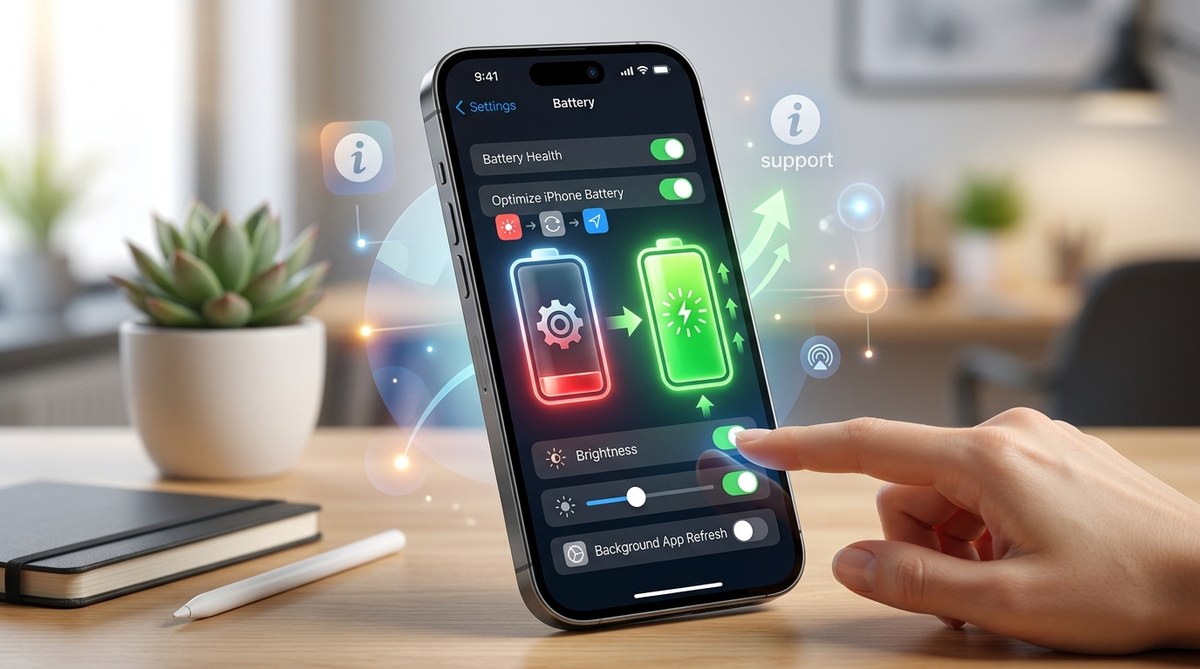
Struggling to keep your iPhone powered up throughout the day? You’re not alone. Many users find their battery draining faster than expected, especially with heavy app use, bright screens, or outdated software. The good news is that a few simple adjustments can significantly improve your device’s battery endurance. Whether you’re out for a busy day or just want your iPhone to last longer between charges, these practical tips will help you make the most of every percent.
Enhancing your iPhone’s battery life is achievable through simple steps like adjusting display settings, managing background activity, and keeping your software updated. These tips help extend usage and keep your device performing at its best all day long.
How to make your iPhone battery last longer
Optimizing your iPhone for better battery life doesn’t require complex technical skills. With some straightforward changes, you can enjoy longer screen time and fewer worries about running out of juice when you need it most. Here’s a step-by-step guide to help you get started.
1. Enable Low Power Mode during the day
Low Power Mode is a built-in feature designed to reduce power consumption by limiting background activity and visual effects. When your battery dips below a certain level, your iPhone will ask if you’d like to turn it on. You can also activate it manually at any time by heading to Settings > Battery and toggling on Low Power Mode.
2. Adjust your screen brightness and use auto-brightness
Since the display consumes the most power on an iPhone, managing its brightness is crucial. You can reduce brightness manually through Settings > Display & Brightness or activate auto-brightness, which adjusts the screen based on ambient light. This feature ensures your screen isn’t brighter than necessary, saving energy without sacrificing visibility.
3. Turn off unnecessary services and background activities
Many apps refresh content in the background or use location services even when you’re not actively using them. You can control these features by:
- Disabling Background App Refresh in Settings > General > Background App Refresh.
- Managing location services through Settings > Privacy > Location Services, and setting only essential apps to “While Using” or “Never.”
- Turning off Bluetooth and Wi-Fi when not needed, especially if you’re not using accessories or networks that require them.
4. Keep your iOS and apps updated
Software updates often include battery optimization improvements. Regularly check for updates by visiting Settings > General > Software Update. Updated apps tend to run more efficiently and consume less power, so keeping everything current is a smart move.
5. Limit notifications and reduce visual effects
Push notifications wake your screen and use power. Disable non-essential notifications in Settings > Notifications. Additionally, reduce motion and disable unnecessary visual effects by navigating to Settings > Accessibility > Motion and toggling on Reduce Motion. These small tweaks lessen the strain on your device’s resources.
6. Manage location services effectively
Location-based features can drain your battery quickly. To conserve energy, limit location access for apps to “While Using” or turn it off for apps that don’t need it. You can do this via Settings > Privacy > Location Services. Using the “Significant Locations” feature sparingly also helps.
7. Turn off Raise to Wake and auto-lock quickly
Features like Raise to Wake turn on your screen when you lift your iPhone, which can be unnecessary. Disable this in Settings > Display & Brightness. Also, set your auto-lock to a shorter duration, like 30 seconds, to turn off the display faster when not in use.
8. Disable unnecessary visual effects and haptics
Haptic feedback and visual effects add polish but can also consume power. Turn off keyboard haptics in Settings > Sounds & Haptics and reduce motion effects in Settings > Accessibility > Reduce Motion.
9. Use Wi-Fi instead of cellular data when possible
Wi-Fi consumes less power than cellular data, especially when streaming or downloading large files. Connect to trusted Wi-Fi networks whenever available to extend your battery life.
10. Avoid extreme temperatures
High or low temperatures can affect your iPhone’s battery health and performance. Keep your device within the recommended temperature range of 32°F to 95°F (0°C to 35°C) to prevent unnecessary battery drain and damage.
Techniques versus common mistakes
| Technique | What to do | Common mistake |
|---|---|---|
| Enable Low Power Mode | Turn it on when battery is low | Forgetting to turn it on during heavy use |
| Adjust display brightness | Use auto-brightness or manually lower brightness | Keeping brightness at maximum all day |
| Manage background activity | Limit background app refresh and location services | Allowing all apps to refresh in background |
| Keep software updated | Regularly update iOS and apps | Ignoring updates, missing out on optimizations |
| Limit notifications | Disable unnecessary notifications | Leaving notifications enabled for all apps |
| Use Wi-Fi | Prefer Wi-Fi over cellular | Staying on cellular data unnecessarily |
| Avoid extreme temperatures | Keep device in moderate environments | Leaving phone in hot cars or cold outdoors |
Expert advice on battery management
“The most effective way to extend your iPhone’s battery life is to combine multiple strategies. Adjusting display settings, managing background activities, and keeping your software updated can make a noticeable difference.” — Apple Support
Your practical battery life boost plan
Applying these tips doesn’t mean sacrificing your iPhone experience. Instead, it’s about using your device smarter. Regularly review your settings, stay updated, and be mindful of how you use power-hungry features. Over time, these habits will help your iPhone stay ready whenever you need it most.
A friendly reminder to keep your iPhone performing at its best
A well-maintained iPhone can serve you reliably for years. By taking small steps now, you can improve your battery life and overall device performance. Don’t wait until your battery is completely drained to make adjustments. Start today and enjoy longer-lasting power throughout your busy days.