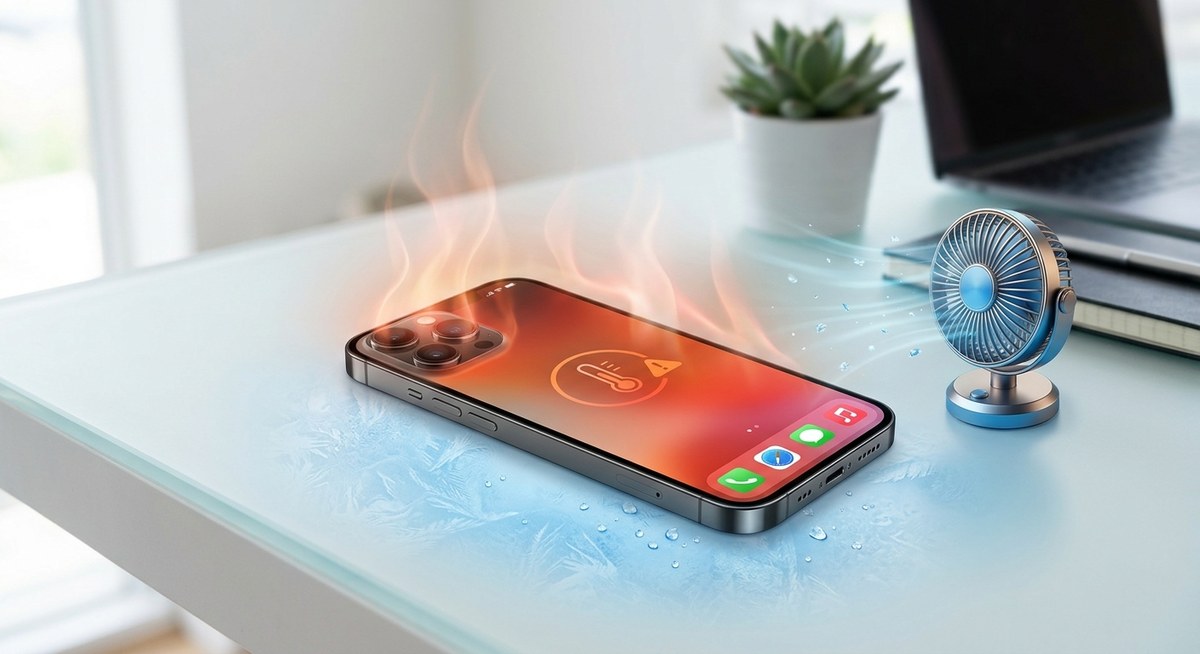
Your iPhone feels warm. Maybe even hot to the touch. You pull it out of your pocket and notice the screen dims, or an app won’t open. A hot iPhone can be alarming, but it’s usually a sign that something is pushing the hardware too hard. The good news is that most overheating problems are easy to fix without a trip to the Apple Store. Let’s walk through why your iPhone gets hot and what you can do about it right now.
An unusually hot iPhone usually results from heavy processing, direct sunlight, fast charging, or a battery issue. Remove the case, close background apps, dim the screen, and stop charging for 15 minutes to cool it down. If the problem persists, check for battery swelling or seek professional help.
Why Is My iPhone Getting Hot?
Before you can cool your iPhone, you need to know what’s making it run hot. Here are the most common reasons in 2026:
- Heavy apps and games – Graphics-intense games or video editing apps push the CPU and GPU hard, generating heat.
- Direct sunlight or hot environments – Leaving your iPhone on a car dashboard or at a beach towel under the summer sun can raise its internal temperature fast.
- Charging while using – Fast charging combined with active use (like watching a video or navigating on maps) produces extra heat.
- Outdated software or app bugs – A poorly coded app or an iOS version with known thermal issues can cause the processor to run too hard.
- Old or degraded battery – A lithium-ion battery that’s lost capacity may heat up during charging or normal operation.
- Wireless charging – Wireless charging is less efficient than wired, and the extra energy lost as heat can warm the phone.
- Background processes – Too many open apps, background app refresh, or a stuck syncing process can keep the processor busy.
| Do This | Avoid That |
|---|---|
| Take off the case during charging or heavy use | Using thick, insulating phone cases that trap heat |
| Keep your iPhone out of direct sunlight | Leaving it on a hot car seat, near a stove, or in a sauna |
| Charge in a cool, well-ventilated area | Charging under a blanket or inside a pocket |
| Close unused apps and disable background app refresh | Running heavy apps like games or GPS while charging |
How to Cool Down an Overheated iPhone: Step-by-Step
If your iPhone already feels like a hand warmer, follow these steps. They work for any model from the iPhone 14 to the latest iPhone 18 (expected later this year). Act calmly and don’t panic.
- Stop whatever you’re doing – If you’re playing a game, using GPS navigation, or video chatting, close the app immediately. Press the Home button or swipe up to quit.
- Remove the case – Most phone cases trap heat. Take off the silicone, plastic, or leather cover to let the metal or glass body breathe.
- Turn off the screen – Press the side button to put the display to sleep. The screen itself produces heat, especially at high brightness.
- Disconnect from power – Unplug the Lightning or USB-C cable. If you’re using a wireless charger, lift the phone off the pad.
- Move it to a cooler place – Step into air conditioning, shade, or a room with a fan. Never place an iPhone in the refrigerator or freezer. Extreme cold can damage the battery and cause condensation.
- Turn off connectivity you don’t need – Disable Bluetooth, Wi-Fi, mobile data, and GPS if not essential. Go to Settings > Bluetooth and toggle off.
- Enable Low Power Mode – This reduces background activity. Go to Settings > Battery > Low Power Mode. Alternatively, ask Siri: “Turn on Low Power Mode.”
- Wait 15 minutes – Give the device time to cool passively. If it’s still hot after that, repeat the steps.
Expert advice: “Apple says your iPhone is designed to function best between 32° and 95° F (0° to 35° C). If the internal temperature exceeds this range, the device will try to protect itself by limiting performance or showing a warning. Never force a cool-down with ice packs, cold water, or a freezer. Gradual cooling is safer for the battery and internal components.” — Apple Support documentation, 2026
When Overheating Indicates a Bigger Problem
Most iPhones get hot and recover. But sometimes heat is a red flag. Watch for these signs:
- The “Temperature: iPhone needs to cool down” warning – This appears when the device is too hot to use safely. Follow the cooling steps above.
- Battery swelling – A puffed battery may push the screen away from the body or create a bulge. If you see this, stop charging and turn off the iPhone. Contact Apple Support or visit a repair shop right away. A swollen battery is a safety hazard.
- Frequent thermal shutdowns – If your iPhone shuts down or throttles performance often, even in normal conditions, the battery or logic board may need service.
- Heat during basic tasks – Checking email or browsing the web shouldn’t make the phone hot. If it does, a background app or system issue is likely.
If you notice any of these, it’s wise to back up your data and then reset all settings before visiting an Apple Store.
Tips to Prevent iPhone Overheating in 2026
An ounce of prevention is worth a pound of cure. Use these habits to keep your iPhone at a safe temperature year-round.
- Update iOS and apps regularly – Software updates often include thermal management improvements. Keep your iPhone running the latest version of iOS 19.
- Limit high-performance tasks in hot weather – On a 95° F day at the park, maybe save the 4K video editing for later. Same goes for fast charging.
- Use a thinner case in summer – Switch to a slim, ventilated case when temperatures climb. Some cases are labeled “heat dissipating.”
- Monitor your battery health – Check Settings > Battery > Battery Health & Charging. If Maximum Capacity falls below 80%, consider a battery replacement.
- Close apps you’re not using – Especially apps that use GPS or camera. Swipe them away from the multitasking screen.
- Avoid charging your phone overnight if it already runs warm – Overnight charging can keep the battery at 100% for hours, generating unnecessary heat.
- Keep your iPhone out of direct sunlight in the car – Use a windshield mount with a sunshade or place it in the cup holder out of the sun’s rays.
What If Your iPhone Still Overheats After Trying Everything?
You’ve followed the steps. Your iPhone is still warm to the touch, or it keeps showing the temperature warning. At this point, the cause might be something deeper. Here’s a logical checklist:
- Check for rogue apps – Go to Settings > Battery and look at the list of apps with high background activity. Uninstall any suspicious app that uses more than 30% battery without reason.
- Restart your iPhone – A simple restart often clears up stuck processes. Press and hold the side button and either volume button, then slide to power off. Wait 30 seconds, then turn it back on.
- Reset network settings – If you suspect Wi-Fi or Bluetooth bug, go to Settings > General > Transfer or Reset iPhone > Reset > Reset Network Settings. This won’t erase your data.
- Test with a different charger and cable – Faulty third-party cables or chargers can overheat the device. Use an Apple-certified charging accessory.
- Run a diagnostics check – Apple Support allows you to run hardware diagnostics online. Visit Apple’s support page or use the Apple Support app.
If none of these work, it’s best to schedule a service appointment at a Genius Bar. But before you go, consider whether the overheating is related to battery drain. Our guide on how to fix common iPhone battery drain issues may help you isolate the problem.
How Overheating Affects Your iPhone’s Performance and Battery Life
Even if your iPhone recovers, repeated overheating can shorten its longevity. High temperatures degrade lithium-ion batteries faster. You might notice your battery holding less charge after a particularly hot summer. The processor also can suffer from thermal stress over time. That’s why it’s important to treat overheating seriously — not as a one-time annoyance, but as a habit to manage.
On the other hand, a single incident of extreme heat (like leaving your phone in a car on a 100° F day) can cause immediate damage. The screen may become discolored, or the battery might swell. If that happens, stop using the phone and take it to a repair center.
Your Questions About iPhone Overheating, Answered
Q: Can I put my iPhone in the fridge to cool it down?
A: No. Rapid temperature changes can cause condensation inside the device, which leads to corrosion. Let it cool at room temperature.
Q: Is it normal for my iPhone to get hot while charging?
A: Some warmth is normal, especially with fast charging. But if it’s uncomfortable to hold, or the phone shuts down, it’s too hot.
Q: Will using a lower-quality charger cause overheating?
A: Yes, especially non-MFi (Made for iPhone) certified chargers. They may deliver unstable voltage, causing the battery to heat up.
Q: Does iOS 19 have any special thermal management features?
A: Yes. iOS 19 includes adaptive thermal throttling that automatically reduces performance and screen brightness when the device gets too warm. Keep your software up to date to benefit from these improvements.
Keep Your iPhone Cool for Years to Come
Heat is the enemy of electronics, but with a few smart habits you can keep your iPhone running at the right temperature. Pop off the case when it feels warm. Avoid the sun at the beach. Update your apps. And if you ever feel that spike of heat, now you know exactly what to do.
Your iPhone is a powerful tool — treat it with a little care, and it will serve you well through all of 2026 and beyond. If you run into other performance issues after the temperature returns to normal, check out our guide on how to improve iPhone performance for more help. Stay cool out there.