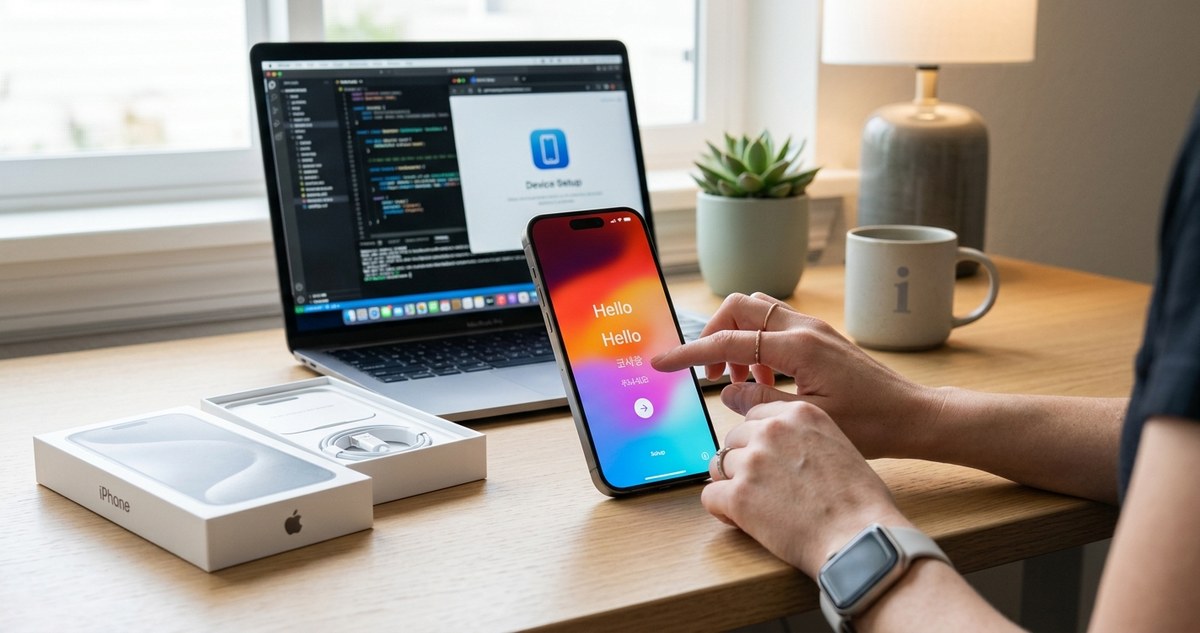
Getting a new iPhone is exciting. Whether you’re upgrading or switching from an Android device, setting up your iPhone correctly ensures you get the most out of it. From activating the device to customizing settings, this guide walks you through each step for a smooth start.
Setting up a new iPhone involves powering on the device, signing in with your Apple ID, restoring your data if needed, and personalizing your settings. Following these steps ensures your device is ready for daily use and tailored to your preferences.
Preparing to set up your new iPhone
Before diving into setup, gather some essentials. Make sure you have your Apple ID credentials, your current device (if transferring data), and a stable Wi-Fi connection. It’s also helpful to have your SIM card ready if you’re switching carriers or activating a new line.
Step-by-step process to set up your new iPhone
1. Power on your iPhone and begin the setup process
Press and hold the side button until the Apple logo appears. Once the device powers on, you’ll see a “Hello” screen. Follow the on-screen instructions to choose your language and region. If you’re transferring data from another device, the setup assistant can help you get your information over quickly.
2. Connect to Wi-Fi and activate your device
Connecting to Wi-Fi is crucial for activating your iPhone. Select your network, enter the password, and tap “Join.” This step allows your iPhone to communicate with Apple servers for activation and updates. If you’re using cellular data, ensure your SIM card is inserted.
3. Sign in with your Apple ID
Your Apple ID is the gateway to iCloud, App Store, and other Apple services. Enter your credentials or create a new account if you don’t have one. Signing in enables data syncing, Find My, and Apple Pay setup. If you forget your Apple ID, you can recover it through Apple’s account recovery options.
4. Choose your setup method: restore or set up as new
You have options here. If you have a backup from an old iPhone or iCloud, you can restore your apps, settings, and data. Alternatively, choose “Set up as new” for a fresh start. Restoring saves time, especially if you’re transferring a lot of data.
5. Set up Face ID or Touch ID and create a passcode
Security is vital. Follow prompts to enable Face ID or Touch ID for quick device unlocking and authentication. You’ll also create a passcode as an extra layer of security. Remember, this passcode will be needed for Apple Pay and other sensitive features.
6. Transfer your data and download apps
If restoring from a backup, select your preferred method—iCloud, iTunes, or device-to-device transfer. You can choose to restore apps, settings, and media. Once the setup completes, download your favorite apps from the App Store and sign into services like email, social media, or banking.
7. Customize your settings and preferences
Now that your iPhone is active, personalize it. Adjust notification preferences, display settings, and privacy options. Enable location services if needed, and set up Siri for voice commands. This step makes your device truly yours.
8. Enable features like Find My, Apple Pay, and Medical ID
Set up Find My to locate your device if lost. Add your cards to Apple Pay for contactless payments. Setting up Medical ID ensures emergency contacts and important health info are accessible from your lock screen.
9. Update software and back up regularly
After activation, check for the latest iOS updates. Keeping your device current ensures security patches and new features are applied. Regular backups via iCloud or iTunes help safeguard your data.
Common mistakes to avoid during setup
| Mistake | Why it matters | How to avoid it |
|---|---|---|
| Skipping Apple ID setup | Limits access to key features | Sign in during setup or later in Settings |
| Not connecting to Wi-Fi | Delays activation and updates | Ensure a stable Wi-Fi connection before starting |
| Restoring from an incompatible backup | Causes data conflicts | Use a backup from a compatible device and iOS version |
| Ignoring privacy settings | Risks exposing personal info | Review privacy prompts carefully |
| Forgetting to enable security features | Risks unauthorized access | Set up Face ID/Touch ID and passcodes immediately |
Expert tip: Take your time during setup. Double-check your Apple ID and security options. A little extra attention now saves headaches later.
Handy tips for customizing your new iPhone
- Organize your home screen: Arrange apps for quick access. Use folders to declutter.
- Personalize your wallpaper: Choose images that inspire or relax you.
- Adjust display settings: Enable Dark Mode or change text size for better readability.
- Set up widgets: Add useful widgets to your Home Screen for weather, calendar, or news.
- Configure notifications: Manage alerts to stay informed without interruptions.
Troubleshooting hiccups during setup
| Technique | Common issue | Solution | Mistake to avoid |
|---|---|---|---|
| Restart your device | Activation issues | Hold side and volume buttons until Apple logo appears | Force restarting unnecessarily |
| Check your network | Wi-Fi connection problems | Switch networks or reset router | Skip network troubleshooting |
| Reset network settings | Connectivity issues | Settings > General > Reset > Reset Network Settings | Reinstall iOS without trying basic fixes first |
| Contact Apple Support | Persistent errors | Visit Apple support for help | Ignoring ongoing issues |
Don’t hesitate to seek help if your setup stalls or encounters errors. Apple’s support resources are designed to guide you through tough spots.
Wrapping up your setup journey
Getting your new iPhone ready for use is straightforward when you follow each step carefully. From powering it on to customizing features, every action enhances your experience. Remember to keep your device updated and backed up, so it remains secure and optimized.
Taking the time to properly set up your iPhone ensures it serves you well for years to come. Enjoy exploring all the features and making your device your own.
Keep your iPhone experience smooth from the start
Once your new iPhone is set up, you’re ready to enjoy its capabilities. Regularly explore new features and keep your software current. If you ever need assistance, reliable resources like support.apple.com or techn-savvy communities can be helpful. Setting up your device properly is the foundation for a seamless and enjoyable iPhone journey.