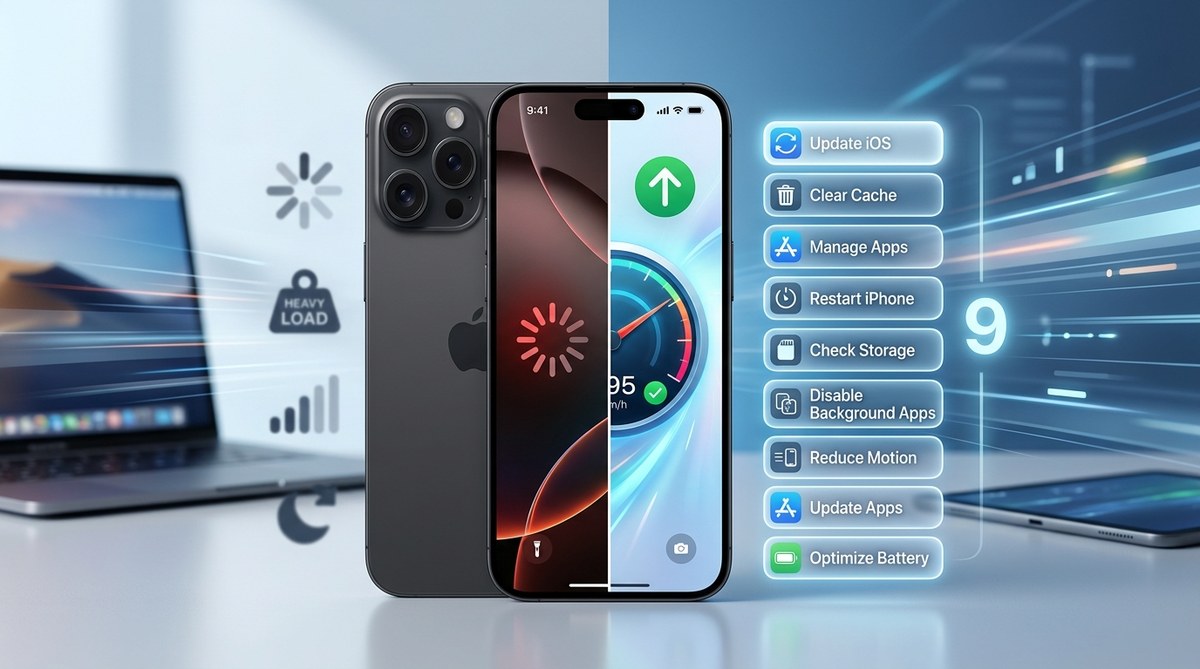
Your iPhone used to feel snappy. Now apps take forever to open. Keyboard lag makes typing feel like wading through mud. Scrolling is choppy. You might be asking yourself, “Why is my iPhone so slow all of a sudden?” The good news is that you don’t need to rush out and buy a new device. Most slowdowns are caused by software clutter, storage issues, or background processes. In 2026, with iOS 19 and new app standards, even an iPhone 11 or 12 can feel sluggish if it’s not tuned up. Let’s walk through nine proven fixes that will restore your iPhone’s speed without costing you a dime.
A slow iPhone is almost always fixable without buying a new phone. The main culprits are low storage space, outdated apps, bloated cache files, and background app refresh. By clearing your storage below 75% capacity, updating your apps, resetting your settings, and disabling unnecessary visual effects, you can recover up to 80% of your phone’s original speed. Start with the simplest fix first: check your storage.
Why Your iPhone Feels Sluggish Right Now
Before jumping into fixes, it helps to understand what causes the slowdown. iOS 19 introduced several new features that demand more from your processor and RAM. If you have an iPhone XR, 11, 12, or even a base model 13, your device has to work harder to render animations, manage widgets, and process background tasks. On top of that, apps like Instagram, TikTok, and Google Maps have grown larger and more resource hungry. When your iPhone’s storage is nearly full, iOS has trouble swapping data between memory and storage, which causes stuttering. A degraded battery can also force the processor to throttle performance to prevent unexpected shutdowns.
Here are the most common reasons your iPhone might be slow:
- Storage over 80% full: iOS needs free space to manage virtual memory and cache files.
- Battery health below 80%: The processor may be throttled to preserve stability.
- Too many background apps refreshing: Apps that constantly check for new data drain CPU cycles.
- Outdated iOS or apps: Developers often release performance patches that fix memory leaks.
- Visual effects and transparency: Motion blur and parallax effects can strain older GPUs.
- Safari or app cache bloat: Temporary files from browsing and streaming build up over time.
1. Free Up Storage Space (The Biggest Win)
Low storage is the number one cause of a slow iPhone in 2026. When your device has less than 5 GB of free space, iOS starts working overtime to manage memory. You’ll see lag when switching apps, opening the camera, or even typing.
Open Settings > General > iPhone Storage. Look at the bar at the top. If it’s in the red or yellow zone, you need to clear space. Tap Recommendations to see Apple’s suggestions. Usually these include offloading unused apps, deleting old messages, and clearing large attachments.
Step-by-step:
- Go to Settings > General > iPhone Storage.
- Scroll down to see which apps take up the most space.
- Tap a large app like Messages or Photos.
- For Messages, tap Review Large Attachments and delete old video clips and images.
- For Photos, consider offloading full resolution originals to iCloud and keeping optimized versions on your phone.
- Tap Offload Unused Apps to automatically remove apps you rarely use while keeping their documents and data.
After freeing up at least 10% of your total storage, restart your iPhone. You should notice smoother performance immediately.
2. Check Battery Health and Performance Management
A degraded battery doesn’t just mean shorter battery life. It can also slow down your entire phone. iOS 19 includes a performance management feature that automatically throttles the processor if the battery can’t deliver peak power. This prevents random shutdowns but makes everything feel slower.
Go to Settings > Battery > Battery Health & Charging. If Maximum Capacity is below 80%, your battery is considered worn. You’ll see a message that says “Your battery’s health is significantly degraded.”
If you see a performance management notice, you can choose to disable it temporarily. However, doing so may cause your phone to shut down unexpectedly during heavy use. A better long term solution is to replace the battery. For around $89 at an Apple Store or authorized service provider, a new battery can restore your iPhone’s original speed.
Expert advice: According to Apple’s support documentation, peak performance is only guaranteed when battery health is above 80%. If your iPhone 11 or 12 is lagging after the iOS 19 update, battery health should be the second thing you check, right after storage.
3. Reduce Motion and Visual Effects
iOS 19’s smooth animations look great on the latest Pro models with 120 Hz displays. On older iPhones, those same animations can cause visible stutter. The good news is you can turn them off.
Go to Settings > Accessibility > Motion. Enable Reduce Motion. This stops the parallax effect on the home screen and replaces zoom animations with cross fades. It makes your phone feel much snappier.
While you’re there, go to Settings > Accessibility > Display & Text Size and enable Reduce Transparency. This removes the blur effect from Control Center and notification panels. On an iPhone 11 or 12, this can dramatically improve frame rates during multitasking.
4. Clear Safari and App Caches
Over time, your browser and apps accumulate cache files. These are meant to speed up loading, but they can become bloated and cause performance issues.
For Safari, go to Settings > Safari > Clear History and Website Data. This removes cached pages and cookies. You’ll need to log back into some websites, but it’s worth it.
For third party apps like YouTube, Spotify, or Chrome, you usually need to clear cache inside the app itself. In YouTube, go to Settings > Clear watch history > Clear search history. In Spotify, go to Settings > Storage > Clear cache. Some apps like Facebook don’t offer a direct cache clear, so you may need to delete and reinstall them.
For a deeper clean, check out our guide on mastering iPhone storage cleanup to boost performance.
5. Disable Background App Refresh for Unnecessary Apps
Background App Refresh lets apps check for new content even when you’re not using them. This is useful for weather apps or messaging apps, but many apps abuse it. Each refresh uses CPU cycles and RAM.
Go to Settings > General > Background App Refresh. You’ll see a list of every app. Keep it enabled for apps you need to stay current (like Mail, Messages, and Weather). Turn it off for games, shopping apps, and social media platforms that you open manually anyway.
A good rule of thumb: if you don’t need an app to update its content every 15 minutes, turn off Background App Refresh for it.
6. Update All Apps and iOS
Developers release updates to fix bugs and improve performance. If you’re running old versions of apps, they may have memory leaks that slow down your phone. Similarly, iOS 19 has received several minor updates since its initial release that address performance issues on older hardware.
Open the App Store and tap your profile icon. Scroll down to see pending updates. Tap Update All to bring everything current.
Then go to Settings > General > Software Update. If iOS 19.x is available, install it. Newer versions often include optimizations for battery and CPU management.
If you’re stuck on an older iOS version and can’t update, check our article on can’t update to iOS 19? here’s what to do.
7. Reset All Settings (Without Losing Data)
This is a powerful fix that many people overlook. Resetting all settings does not delete your photos, messages, or apps. It only resets system preferences like Wi-Fi passwords, wallpaper, accessibility settings, and privacy permissions. This can clear out corrupt configuration files that cause slowdowns.
Go to Settings > General > Transfer or Reset iPhone > Reset > Reset All Settings. Your phone will restart. You’ll need to re-enter Wi-Fi passwords and reconfigure some preferences, but your data stays intact.
After the reset, many users report that their iPhone feels like new again. It’s especially effective if you’ve been through multiple iOS updates without ever resetting.
8. Offload and Reinstall Problematic Apps
Sometimes a single app is the culprit. If your iPhone slows down every time you open a specific app, that app may have a memory leak or corrupt data.
Instead of just deleting the app, use the Offload App feature. This removes the app but keeps its documents and data. Then reinstall it from the App Store. This gives you a fresh install without losing your login info or saved progress.
Go to Settings > General > iPhone Storage. Find the problematic app. Tap it, then tap Offload App. After the offload completes, tap Reinstall App.
For persistent app issues, see our ultimate guide to resolving iPhone app crashes and freezes.
9. Perform a Full Factory Restore (Last Resort)
If you’ve tried everything above and your iPhone is still painfully slow, a full factory restore may be necessary. This erases everything and reinstalls a fresh copy of iOS. It’s the nuclear option, but it can fix deep software corruption that other methods can’t touch.
Before doing this, back up your iPhone to iCloud or a computer. Then go to Settings > General > Transfer or Reset iPhone > Erase All Content and Settings. Follow the prompts. After the reset, set up your iPhone as new (don’t restore from an old backup if you want maximum speed). Reinstall your apps manually.
A factory restore is especially effective if your iPhone has been through multiple major iOS upgrades without a clean slate.
Common Mistakes That Keep Your iPhone Slow
Some people try to speed up their iPhone but end up making things worse. Here’s a table of what to avoid:
| Mistake | Why It Hurts | Better Approach |
|---|---|---|
| Closing all apps in the app switcher | Forces apps to reload from scratch, using more battery and CPU | Leave apps in the switcher; iOS manages them efficiently |
| Using a “memory cleaner” app | These apps often run in the background and drain resources | Use built-in iOS tools to manage memory |
| Keeping the phone in Low Power Mode constantly | Reduces CPU performance and disables background tasks | Only use Low Power Mode when battery is below 20% |
| Ignoring iOS updates | Older versions may have unpatched performance bugs | Always update to the latest iOS version |
| Filling storage to the absolute limit | Leaves no room for virtual memory swap | Keep at least 5 GB free at all times |
When to Consider a Battery Replacement or Upgrade
If your iPhone is older than three generations (iPhone 12 or earlier) and still feels slow after all these fixes, the hardware may simply be struggling with modern apps. A battery replacement can help restore peak performance. If you’ve already replaced the battery and the phone is still lagging, it might be time to look at a newer model.
However, for most users, the nine steps above will bring back significant speed. You don’t need to spend hundreds of dollars on a new phone right now.
Your iPhone’s Speed Is Worth Saving
A slow iPhone doesn’t have to mean the end of the road. By clearing storage, managing background activity, and tweaking visual settings, you can breathe new life into your device. Start with the simplest fix: check your storage. Then work your way through the list. Most people see a noticeable improvement after just the first three steps. Give it a try before you give up on your phone.