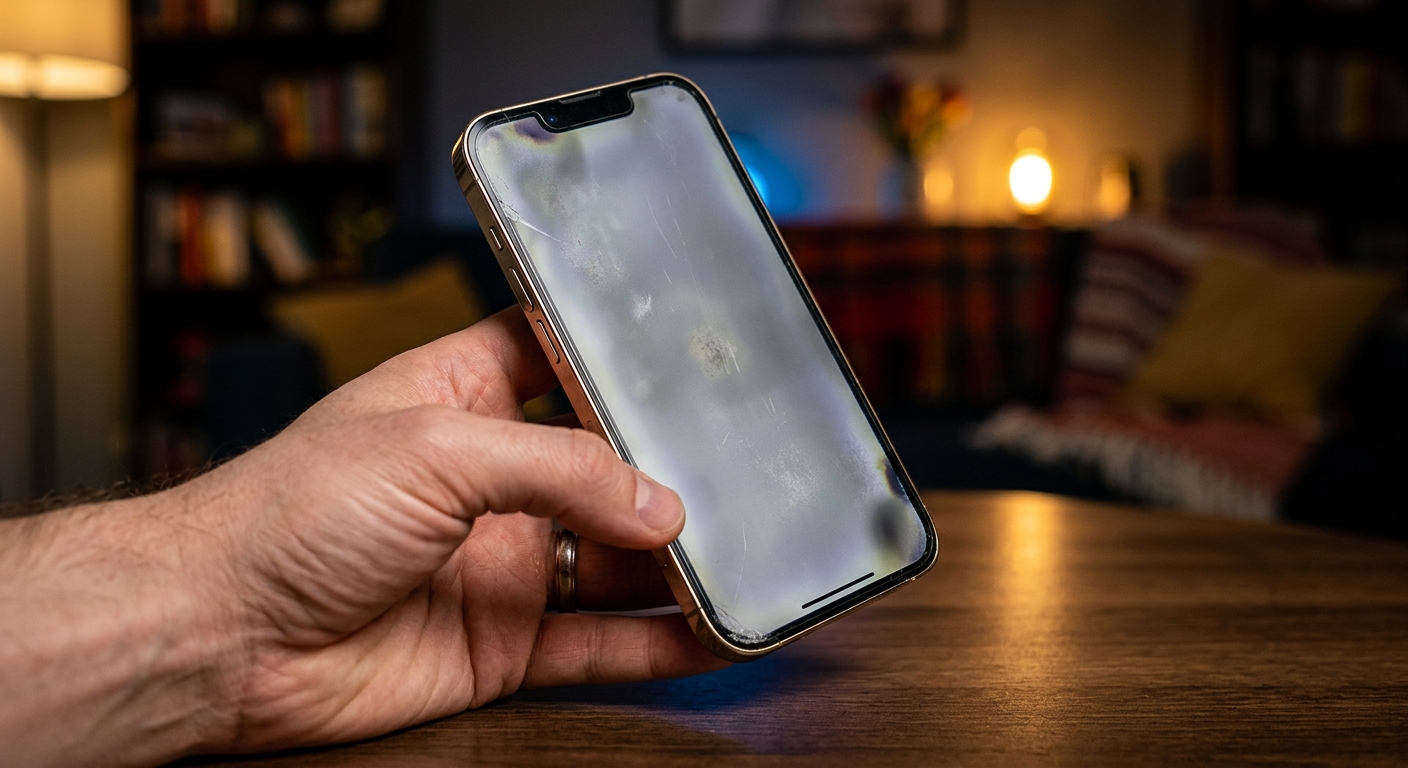
You open a message and notice a shadow near the edge of your iPhone screen. Then a pale patch catches your eye on another app. Once you spot uneven shading, it can be hard to stop looking for it. Before assuming you need a replacement screen, a few simple checks can help you work out whether settings, a screen protector, or the display itself deserves attention.
Start with changes you can undo. Keep the lighting consistent, adjust one thing at a time, and check whether the patch stays in the same physical spot. You do not need to press on the screen, install a repair app, or erase your iPhone.
Your First Three Checks
- Compare the screen with temporary display settings changes.
- Check for protector bubbles, smudges, and reflections.
- Arrange service if patches persist or other symptoms appear.
1. Check Whether the Patch Stays in One Place
Open Settings, a message, and a photo with a pale background. Look at each from your normal viewing distance. A patch that appears only in one photo or app may belong to that content. A shadow that remains in the same part of the glass across several screens deserves closer attention.
Hold the iPhone straight in front of you. Then tilt it slightly. Reflections and viewing angles can change how the surface looks. If a cloudy area shifts as you move the phone, check your room lighting and protector before blaming the panel.
Notice whether the issue affects the whole screen or a small area. A generally warmer display calls for different checks than a distinct bright dot near one corner. Settings can change the screen’s overall appearance, but they are less likely to explain a sharply defined spot that never moves.
2. Compare Display Settings One at a Time
Open Settings > Display & Brightness. Set brightness near the middle of the slider for your first comparison. Maximum brightness is unnecessary, and the lowest setting can make subtle differences harder to assess consistently.
Temporarily turn off True Tone if your model offers it. Check the same screen again. Next, open Night Shift and turn it off for the comparison. These features affect overall color appearance. Apple’s guidance on display settings explains that True Tone adapts the display to ambient light and Night Shift shifts colors toward warmer tones.
If the screen now looks more comfortable, restore each setting separately to find which change you noticed. You can keep your preferred setting afterward. Turning a feature off is a useful comparison, but it does not repair a damaged display.
Next, open Settings > Accessibility > Display & Text Size. Check whether Color Filters, Reduce White Point, or an invert setting is enabled. Temporarily disable any setting you want to compare. If you depend on an accessibility feature, note its original position before changing it.
Auto-Brightness is also available in this area. You can temporarily turn it off to keep brightness steady during your checks. Restore it when finished if you normally use it. The aim is to compare the patch under consistent conditions, without brightness changing between observations.
3. Inspect the Glass and Screen Protector
Turn the screen off and look at the surface under gentle room lighting. Fingerprints, oily streaks, and trapped moisture around a protector can resemble cloudy shading. Wipe the glass with a soft, lint-free cloth. Keep liquid away from openings and avoid abrasive cleaners.
Check the protector from several angles. Privacy protectors can make brightness look uneven when your eyes are off-center. Matte protectors can add visible grain, especially over pale content. A loose edge or trapped bubble can create a patch that seems to sit inside the display.
- Look for bubbles, lifted corners, cracks, or cloudy adhesive.
- Check whether a smudge remains visible with the screen turned off.
- Remove the case temporarily if its edge overlaps or pushes against the protector.
- If the protector is easy to remove safely, compare the screen without it.
You may need a replacement protector after removal. Do not pry at the actual display or try to lift glass that appears attached to the phone itself. If the screen is separating from the frame, stop this check and arrange professional assessment.
4. Check a Plain Background in a Dim Room
Busy wallpapers can hide bright spots or make ordinary gradients look suspicious. Open black display test for a plain background, then dim the room lighting. Keep brightness at a comfortable level and look for a visible bright area that stays in one position.
Move the phone slightly to rule out a reflected lamp or window. Look briefly, then return to normal content. There is no need to stare at the screen in complete darkness or turn brightness all the way up.
This check cannot diagnose hardware damage. It can help you describe what you see, but it cannot establish whether a display is defective or identify the cause of a patch. Reflections, browser controls, screen technology, and brightness settings can affect the result.
The iPhone model matters here. OLED screens can turn pixels off to display true black, which means a black background may hide unevenness that appears on dark gray. LCD screens use a backlight and may show a different appearance in a dim room. A clean-looking black screen does not prove that either type is free of problems.
Follow this with a brief look at plain white and gray content. Use normal reading brightness. A patch that interrupts everyday use is more useful information for a technician than a faint variation visible only under unusual testing conditions.
5. Restart Your iPhone and Compare Again
A restart is worth trying if the shading began suddenly or appeared alongside an app glitch. On an iPhone with Face ID, hold the side button and either volume button until the power-off slider appears. Drag the slider, wait for the phone to shut down, then hold the side button to turn it on.
On most iPhones with a Home button, hold the side button to reach the slider. Some older models use the top button. You can also open Settings > General > Shut Down to turn the phone off through Settings.
After restarting, return to the same content and brightness level. If the patch remains fixed across apps, repeated restarts are unlikely to add useful information.
If it appears in just one app, close and reopen that app and check for an app update. You can also check Settings > General > Software Update for an available iOS update. Back up your iPhone before updating. An update may address software behavior, but it cannot mend physical screen damage.
6. Use the Pattern to Choose Your Next Step
You do not need to name the fault yourself. The useful question is whether the appearance changes with content, settings, viewing angle, or restarting. These observations can help you decide what to try next without treating a home check as a diagnosis.
What Different Screen Patterns Can Suggest
| What You Notice | What to Check Next | What It Can Tell You |
|---|---|---|
| The whole screen looks warmer. | Compare True Tone and Night Shift settings. | A setting may explain the overall color change. |
| A cloudy patch changes with viewing angle. | Inspect reflections and the protector. | The surface or viewing conditions may contribute. |
| Shading appears in only one app. | Compare other apps and restart the affected app. | The content or app may be involved. |
| A bright or dark spot stays fixed across apps. | Arrange assessment if basic checks do not help. | Persistent symptoms need professional inspection. |
A screenshot offers one extra clue. View it on another device with a working display. If the patch appears in the image there too, content or software may be involved. If it does not, the original phone’s display, protector, or viewing conditions remain possibilities. This comparison still cannot confirm a hardware fault.
When Uneven Shading Needs an Apple Appointment
Book an Apple support appointment if a patch remains visible during ordinary use after these checks. You have done enough troubleshooting once settings, surface issues, and a restart fail to explain it. There is no need to erase the phone just to demonstrate a persistent spot.
Arrange an assessment sooner if you notice any of these signs:
- A bright spot, dark blotch, or colored line grows or spreads.
- The display flickers, loses its image, or develops unresponsive areas.
- The shading began after a drop, liquid exposure, or screen repair.
- The screen lifts away from the frame or the phone appears swollen.
- The patch makes messages, photos, or everyday tasks difficult to see.
If the screen is lifting or the phone appears swollen, stop using and charging it. Do not press the display back into place. Contact Apple for handling and service guidance.
For a routine appointment, back up the phone if it is safe to use. Note when the patch first appeared and which checks changed its appearance. A photo taken with another device may help show an intermittent symptom. Describe what you see in plain terms, including its location and whether brightness affects it.
You do not need a technical diagnosis before asking for help. A clear description of a patch that stays in place is enough to begin the conversation and get the screen assessed.