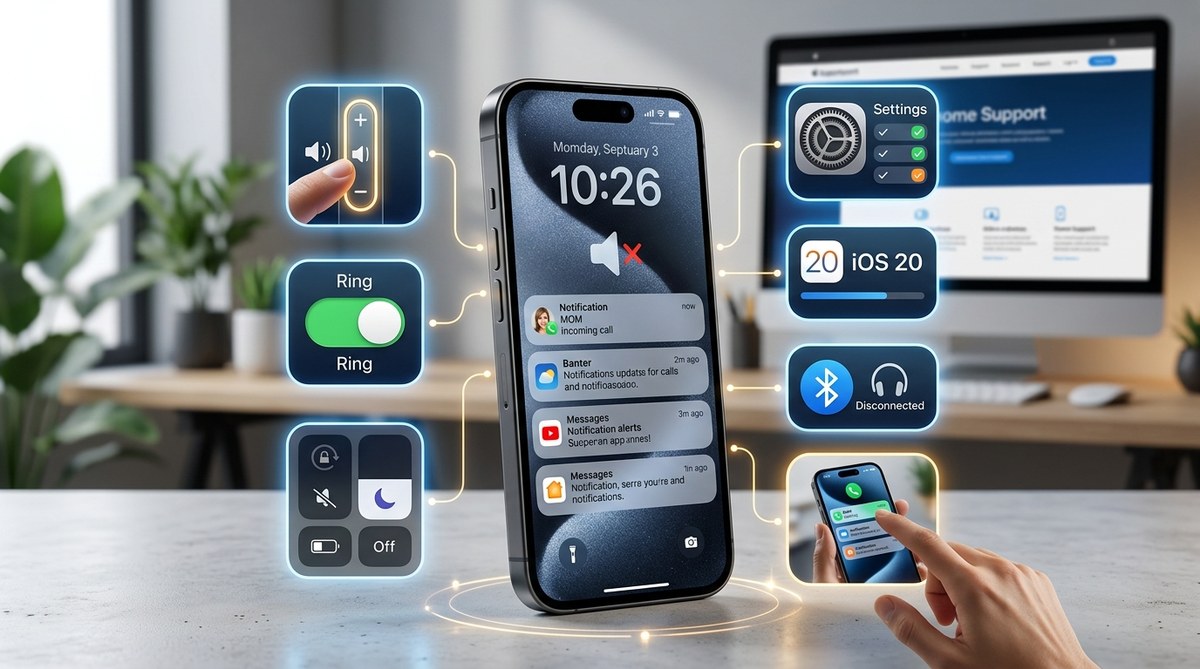
You pick up your iPhone to check why you missed a call from your mom, only to see a voicemail notification. No ring, no vibration, nothing. It is frustrating when your iPhone is not ringing for calls, especially when you are waiting for an important update from your kid’s school or a call back from a job interview. The good news is that this problem is almost always caused by a setting you can change in under a minute. Let us walk through the most common reasons and get your ringer back on track.
An iPhone that stops ringing for calls or texts is usually stuck in a silent software mode. The most common culprits are Do Not Disturb, Focus mode, Silent switch, or a Bluetooth device routing your audio. Each fix is simple to check in Settings or the Control Center. Restarting your phone or updating iOS resolves the rest. You do not need a repair shop for this.
Check the Silent Switch and Volume First
Before you dig into menus, look at the physical side of your phone. On most iPhone models, there is a small toggle switch above the volume buttons on the left edge. This is the Silent switch, also called the mute toggle. If it shows an orange dot, your phone is in silent mode. Flip it back to green, and your ringer should return immediately.
While you are there, press the volume up button a few times. It sounds simple, but you might have accidentally lowered the ringer volume to zero. Open Settings, go to Sounds, and check the slider for Ringer or Alert Volume. Make sure it is at least halfway up.
Turn Off Do Not Disturb and Focus Modes
Do Not Disturb is the number one reason an iPhone is not ringing for calls. It silences all incoming alerts, including phone calls and text message tones. iOS 19 and earlier versions all have this feature, and it is easy to turn on by accident.
- Open the Settings app on your iPhone.
- Tap Focus (or Do Not Disturb depending on your iOS version).
- Look for the Do Not Disturb toggle. If it is on, tap it to turn it off.
- Check the Focus section too. Modes like Sleep, Driving, or Work can silence your ringer. Tap any active Focus mode and select Turn Off.
You can also check from the Control Center. Swipe down from the top right corner of your screen to open the Control Center. Look for the moon icon (Do Not Disturb) or a Focus icon. If either is highlighted, tap it to disable it.
If you use a Focus mode regularly, you can customize it to allow calls from certain contacts. Go to Settings > Focus > choose a mode > under People, add your favorite contacts. That way, you stay on task without missing calls from your family.
Disconnect Bluetooth Devices That Steal Your Audio
Your iPhone might be ringing, just not through its own speaker. If you have connected your phone to wireless earbuds, a car stereo, or a Bluetooth speaker recently, the audio path may still be set to that device. When a call comes in, the ring goes to the Bluetooth gadget instead of the phone speaker.
- Open Settings > Bluetooth.
- Look at the list of paired devices. If any are connected, tap the info icon next to them and select Disconnect or Forget This Device.
- Make a test call to yourself from another line. If your phone rings now, Bluetooth was the problem.
If you use Bluetooth headphones often, check your media audio settings. Go to Settings > Sounds > Media Audio. Make sure it is set to your iPhone speaker and not a connected device.
Restart Your iPhone to Clear Temporary Glitches
Sometimes the software that handles incoming alerts just freezes. A restart clears the temporary memory and reloads the sound system. This fix works for many issues, including an iPhone not ringing for calls.
- Press and hold the Side button and the Volume down button at the same time for about three seconds.
- A menu will appear. Select Restart.
- Wait for your phone to reboot fully. Then test the ringer.
If you cannot use the button combo, go to Settings > General > Shut Down, then turn your phone back on with the power button.
Update iOS to Patch Sound Bugs
Apple releases updates regularly that fix audio bugs. If your iPhone is not ringing for calls, a software glitch in an older version of iOS could be the cause. Checking for an update is simple.
- Connect to Wi-Fi and open Settings.
- Scroll to System > Software Update.
- Tap Check for Updates. If an update is available, tap Download and Install.
After the update completes, your phone will restart. Test the ringer by asking a friend to call you. If you want to avoid this issue in the future, turn on automatic updates in the same menu.
Reset All Settings Without Losing Your Data
If none of the above steps work, a settings reset can clear out any conflicting configurations. This does not delete your photos, contacts, or apps. It only resets your preferences like ringtones, wallpapers, and accessibility options.
| Fix Method | What It Does | Data Lost? |
|---|---|---|
| Silent switch toggle | Flips mute hardware off | No |
| Do Not Disturb off | Disables call silencing | No |
| Bluetooth disconnect | Removes audio routing | No |
| Restart | Clears temporary glitches | No |
| iOS update | Patches software bugs | No |
| Reset all settings | Restores factory defaults for settings | No personal data lost |
To reset your settings:
- Go to Settings > System > Reset.
- Tap Reset All Settings.
- Enter your passcode if prompted.
- Confirm the reset. Your phone will restart.
After the reset, you will need to redo things like your Wi-Fi passwords and wallpaper. But your ringer should work again. For a deeper guide on this process without losing data, check out our article on how to reset iPhone settings without data loss.
Check for Third-Party Call Blocking Apps
Some spam-blocking apps or custom dialer apps can interfere with the native ringing system. If you have installed a call management app recently, try disabling it temporarily.
- Open the app and look for a setting called “Silence Unknown Callers” or “Block All Calls.”
- Turn off call blocking or white-list your contacts.
- If the problem stops, you found the conflict. You can either adjust the app settings or remove the app entirely.
If your phone is still giving you trouble with other audio issues, like a muffled speaker or low volume, visit our guide to fix low volume and distorted sound in 2026.
When All Else Fails, Check the SIM and Carrier Settings
In rare cases, the issue is not on your phone but with your cellular service. A damaged SIM card or a carrier setting can prevent your phone from receiving call signals properly.
- Go to Settings > Cellular > SIM Card.
- If you see an option for “SIM Status,” check that it says “Ready.”
- Remove the SIM tray, clean the SIM card gently with a soft cloth, and reinsert it.
- Contact your carrier and ask them to reset your voicemail or call forwarding settings. Sometimes a carrier-side glitch stops the ring signal from reaching your phone.
Your Ringer Should Be Back to Normal
Missing calls because your iPhone is not ringing for calls is one of those annoyances that feels bigger than it should. But as you have seen, the fix is usually a simple toggle or a restart. Start with the Silent switch and Do Not Disturb, then work your way through the list. In most cases, you will have your ringer back within two minutes. If you still run into trouble, the settings reset almost always works.
Test your phone after each step by calling yourself from a friend’s phone or using a free online service. That way you will know exactly when the problem is solved. Once your ringer is working again, you can get back to what matters: never missing another call from the people who count on you.