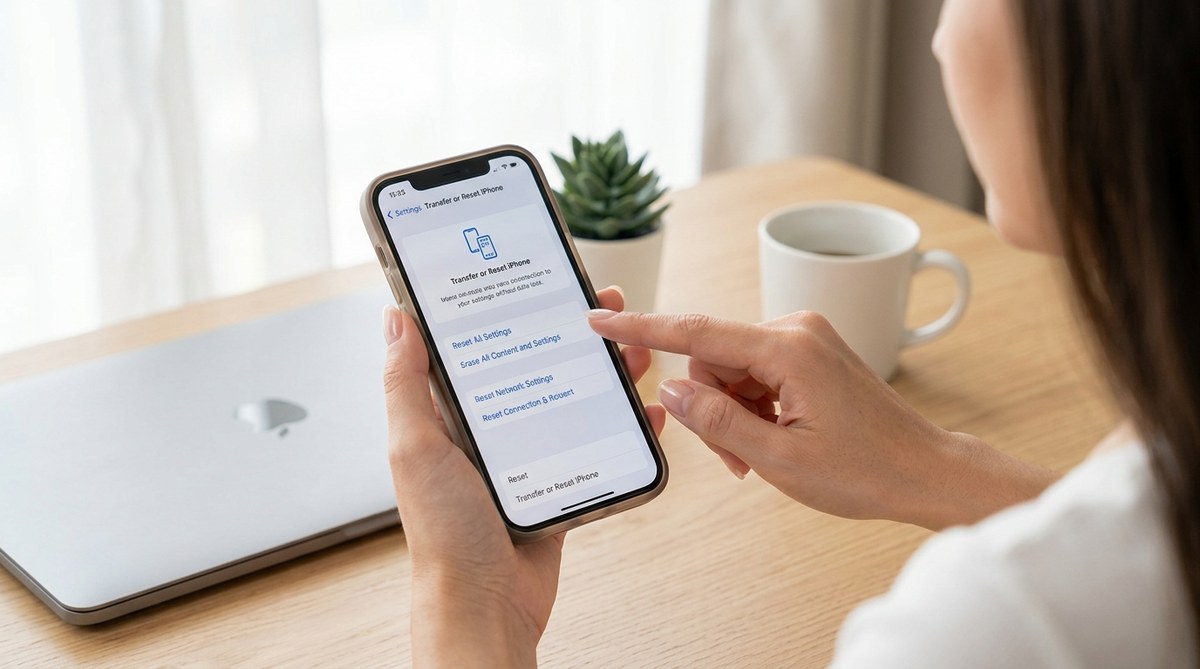
Resetting your iPhone can resolve numerous issues, from slow performance to strange glitches. But what if you want to refresh your device’s settings without risking the loss of your personal data or apps? Fortunately, there are ways to reset specific settings on your iPhone without erasing everything. This guide walks you through how to do just that, keeping your data safe while giving your device a fresh start.
You can reset your iPhone settings without data loss by using built-in options on your device. This process resets preferences and configurations but keeps your photos, apps, and personal data intact. Follow straightforward steps, and avoid unnecessary data erasure, making troubleshooting safer and simpler.
Understanding what resetting settings means on an iPhone
Resetting settings on an iPhone restores various preferences and configurations to their default states. Unlike a factory reset, which wipes everything from your device, resetting settings targets system preferences such as Wi-Fi passwords, display settings, notifications, and privacy options. It’s a handy way to troubleshoot issues caused by incorrect configurations or conflicting settings.
This type of reset does not delete your photos, messages, apps, or other personal data. It’s a safe method to resolve many common problems without the hassle of backing up and restoring data. Knowing how to reset your settings properly can save you time and prevent data loss during troubleshooting.
How to reset iPhone settings without data loss step-by-step
Here are the essential steps to reset only your iPhone’s settings. Follow these to refresh your device’s preferences without erasing your personal data.
1. Open your device settings
Start by unlocking your iPhone and tapping on the Settings app. This is where all configuration options are stored. Make sure your device is connected to a stable Wi-Fi network if needed for subsequent steps.
2. Navigate to General
Scroll down and select the “General” option. It contains various settings related to your device’s operations and preferences.
3. Choose Reset
Scroll to the bottom of the General menu and tap on “Reset.” This section offers multiple reset options tailored for different troubleshooting needs.
4. Select Reset All Settings
Tap on “Reset All Settings.” You might be prompted to enter your passcode or Apple ID password. Confirm your choice when prompted.
5. Confirm the reset
Once confirmed, your iPhone will begin resetting the settings. This process usually takes a few seconds to a minute. Your device might restart automatically during this process.
After it finishes, all your preferences and system settings will revert to default. Your personal data remains untouched, making this an ideal method for troubleshooting without data loss.
Additional tips for resetting iPhone settings safely
- Always ensure your device is charged or connected to power before performing resets.
- If you suspect specific app issues, consider resetting individual app settings or reinstalling the app.
- For more complex problems, a full restore might be necessary, but always back up your data beforehand.
Common mistakes to avoid when resetting settings
| Mistake | Explanation | How to avoid |
|---|---|---|
| Resetting all content instead of settings | This erases everything, including your data | Double-check the option before confirming |
| Forgetting to back up | Data loss occurs if you choose a full reset | Always back up your device before any major reset |
| Resetting settings during critical updates | Interrupts updates and can cause issues | Perform resets after completing updates or during troubleshooting |
Expert tip: If you encounter persistent problems after resetting your settings, consider restoring your iPhone via iTunes or Finder. It’s a more comprehensive approach, but ensure you have a recent backup to prevent data loss.
When and why to reset iPhone settings without data loss
Resetting your settings can fix issues like Wi-Fi connectivity problems, display glitches, or notification errors. It’s a smart first step before resorting to more drastic measures like factory resets. Because it keeps your data safe, it’s suitable for everyday troubleshooting.
If your device is behaving strangely or certain features aren’t working properly, try resetting the settings. This can often resolve conflicts caused by incorrect configurations or software glitches.
Alternatives to resetting settings
| Technique | Purpose | Pros | Cons |
|---|---|---|---|
| Restart your iPhone | Basic troubleshooting | Quick and simple | Doesn’t fix deep issues |
| Reset network settings | Fix Wi-Fi or Bluetooth problems | Targets network issues | Deletes saved Wi-Fi passwords |
| Factory reset | Complete wipe of device | Resolves severe problems | Data loss unless backed up |
Remember, resetting individual settings is less disruptive and safer than a full factory reset. Always try the least invasive option first.
How to restore your settings after a reset
Most settings will revert to their defaults after a reset, but you can customize them again to your liking. For example, reconnect to Wi-Fi networks, re-enable notifications, and adjust display preferences. If you keep a backup, restoring your customized settings becomes easier after a full reset.
Final thoughts on resetting iPhone settings safely
Knowing how to reset specific settings on your iPhone without losing data empowers you to troubleshoot effectively. It’s a handy tool that can resolve many common issues while keeping your personal information safe. Remember to back up your device regularly, especially before major resets, to prevent any unexpected data loss.
By following the simple steps outlined here, you can keep your iPhone running smoothly without unnecessary stress. Whether you’re fixing connectivity problems or just refreshing your device, resetting settings is a straightforward move that makes a real difference.
Keep your iPhone performing at its best
Regular maintenance like resetting settings when needed can extend your iPhone’s lifespan and improve overall performance. Don’t hesitate to use this method whenever you face minor issues. It’s a friendly, effective way to keep your device in top shape and enjoy seamless operation every day.