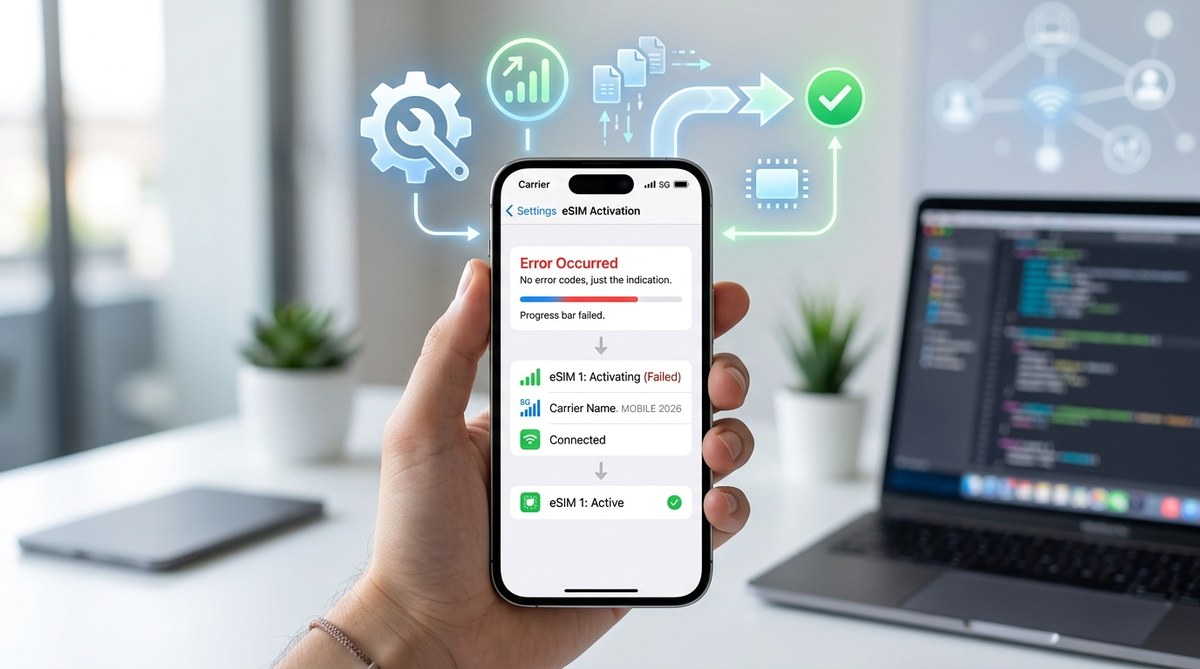
You scan the QR code, watch the progress bar fill up, and then… nothing. An error message appears. Your iPhone eSIM activation failed, and you are left staring at a screen with no service. It is frustrating, especially when you need your phone working right now. You are not alone, and this is almost always fixable without a trip to the store. Let us walk through the exact steps to get your eSIM up and running in 2026.
Most iPhone eSIM activation errors are caused by a weak Wi-Fi connection, an expired QR code, or a minor settings glitch. Before you call your carrier, try these steps: restart your iPhone, re-scan the QR code with good lighting, and check that your phone is on the latest iOS update. In most cases, this solves the problem in under five minutes.
Why eSIM Activation Gets Stuck
An eSIM is a digital SIM built into your phone. There is no physical card to insert. Your carrier sends a profile to your iPhone over the internet, and your phone installs it. When that process fails, it is usually because of one of these issues:
- Weak or unstable Wi-Fi: The download needs a steady connection.
- Expired or blurry QR code: Many carriers give you a time limit to scan.
- Outdated iOS: Older software can conflict with new eSIM profiles.
- Carrier server hiccup: Sometimes the network on their end is down.
Let us fix each one.
Step 1: Check Your Internet Connection
Your iPhone needs a solid Wi-Fi or cellular data connection to download the eSIM profile. If you are on Wi-Fi, make sure the signal is strong.
- Open Settings > Wi-Fi and check the signal bars.
- If the signal is weak, move closer to your router.
- Try turning off Wi-Fi and using cellular data instead, or vice versa.
If your connection drops mid-download, the activation will fail. Restart your router if needed, then try again.
Step 2: Restart Your iPhone
This sounds too simple, but it works more often than you think. A restart clears temporary glitches in the network hardware.
- Press and hold the Power button with the side button (or go to Settings > General > Shut Down).
- Wait 30 seconds, then turn it back on.
- Try the eSIM activation again.
If you are still stuck, move to the next step.
Step 3: Scan the QR Code Again
QR codes from carriers often expire after 15 to 30 minutes. If you waited too long, the code is dead. Also, poor lighting or a cracked screen protector can make the scan fail.
- Open your carrier’s email or app and get a fresh QR code.
- Clean your iPhone camera lens.
- Hold the phone steady about six inches from the code.
- If the code keeps failing, ask your carrier to generate a new one.
Expert advice: Some carriers send a manual activation code as a backup. Look for a string of numbers and letters in the email. You can enter that in Settings > Cellular > Add eSIM instead of scanning.
Step 4: Update iOS to the Latest Version
Apple releases updates that fix eSIM bugs. If you are on an older version, the activation might fail silently.
- Go to Settings > Software Update.
- If an update is available, download and install it.
- After the update, restart your phone and try the activation again.
For more on keeping your phone running smoothly, see our guide on how to speed up a slow iPhone after an iOS update.
Step 5: Remove and Reinstall the eSIM Profile
Sometimes a partial profile gets stuck. You need to delete it and start fresh.
- Go to Settings > Cellular.
- Tap the eSIM profile that failed.
- Select Remove eSIM.
- Confirm the removal.
- Scan the QR code from your carrier again.
This is the most reliable fix for persistent errors.
Common Error Messages and What They Mean
| Error Message | Likely Cause | What to Do |
|---|---|---|
| “Activation failed” | Weak connection or expired QR | Restart, get a new QR code |
| “No SIM” or “Invalid SIM” | Profile not installed correctly | Remove and reinstall the eSIM |
| “eSIM not supported” | Outdated iOS or incompatible carrier | Update iOS, contact carrier |
| “Profile download error” | Server issue on carrier side | Wait 30 minutes and try again |
| “QR code invalid” | Code expired or damaged | Request a new code from carrier |
When to Contact Your Carrier
If you have tried all the steps above and still see an error, it is time to call your carrier. Before you do, have this info ready:
- Your iPhone model and iOS version.
- The exact error message you see.
- The date and time you tried to activate.
Most carriers can push a fresh profile to your phone remotely. They may also need to check that your plan supports eSIM. Some older prepaid plans do not.
What to Do If Nothing Works
In rare cases, the issue is with your iPhone itself. If you have tried everything and the eSIM still will not activate, try these final steps:
- Reset network settings: Go to Settings > General > Reset > Reset Network Settings. This clears all Wi-Fi passwords and Bluetooth pairings, so use it as a last resort. For a full guide, check out how to reset iPhone settings without data loss.
- Try a different carrier eSIM: If you have a friend with a working eSIM from another carrier, test it on your phone. If it works, the problem is with your original carrier.
- Visit an Apple Store: Apple Support can run a hardware diagnostic. If your eSIM chip is faulty, they can replace the phone.
Keep Your Connection Stable After Activation
Once you get the eSIM working, you want to avoid future headaches. Here are a few tips:
- Keep your iPhone updated to the latest iOS.
- Avoid switching carriers too often, as each change requires a new profile.
- If you travel internationally, download the local eSIM before you leave home.
For more ways to keep your phone running at its best, read our top tips to improve iPhone performance and speed up your device.
You Can Fix This Yourself
An eSIM activation error feels like a brick wall, but it is usually a small hiccup. Start with a restart and a fresh QR code. If that does not work, update your software and remove the old profile. Nine times out of ten, you will be back online in minutes. If you do need to call your carrier, you now have the knowledge to explain the problem clearly. You have got this.