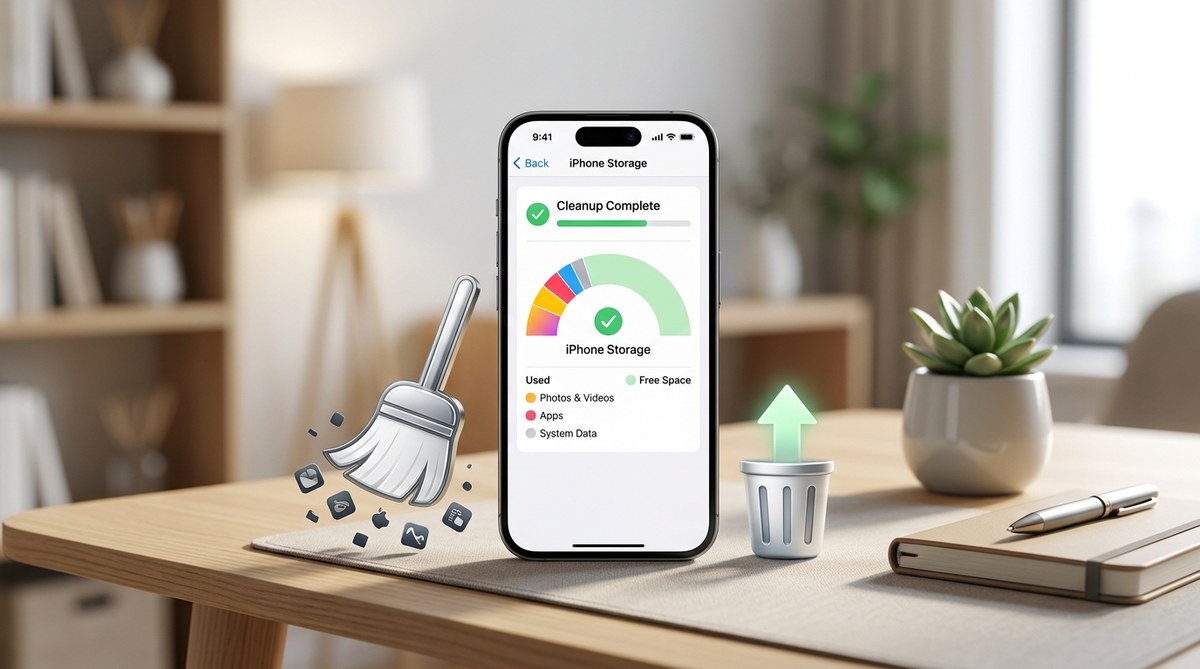
Cleaning out your iPhone storage can feel like a daunting task. Over time, apps, photos, and system data pile up, slowing down your device and eating into your precious space. But a few straightforward cleanup tips can make a big difference. Whether you’re running out of storage or just want your iPhone to perform better, these strategies are your best friends for reclaiming space and boosting speed.
Clearing iPhone storage involves deleting unnecessary media, managing apps, and optimizing system data. Regular cleanup keeps your device fast and ensures you have space for what matters most.
Why cleaning your iPhone storage is a must
Overloading your iPhone with unnecessary files can cause it to slow down or even crash. When storage gets full, iOS struggles to run smoothly, leading to lagging apps and decreased battery life. Regularly tidying up your device not only frees space but also helps maintain optimal performance. Plus, it makes it easier to find your favorite photos, apps, and files without digging through clutter.
Main culprits behind storage clutter
Many users don’t realize how much space is taken up by certain types of data. Here’s what typically hogs storage:
- Photos and videos
- Apps and their cache
- Messages and attachments
- System data and cached files
- Unused or rarely used apps
Knowing what consumes space is the first step in effective cleanup.
How to clean up your iPhone storage step by step
Follow these practical steps to free up space and make your device run faster:
1. Delete unneeded media and apps
Start by removing files and apps you no longer use.
- Delete photos and videos: Open the Photos app and select media you no longer need. Tap the trash icon, then confirm deletion. Remember, deleted photos stay in the “Recently Deleted” album for 30 days unless emptied.
- Remove unused apps: Go to Settings > General > iPhone Storage. Review the list and delete apps that no longer serve you by tapping on them and selecting “Delete App.” Offloading apps is also an option if you want to save app data but free space.
2. Manage message attachments and old conversations
Messages can pile up with photos, videos, and other media.
- Delete large conversations or clear attachments from Settings > Messages.
- For significant storage savings, consider setting messages to delete after 30 days or a year under Settings > Messages > Keep Messages.
3. Clear browser caches and Safari history
Browsers store data to load pages faster but this can build up.
- For Safari, go to Settings > Safari and tap “Clear History and Website Data.”
- For Chrome or other browsers, navigate their settings to clear cached data manually.
4. Offload or delete system and app cache
While iOS manages most cache well, some apps like social media or streaming services retain large cache files.
- To clear app cache, uninstall and reinstall apps, which resets cached data.
- For Safari and other system caches, restarting your iPhone often helps refresh system data.
5. Transfer media to other devices or cloud storage
Moving photos, videos, or documents to a computer or cloud service is a good way to free space.
- Use iCloud Photos or third-party services like Google Photos.
- Transfer media via AirDrop or connect your iPhone to a computer with a cable.
6. Disable unnecessary system services and background updates
Background activity can consume storage and battery.
- Turn off background app refresh under Settings > General > Background App Refresh.
- Disable unnecessary location services and system features under Settings > Privacy.
7. Check for iOS updates and perform a clean install if needed
Updating your iPhone to the latest iOS version can optimize storage management.
- Go to Settings > General > Software Update.
- If space issues persist, consider backing up your data and performing a factory reset, then restoring your data cleanly.
Techniques and mistakes to avoid
| Technique | What to Do | Common Mistake |
|---|---|---|
| Deleting media | Regularly remove unnecessary photos and videos | Deleting important files accidentally |
| Offloading apps | Use “Offload Unused Apps” feature | Offloading apps you still need, then forgetting to reinstall |
| Clearing caches | Clear browser history and app caches | Clearing essential system files or caches that your iPhone manages automatically |
| Using third-party tools | Use trusted apps for cleaning | Overusing aggressive cleaning apps that may delete critical data |
“Regular maintenance is key. Set aside a few minutes every month to tidy up your iPhone’s storage. It keeps your device running smoothly and prevents unexpected slowdowns,” advises Apple support experts.
Additional tips for optimal iPhone performance
- Enable iCloud Photo Library to store high-resolution images in the cloud and keep smaller versions on your device.
- Review and delete large attachments in Messages regularly.
- Turn off auto-downloads for music, podcasts, and app updates unless necessary.
- Use the “Optimize iPhone Storage” option in Photos settings to save space without losing access to your media.
How to keep your iPhone speedy and clutter-free
Keeping your iPhone in tip-top shape is easier with consistent habits. Regularly reviewing your storage, deleting old content, and updating iOS ensures your device remains responsive. Don’t forget to back up before performing major cleanup actions like factory resets or bulk deletions. Staying proactive prevents storage issues before they become performance problems.
Your path to a faster, more spacious iPhone
Cleaning your iPhone’s storage doesn’t have to be overwhelming. With these straightforward tips, you can reclaim space, speed up your device, and enjoy a smoother experience. Remember, a little regular maintenance can go a long way in keeping your iPhone happy and performing at its best. Start today and enjoy the benefits of a clutter-free device that works just like new.
Happy cleaning! Your iPhone will thank you for it.