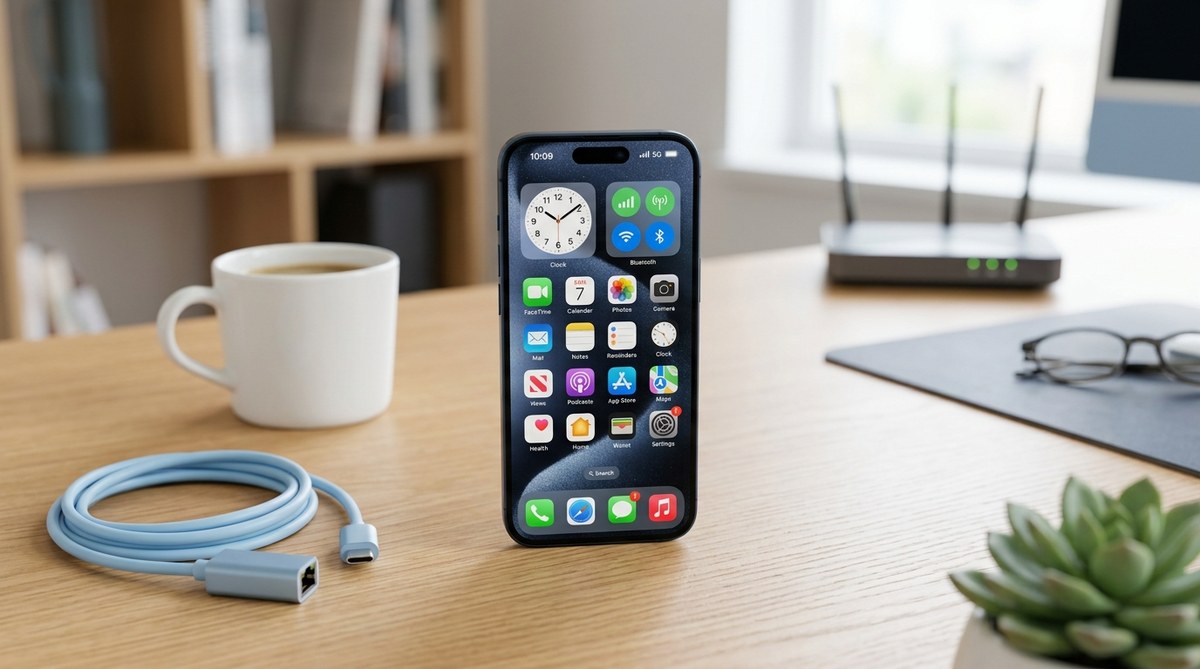
Having trouble connecting your iPhone to Wi-Fi, cellular data, or Bluetooth devices? You’re not alone. Many iPhone users face connectivity hiccups that disrupt daily life. Whether it’s slow internet, dropped calls, or Bluetooth not pairing, these issues can be frustrating. The good news is that most connectivity problems have straightforward solutions. This guide walks you through practical steps to diagnose and fix common iPhone connectivity issues, so you can stay connected without hassle.
Most iPhone connectivity issues stem from simple causes like network settings or outdated software. Resetting network settings, updating iOS, and checking your hardware often resolve these problems quickly and effectively, restoring your device’s ability to connect seamlessly.
Understanding Why Your iPhone Won’t Connect
Before jumping into fixes, it’s useful to understand what might cause connectivity issues. Common culprits include outdated software, incorrect network settings, hardware problems, or interference from other devices. Sometimes, a simple restart can clear temporary glitches. Other times, more involved steps like resetting network settings or updating iOS are needed. Recognizing these causes helps target the most effective solution.
How To Fix iPhone Connectivity Issues
Here are some reliable steps to troubleshoot and resolve your iPhone’s connectivity problems:
1. Restart Your iPhone
Turning your device off and on again often clears temporary bugs that interfere with network connections. To do this:
- Press and hold the side button and either volume button.
- Slide to power off.
- Wait a few seconds, then turn it back on.
This simple step can resolve many minor glitches.
2. Toggle Airplane Mode
Turning airplane mode on and off resets your iPhone’s wireless radios. Here’s how:
- Open Control Center by swiping down from the top right corner (iPhone X and later) or swiping up from the bottom (older models).
- Tap the airplane icon to enable airplane mode.
- Wait a few seconds, then tap it again to disable.
This refreshes your device’s network connections.
3. Check Your Network Settings
Incorrect Wi-Fi or cellular settings can block connections. To verify:
- For Wi-Fi: Go to Settings > Wi-Fi. Make sure Wi-Fi is enabled and connected to the correct network.
- For cellular: Navigate to Settings > Cellular. Ensure cellular data is turned on and your plan is active.
Sometimes, forgetting a Wi-Fi network and reconnecting helps, especially if the network has changed your password or configuration.
4. Reset Network Settings
If basic steps don’t work, resetting network settings often does the trick. This action clears saved Wi-Fi passwords, VPN configurations, and cellular settings. To perform this:
- Open Settings > General > Transfer or Reset iPhone.
- Tap Reset > Reset Network Settings.
- Enter your passcode if prompted, then confirm.
Your iPhone will restart, and you’ll need to reconnect to Wi-Fi networks afterward.
5. Update iOS Software
Outdated software can cause compatibility issues. Keep your iPhone current by:
- Going to Settings > General > Software Update.
- If an update is available, tap Download and Install.
Updating ensures you have the latest fixes and improvements for connectivity.
6. Reinsert Your SIM Card
Sometimes, a loose or damaged SIM card causes cellular issues. To check:
- Power off your iPhone.
- Remove the SIM card using a SIM ejector tool or paperclip.
- Inspect for damage or dust.
- Reinsert the SIM card carefully.
- Turn your device back on.
If problems persist, your carrier may need to replace your SIM card.
7. Troubleshoot Bluetooth and Other Connections
Bluetooth issues are common, especially with accessories. To fix:
- Open Settings > Bluetooth.
- Turn Bluetooth off, wait a few seconds, then turn it back on.
- Make sure your device is in range and discoverable.
Similarly, for other connections like AirPlay or VPNs, disable or reconfigure settings as needed.
Common Mistakes That Block Connectivity
| Mistake | Effect | Solution |
|---|---|---|
| Forgetting to toggle airplane mode | Won’t refresh network connections | Use Control Center to toggle airplane mode |
| Ignoring software updates | Missed bug fixes | Regularly check for updates in Settings |
| Not restarting after network changes | Temporary glitches persist | Restart your iPhone after changes |
| Using an old or damaged SIM | Cellular issues | Replace SIM through your carrier |
| Interference from other devices | Wi-Fi or Bluetooth disruption | Move away from potential sources |
Expert tip: Always ensure your iPhone is running the latest iOS version. Apple releases updates that fix bugs and improve connectivity stability. Regular updates help prevent many common issues.
When You Need Extra Help
If none of these steps restore your connection, it might be time for professional assistance. Contact your carrier to check for network outages or account issues. Visiting an Apple Store or authorized service provider can help identify hardware problems, like faulty antennas or damaged components.
How To Keep Your iPhone Connecting Smoothly
Maintaining good connectivity involves a few ongoing habits:
- Keep your software up to date.
- Avoid placing your device near sources of interference.
- Regularly restart your iPhone to clear temporary glitches.
- Manage your network settings carefully.
- Use trusted Wi-Fi networks whenever possible.
By following these practices, you reduce the chances of encountering connectivity issues in the future.
Troubleshooting Your iPhone’s Connection Troubles
Dealing with persistent connectivity issues can feel overwhelming. But most problems are simple to fix when you know where to look. The key is methodically checking your settings, updating your device, and ruling out hardware problems. Remember, sometimes a combination of these steps is necessary to restore full functionality.
Your Path to Stable Connectivity
Getting your iPhone back online doesn’t have to be complicated. By following these practical steps, you can resolve most connectivity hiccups and enjoy smooth browsing, calling, and streaming again. Keep your device updated, stay aware of your network conditions, and don’t hesitate to seek professional help if needed. Staying connected is vital, and now you’re equipped to keep your iPhone functioning at its best.
Would you like to learn more about specific issues or advanced troubleshooting? Visit Apple support for detailed guides and assistance. Remember, a little maintenance goes a long way toward ensuring your iPhone stays connected whenever you need it.