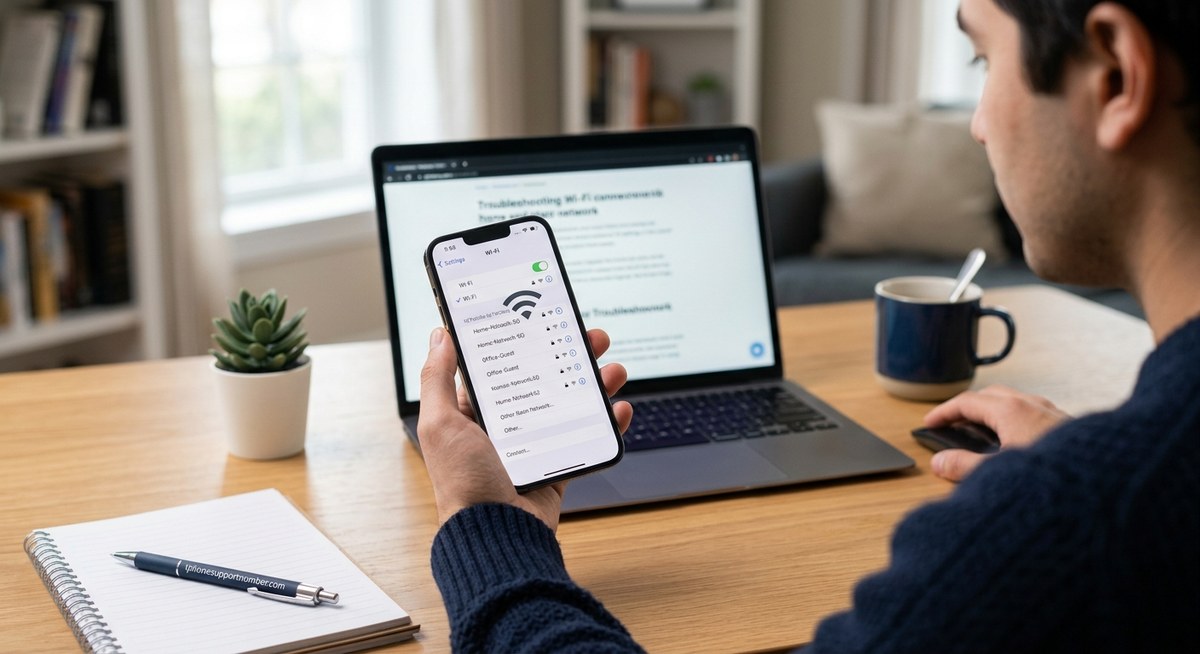
Having trouble connecting your iPhone to Wi-Fi? You’re not alone. Many users face frustrating issues where their device refuses to stay connected or won’t connect at all. These problems can disrupt your daily tasks, from browsing the web to streaming videos. Luckily, most Wi-Fi connectivity issues are fixable with some straightforward troubleshooting steps. This guide walks you through practical solutions to help you get back online smoothly.
iPhone Wi-Fi connection problems are common but often manageable. Restart your device, reset network settings, and check your router first. If issues persist, update your software or contact support for help. Following these steps can restore your Wi-Fi connection quickly and easily.
Common reasons behind iPhone Wi-Fi issues
Understanding why your iPhone struggles to connect can help you choose the right fix. Common causes include outdated software, network congestion, incorrect settings, or hardware problems. Sometimes, interference from other devices or issues with your Wi-Fi router can also cause connection failures.
Step-by-step troubleshooting for iPhone Wi-Fi problems
When your iPhone isn’t connecting properly, follow these practical steps to identify and resolve the problem:
1. Restart your iPhone and Wi-Fi router
A simple restart often clears temporary glitches.
- Turn off your iPhone by pressing and holding the side button and volume button until the slider appears. Slide to power off.
- Unplug your Wi-Fi router, wait about 30 seconds, then plug it back in.
- Turn your iPhone back on and attempt to reconnect to Wi-Fi.
2. Check your Wi-Fi network and password
Make sure you’re connecting to the correct network and using the right password.
- Navigate to Settings and tap Wi-Fi.
- Select your network and verify the password.
- If necessary, forget the network and reconnect by entering the password again.
3. Reset network settings
If issues persist, resetting network settings can clear corrupted configurations.
- Go to Settings > General > Reset.
- Tap Reset Network Settings.
- Confirm and wait for your iPhone to restart.
- Reconnect to your Wi-Fi network.
Expert tip: Resetting network settings deletes saved Wi-Fi passwords, VPN configurations, and cellular settings. Make sure you have your Wi-Fi passwords handy before proceeding.
4. Update your iPhone software
Outdated software can cause compatibility issues.
- Connect your iPhone to Wi-Fi.
- Head to Settings > General > Software Update.
- Download and install any available updates.
5. Disable VPN and security apps
VPNs and security software can interfere with Wi-Fi connectivity.
- Temporarily turn off any VPNs or security apps.
- Check if your iPhone can connect to Wi-Fi after disabling them.
- Re-enable these apps after testing.
6. Check for Wi-Fi interference
Other electronics or physical obstacles can disrupt Wi-Fi signals.
- Move closer to your router.
- Remove any objects blocking the signal.
- Switch to a less congested Wi-Fi channel if possible.
7. Verify your router’s settings
Sometimes, router configurations prevent devices from connecting.
- Restart your router.
- Log into your router’s admin panel.
- Ensure DHCP is enabled.
- Check if MAC address filtering is turned on and add your iPhone’s MAC address if needed.
8. Contact your internet service provider
If none of the above steps work, your ISP might be experiencing outages or issues.
- Call your provider for assistance.
- Ask if there are outages or account problems affecting your service.
Troubleshooting table: techniques and common mistakes
| Technique | Mistake to avoid |
|---|---|
| Restarting devices | Forgetting to restart both your iPhone and router |
| Resetting network settings | Losing saved Wi-Fi passwords without backup |
| Updating iOS | Skipping available updates, risking compatibility issues |
| Checking router settings | Making changes without understanding their impact |
“A common mistake is assuming the problem is with your iPhone when the router is at fault. Always verify your Wi-Fi network’s health first.”
Additional tips for a stable Wi-Fi connection
- Keep your iPhone’s software up to date to patch bugs.
- Use trusted Wi-Fi networks, especially when connecting in public places.
- Avoid overloading your Wi-Fi with too many devices.
- Regularly restart your router to maintain performance.
When to seek professional help
If your iPhone still can’t connect after trying all these steps, hardware might be at fault. Consider visiting an Apple Store or authorized repair center. They can diagnose any underlying hardware issues, such as antenna problems or damaged Wi-Fi chips.
Staying connected: your Wi-Fi troubleshooting toolkit
Having a plan for Wi-Fi issues saves frustration. Keep your device software updated, note down your Wi-Fi passwords, and know how to reset network settings. These simple actions can often solve the problem without needing technical support.
Keeping your iPhone online becomes easier with these steps
Wi-Fi connection problems can be frustrating, but most are fixable with patience and methodical troubleshooting. Start with the basics like restarting devices and checking settings. If needed, move on to more advanced steps such as resetting network configurations or updating software. Remember, maintaining your device and router regularly can prevent many issues from cropping up again.
By following these practical tips, you can reconnect your iPhone to Wi-Fi swiftly and confidently. Staying connected is essential, whether for work, entertainment, or staying in touch. Use this guide as your go-to whenever Wi-Fi issues arise, and you’ll find it easier to resolve problems on your own.