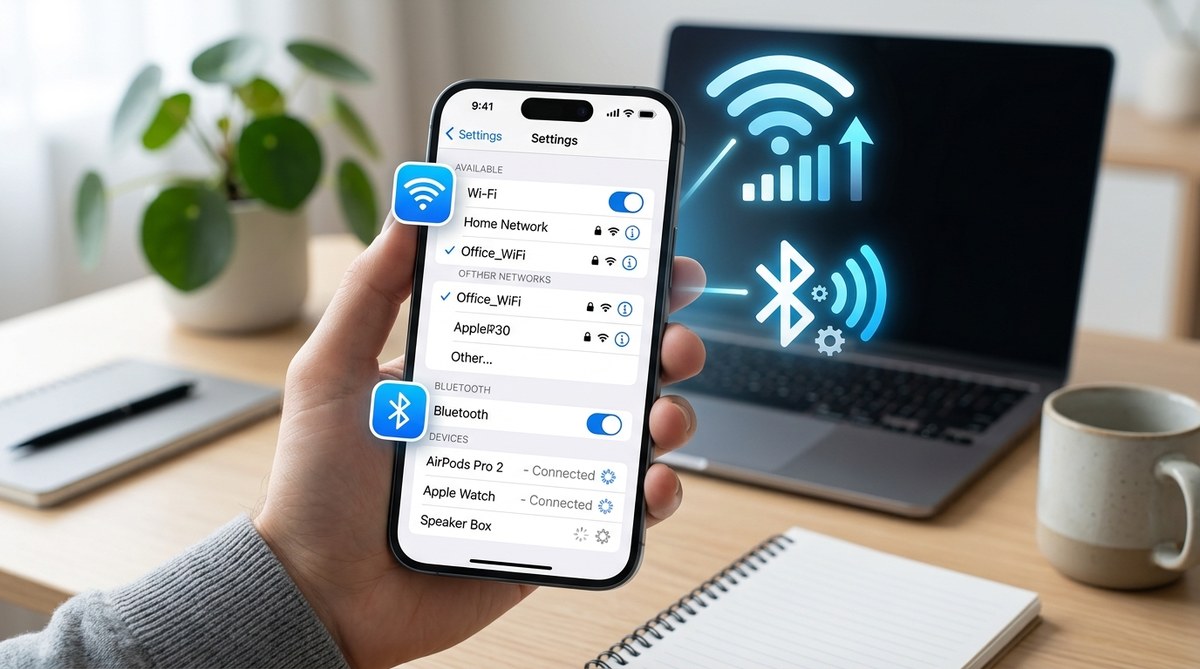
Having trouble keeping your iPhone connected to Wi-Fi or Bluetooth devices? You’re not alone. Many users face frustrating connectivity problems that disrupt daily tasks, from streaming videos to pairing accessories. Luckily, most issues can be fixed with straightforward troubleshooting steps. Whether your Wi-Fi keeps dropping or Bluetooth won’t connect, this guide walks you through proven techniques to get your iPhone back in sync with your network and devices.
Most iPhone Wi-Fi and Bluetooth issues stem from simple settings or temporary glitches. Resetting network settings, updating software, or toggling features often resolves the problem. Follow these steps to troubleshoot effectively and restore your device’s connectivity quickly.
Understanding the common causes of iPhone connectivity issues
Before diving into fixes, it helps to understand what might be causing your iPhone to lose Wi-Fi or Bluetooth connections. Sometimes, the culprit is an outdated software version. Other times, settings conflicts or network glitches interfere with proper functioning. Physical obstructions or interference from other electronic devices can also play a role. Recognizing these potential causes helps you choose the right troubleshooting approach.
Practical steps to fix iPhone Wi-Fi and Bluetooth connectivity problems
Follow these steps in order. They address the most common issues and often resolve connectivity problems without needing advanced support.
1. Turn Wi-Fi and Bluetooth off and on again
Switching these features off and back on can clear temporary glitches. To do this:
- Open Control Center by swiping down from the top right corner (or up from the bottom on older models).
- Tap the Wi-Fi icon to disable it. Wait a few seconds.
- Tap it again to re-enable.
- Repeat the process for Bluetooth.
This simple step refreshes your device’s connection to networks and devices, often fixing minor glitches.
2. Restart your iPhone
A full restart can clear out minor system bugs causing connection issues.
- Press and hold the side button and either volume button until the power off slider appears.
- Slide to power off.
- Wait a few seconds, then turn your iPhone back on by holding the side button.
Restarting resets background processes that might be interfering with Wi-Fi or Bluetooth.
3. Forget and reconnect to your Wi-Fi network
Sometimes, your saved network settings cause conflicts. To fix this:
- Go to Settings > Wi-Fi.
- Tap your Wi-Fi network name.
- Select “Forget This Network.”
- Confirm, then reconnect by selecting the network again and entering the password.
This clears corrupted network settings and establishes a fresh connection.
4. Reset network settings
If the above steps don’t work, resetting network settings can often do the trick. Note that this erases saved Wi-Fi passwords, VPN settings, and Bluetooth pairings.
- Open Settings > General > Transfer or Reset iPhone > Reset.
- Choose “Reset Network Settings.”
- Enter your passcode if prompted, then confirm.
After the reset, reconnect to Wi-Fi networks and re-pair Bluetooth devices.
5. Update your iPhone software
Apple often releases updates that fix bugs affecting connectivity. To check for updates:
- Open Settings > General > Software Update.
- If an update is available, tap Download and Install.
Keeping your device current ensures compatibility and fixes known issues.
6. Check your Wi-Fi router and Bluetooth devices
Sometimes the problem isn’t on your iPhone but with the network or device you’re trying to connect to.
- Restart your Wi-Fi router by unplugging it, waiting 30 seconds, then plugging it back in.
- Ensure your Bluetooth device is charged and within range.
- Remove any physical obstructions between your iPhone and the device.
- Confirm that your router isn’t blocking your iPhone’s MAC address.
7. Disable VPN and security software temporarily
VPNs or security apps can interfere with network connections. Temporarily disable them to see if they’re causing the problem.
- Go to Settings > VPN and turn it off.
- If you use security software, disable it according to the app’s instructions.
If connectivity improves, consider adjusting the settings or switching to a different VPN provider.
8. Restore your iPhone as a last resort
If all else fails, restoring your iPhone to factory settings might fix deep-seated issues.
- Back up your data via iCloud or iTunes.
- Open Settings > General > Transfer or Reset iPhone.
- Tap “Erase All Content and Settings.”
- Follow prompts to reset your device.
- Restore your backup afterward.
This method should be used only after trying other troubleshooting steps.
Troubleshooting common mistakes that can cause connectivity issues
| Mistake | How it affects connectivity | How to fix it |
|---|---|---|
| Not updating iOS | Outdated software can cause bugs | Check for updates regularly |
| Using weak Wi-Fi passwords | Connection drops or fails | Use strong, unique passwords |
| Ignoring router firmware updates | Can lead to incompatibility | Update router firmware from manufacturer’s site |
| Forgetting to reconnect after reset | Device may not automatically reconnect | Manually select Wi-Fi network and re-enter password |
| Blocking device MAC addresses | Prevents device from accessing network | Check router settings and unblock if needed |
Experts recommend keeping your device’s software updated and regularly restarting your router and iPhone to prevent recurring connectivity issues.
When to seek professional support
If you’ve tried all these solutions and your iPhone still struggles with Wi-Fi or Bluetooth connections, it might be time to consult Apple Support. Hardware issues like a faulty antenna or Bluetooth chip can cause persistent problems. Visiting an authorized service provider ensures a thorough diagnosis and safe repair.
Staying connected with confidence
Most iPhone Wi-Fi and Bluetooth issues are fixable with some patience and methodical troubleshooting. Start with simple steps like toggling features and restarting your device. If problems persist, resetting network settings or updating your software often does the trick. Remember to check your network hardware and avoid common mistakes. Staying proactive with regular updates and maintenance can prevent future issues.
Applying these tips gives you control over your device’s connectivity, helping you stay connected when it matters most. Keep your iPhone software current, maintain your network hardware, and don’t hesitate to seek help if needed. Your seamless connection experience is just a few steps away.