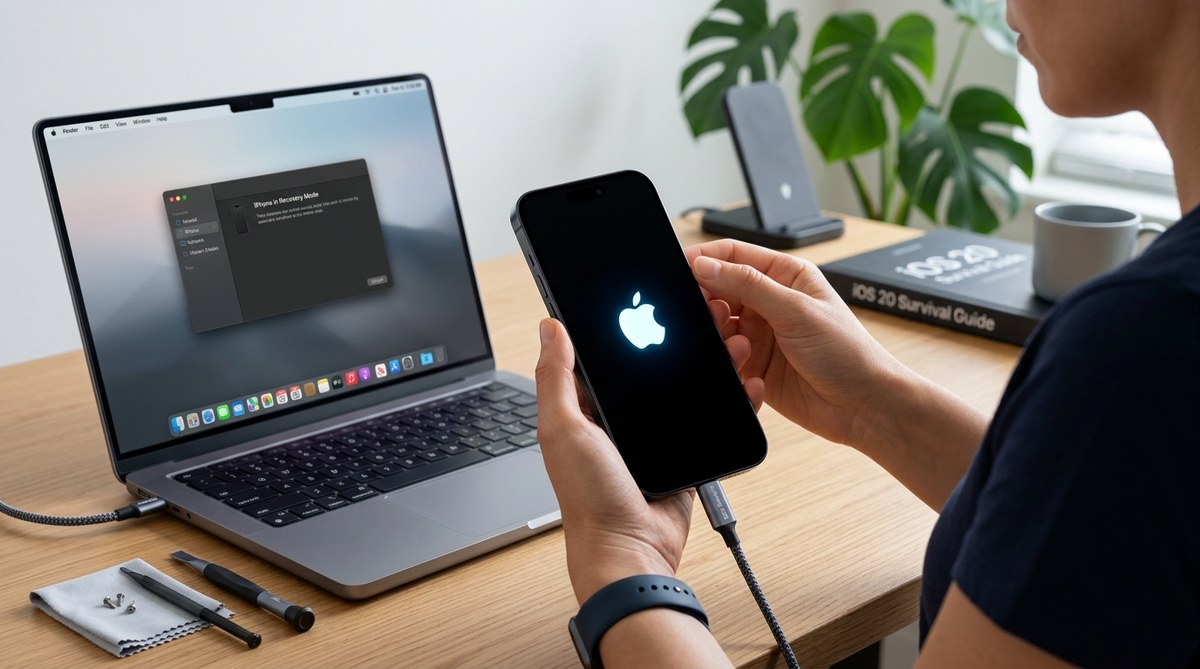
You pick up your iPhone to check a message, and instead of your home screen, you see the Apple logo staring back at you. Minutes pass. The logo stays. If this has happened to you, you are not alone. This is one of the most common iPhone headaches, and the good news is that it is often fixable at home without a trip to the repair shop. Let us walk through exactly what to do when your iPhone is stuck on the Apple logo.
A frozen Apple logo usually means your iPhone hit a software snag. Start with a force restart. If that does not work, use recovery mode to reinstall iOS without losing your data. DFU mode is the last resort before seeking professional help. Most stuck-on-logo issues can be resolved in under 30 minutes with the right steps and a USB cable.
Why Your iPhone Gets Stuck on the Apple Logo
The Apple logo appears when your iPhone is booting up. When it stays on screen for more than a few minutes, it means the startup process got interrupted or corrupted. Common causes include:
- A failed iOS update or restore
- Low storage space during an update
- A buggy app or jailbreak tweak
- Physical damage to the logic board (less common)
- A bad backup that conflicts with the system
Most of the time, the issue is software-related. That is great news because software fixes are something you can try yourself.
Step 1: Force Restart Your iPhone
This is the easiest fix, and it works for many people. A force restart is different from turning your phone off and on. It cuts power completely and forces the system to reload.
The button sequence depends on your iPhone model.
For iPhone 8, iPhone SE (2nd and 3rd generation), and iPhone X and newer
- Press and release the Volume Up button.
- Press and release the Volume Down button.
- Press and hold the Side button (the power button on the right).
- Keep holding until the screen goes black and you see the Apple logo again.
- Release the button.
For iPhone 7 and iPhone 7 Plus
- Press and hold both the Volume Down button and the Sleep/Wake button at the same time.
- Hold for about 10 seconds until the Apple logo appears.
- Release both buttons.
For iPhone 6s and earlier, plus iPhone SE (1st generation)
- Press and hold both the Home button and the Sleep/Wake button at the same time.
- Hold for about 10 seconds until you see the Apple logo.
- Release both buttons.
Expert tip: If the logo appears and then the screen goes black again, try the force restart a second time. Sometimes the first attempt does not catch the right timing. Be patient and hold the buttons a little longer than you think you need.
Step 2: Put Your iPhone into Recovery Mode
If the force restart did not work, recovery mode is your next best friend. This mode lets your computer communicate with your iPhone to reinstall iOS while keeping your data intact.
You will need a computer with the latest version of macOS or iTunes (on Windows). For macOS Catalina or later, use Finder.
How to enter recovery mode
- Connect your iPhone to your computer with a USB cable.
- Open Finder (macOS Catalina or later) or iTunes (Windows or older macOS).
- Press the button sequence for your iPhone model (same as the force restart steps above).
- But this time, do not release the buttons when you see the Apple logo. Keep holding until you see a screen with a computer icon and a USB cable.
- On your computer, a pop-up will appear saying your iPhone needs to be restored or updated.
What to choose
Select Update. This reinstalls iOS without erasing your personal data. The process downloads the latest iOS version and installs it over your current system. It takes about 15 to 30 minutes depending on your internet speed.
If Update fails or takes longer than an hour, you may need to choose Restore. Restore wipes your iPhone completely and installs a fresh copy of iOS. You will lose your data unless you have a recent backup.
| Option | Data Loss? | When to Use |
|---|---|---|
| Update | No | Try this first. It fixes corrupted system files. |
| Restore | Yes (unless you have a backup) | Use only if Update fails or your iPhone still will not boot. |
Step 3: Try DFU Mode (Device Firmware Update)
DFU mode is deeper than recovery mode. It bypasses the operating system entirely and lets your computer communicate directly with the iPhone’s firmware. This is the nuclear option for software issues.
Warning: DFU mode wipes everything on your iPhone. Only use this if recovery mode did not work.
Entering DFU mode on iPhone 8, iPhone SE (2nd and 3rd gen), and iPhone X and newer
- Connect your iPhone to your computer.
- Press and release the Volume Up button.
- Press and release the Volume Down button.
- Press and hold the Side button for 10 seconds.
- Keep holding the Side button, but also press and hold the Volume Down button for 5 seconds.
- After 5 seconds, release the Side button but keep holding the Volume Down button for another 10 seconds.
- If the screen stays black, you are in DFU mode. If you see the Apple logo or the recovery mode screen, you missed the timing. Try again.
Entering DFU mode on iPhone 7 and iPhone 7 Plus
- Connect your iPhone to your computer.
- Press and hold both the Sleep/Wake button and the Volume Down button for 8 seconds.
- After 8 seconds, release the Sleep/Wake button but keep holding the Volume Down button for another 10 seconds.
- If the screen stays black, you are in DFU mode.
Entering DFU mode on iPhone 6s and earlier
- Connect your iPhone to your computer.
- Press and hold both the Sleep/Wake button and the Home button for 8 seconds.
- After 8 seconds, release the Sleep/Wake button but keep holding the Home button for another 10 seconds.
- If the screen stays black, you are in DFU mode.
Once your iPhone is in DFU mode, your computer will say it detected a device in recovery mode. Choose Restore iPhone to reload the firmware from scratch.
Step 4: Check Your Hardware
If none of the software fixes worked, the problem might be hardware-related. Here are a few things to check:
- Battery: A dead or failing battery can prevent your iPhone from completing the startup process. Try charging your iPhone for at least 30 minutes before attempting any fix.
- Charging port: Lint or debris in the charging port can stop your iPhone from getting enough power. Use a toothpick or a small brush to clean it gently.
- Physical damage: If your iPhone was dropped or got wet, internal components might be damaged. This is harder to fix at home.
Expert tip: If your iPhone gets hot to the touch while stuck on the Apple logo, unplug it and let it cool down. Overheating can cause permanent damage to the battery and other components.
Common Mistakes to Avoid
When you are frustrated, it is easy to make things worse. Here are pitfalls to steer clear of.
- Holding the buttons for too short a time. Most force restarts fail because people let go too early. Count to ten slowly.
- Using a damaged or non-Apple cable. Third-party cables may not transfer data properly. Use the cable that came with your iPhone or an Apple-certified one.
- Trying to fix it while your iPhone is in a case. Some cases make it hard to press the buttons correctly. Remove the case first.
- Panicking and resetting everything before trying the easy steps. Start with the force restart. It is free and takes 30 seconds.
- Ignoring your backup status. If you do not have a recent backup, choose Update over Restore in recovery mode. You can always back up later.
When to Call for Professional Help
You have tried force restart, recovery mode, DFU mode, and checked the hardware. Your iPhone is still stuck on the Apple logo. At this point, it is time to get expert help. Visit an Apple Store or an authorized service provider. They have diagnostic tools that can pinpoint issues with the logic board, battery, or other internal parts.
If your iPhone is still under warranty or covered by AppleCare+, repairs may be free or discounted. If not, ask for a repair estimate before agreeing to any work.
How to Prevent This from Happening Again
Once your iPhone is back up and running, a few simple habits can reduce the chances of seeing that frozen logo again.
- Keep your iPhone updated with the latest iOS version.
- Maintain at least 5 GB of free storage space to give the system room to work.
- Avoid installing beta versions of iOS unless you are prepared for bugs.
- Back up your iPhone regularly to iCloud or your computer. If something goes wrong, you can restore without losing everything.
- Use a surge protector when charging during thunderstorms to avoid power spikes that can corrupt system files.
If you run into other performance issues after getting your iPhone working again, check out our guide on top tips to improve iPhone performance and speed up your device. And if you notice your battery draining faster than usual, our article on how to fix common iPhone battery drain issues quickly has you covered.
You Can Do This
Seeing your iPhone stuck on the Apple logo is frustrating, but it rarely means your phone is broken for good. Start with the force restart. Move to recovery mode if you need to. DFU mode is there if things get serious. And if all else fails, a professional can help.
Take a deep breath, grab your cable, and work through the steps one at a time. Chances are you will be back to scrolling your home screen in no time.