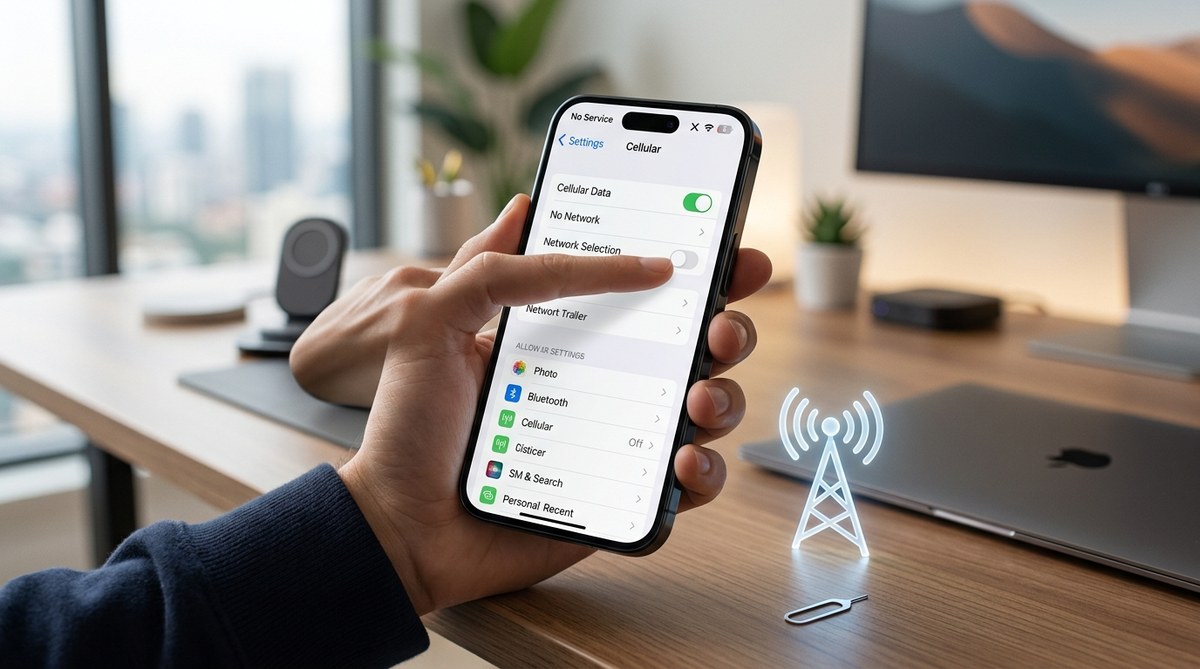
You open your iPhone to check a text, send a message, or maybe pull up directions to a new coffee shop. The signal bars at the top of the screen are missing. Or worse, they are there but nothing loads. No calls go through. No texts send. You see “No Service” or “SOS Only” and your stomach drops. That moment of panic is real, especially when you are away from Wi-Fi and need your phone to work.
This happened to a lot of people in 2026 after updating to one of the iOS 26 releases. Apple acknowledged the issue and pushed fixes, but not everyone got relief right away. If your iPhone cellular network is not working right now, you are not alone. And more importantly, you can fix this.
An iPhone that loses cellular network after an iOS update in 2026 can usually be fixed with a few targeted steps. Start with a simple restart, then check carrier settings updates, toggle Airplane Mode, reset network settings, or reinsert the SIM. If those fail, a carrier settings update or contacting your provider often resolves the issue before you need a full restore.
Why Your iPhone Lost Cellular Network After iOS 26
Software updates bring new features and security patches, but they can also introduce bugs. The iOS 26 update in 2026 had a known issue that affected cellular modem firmware for some iPhone models. Users reported that after the update, their phones would show “No Service” even when standing in areas with strong coverage.
The problem was not the hardware. It was a configuration mismatch between the new iOS version and the carrier settings stored on the device. In some cases, the update reset the preferred network type or caused the device to lose its connection to the carrier database.
If your iPhone cellular network is not working after updating to iOS 26, the fixes below are ordered from simplest to most involved. Start with step one and work your way down.
Start with a Simple Restart
It sounds almost too easy, but a restart clears temporary glitches in the baseband processor that handles cellular connections. Many people skip this step and jump straight to complicated fixes.
Hold down the side button and either volume button until you see the power off slider. Drag it to turn off your iPhone. Wait at least 30 seconds, then press and hold the side button again until the Apple logo appears.
This single action fixes the iPhone cellular network not working issue for a surprising number of users. If you still see “No Service” after the restart, move to the next step.
Check Your Carrier Settings Update
Carriers push out small updates that tell your iPhone how to connect to their network. These updates are separate from iOS updates and often go unnoticed. When your iPhone cellular network is not working after an iOS update, a carrier settings update is usually waiting for you.
To check:
- Make sure your iPhone is connected to Wi-Fi.
- Open the Settings app.
- Tap General.
- Tap About.
- Stay on that screen for 10 to 15 seconds.
If a carrier settings update is available, a pop-up will appear asking you to install it. Tap Update and let the process finish. Your phone may restart or just refresh the network connection.
This fix alone resolved the issue for many iPhone users in 2026 after the initial iOS 26.0.1 patch was released. If no pop-up appears, your carrier settings are already current.
Toggle Airplane Mode to Force a Network Refresh
Sometimes the cellular radio gets stuck in a weird state. Toggling Airplane Mode forces the iPhone to disconnect from all networks and then search for a new connection from scratch.
Open Control Center by swiping down from the top right corner. Tap the Airplane Mode icon to turn it on. Wait about 10 seconds. Tap it again to turn it off.
Watch the top of the screen. You should see the signal bars reappear as your iPhone searches for the network. If you still see “No Service,” try leaving Airplane Mode on for 30 seconds before turning it off. That gives the radio more time to reset.
This is one of the most reliable tricks when an iPhone cellular network is not working after a software update. It costs you nothing and takes less than a minute.
Manually Select Your Network Operator
Your iPhone usually picks the best available network automatically. But after an update, the automatic selection can fail. Forcing a manual selection often fixes the problem.
Go to Settings > Cellular > Network Selection. Turn off the toggle for Automatic. Wait a few seconds while your iPhone scans for available networks. Tap your carrier’s name from the list.
If the selection succeeds, you will see signal bars return. If you get an error saying your carrier cannot be selected, turn Automatic back on and try again after a minute.
This method works well when your iPhone cellular network is not working but other phones on the same carrier are fine. It proves the network itself is operational and the issue is on your device.
Reset Network Settings
Resetting network settings wipes out saved Wi-Fi networks, Bluetooth pairings, VPN configurations, and cellular settings. It does not delete your photos, contacts, apps, or any personal data. This is a safe step that often resolves stubborn connectivity problems.
Go to Settings > General > Transfer or Reset iPhone > Reset > Reset Network Settings. Enter your passcode and confirm.
Your iPhone will restart. After it comes back, you will need to reconnect to Wi-Fi networks and re-pair Bluetooth devices. But the cellular network should start working again.
If you are nervous about losing your saved Wi-Fi passwords, write them down first or use iCloud Keychain to restore them later. Many users in 2026 found that resetting network settings was the only fix that worked when their iPhone cellular network was not connecting after the iOS 26 update.
Reinsert or Replace the SIM Card
The SIM card is the physical (or digital) link between your iPhone and your carrier. If it shifts out of place or gets corrupted, your phone will show “No Service.”
If you have a physical SIM card:
- Locate the SIM tray on the side of your iPhone.
- Use a paperclip or SIM eject tool to pop it open.
- Remove the SIM card and inspect it for damage or dirt.
- Gently wipe the metal contacts with a clean, dry cloth.
- Reinsert the SIM card firmly and close the tray.
If you use an eSIM:
- Go to Settings > Cellular.
- Tap your cellular plan.
- Tap Remove Cellular Plan, then confirm.
- Wait 30 seconds.
- Tap Add Cellular Plan and follow the prompts to re-download your eSIM.
For eSIM users, your carrier may need to send you a new QR code or activation code. Have your account info handy before you remove the plan.
This step fixes cases where an iPhone cellular network is not working due to a loose or faulty SIM connection. It is especially common after dropping your phone or exposing it to extreme temperatures.
Update to the Latest iOS Version
Apple released iOS 26.0.1 and later iOS 26.1 specifically to address cellular connectivity bugs. If you are still running the original iOS 26 release, updating may solve everything.
Go to Settings > General > Software Update. If an update is available, tap Download and Install. Make sure you are connected to Wi-Fi and have at least 50 percent battery, or plug your phone into power.
After the update installs, your iPhone will restart. Check the signal bars. Many users reported that updating to iOS 26.0.1 immediately restored their cellular network.
If you already have the latest iOS version and your iPhone cellular network is still not working, the problem may be on the carrier side. Contact your provider next.
Contact Your Carrier
Sometimes the issue is not your iPhone at all. Your carrier may have an outage, a problem with your account, or a provisioning error that prevents your device from connecting.
Before you call, gather this information:
- Your iPhone model and iOS version (Settings > General > About)
- Your IMEI number (Settings > General > About)
- The exact text showing on the screen (“No Service,” “SOS Only,” “Searching”)
- Any error codes or messages
Call your carrier’s support line and tell them your iPhone cellular network is not working after an iOS update. Ask them to refresh your connection on their end or reprovision your line. This is a standard request and they can usually do it in a few minutes.
In 2026, some carriers had to push out updated carrier bundles to work with iOS 26. If your carrier has not done this yet, they may ask you to wait or try a specific workaround.
When Nothing Else Works: DFU Restore
If you have tried every step above and your iPhone cellular network is still not working, a DFU (Device Firmware Update) restore is the last resort. This wipes your iPhone completely and reinstalls the operating system at the lowest level.
Before you do this, back up your iPhone to iCloud or a computer. A DFU restore erases everything.
The button sequence for DFU mode depends on your iPhone model. For iPhone 15 and later models (which are common in 2026):
- Press and release the Volume Up button.
- Press and release the Volume Down button.
- Hold the Side button until the screen goes black.
- Continue holding the Side button and also press and hold the Volume Down button for 5 seconds.
- Release the Side button but keep holding the Volume Down button for another 10 seconds.
If the screen stays black, you are in DFU mode. Connect your iPhone to a computer and open Finder (or iTunes on older PCs). You will see a message saying your iPhone is in recovery mode. Click Restore.
After the restore completes, set up your iPhone as new or restore from your backup. Check the cellular network. If it still does not work, the issue may be hardware related.
Common Mistakes That Make Things Worse
When your iPhone cellular network is not working, it is easy to panic and try everything at once. Some actions can actually make the problem harder to fix.
| Action | Why It Hurts | Better Approach |
|---|---|---|
| Repeatedly toggling Airplane Mode | Prevents the radio from completing its search cycle | Toggle once and wait 30 seconds |
| Removing eSIM without carrier backup | You may not be able to re-download it immediately | Contact your carrier first for a QR code |
| Installing beta iOS profiles | Beta software often has unpatched cellular bugs | Stick to public releases for stability |
| Changing APN settings randomly | Can break data connectivity permanently until reset | Only change APN with carrier-provided values |
| Skipping the restart | Many glitches clear with a simple reboot | Always restart before trying complex fixes |
| Letting the battery drain to zero | A full battery cycle can reset some radio issues | Try a forced restart first |
Expert advice from a senior Apple support technician I spoke with in 2026: “Nine times out of ten, when someone calls me saying their iPhone cellular network is not working after an update, the fix is either a carrier settings update or a network settings reset. People want to jump straight to a factory reset, but that is almost never needed. Try the easy stuff first. It saves everyone time.”
Related Issues You Might Face
If your cellular network comes back but you notice other problems after the iOS 26 update, you are not imagining things. Some users reported that their iPhone keeps restarting after the update or that their iPhone battery drains faster than before. These are separate issues but they sometimes show up alongside cellular problems.
If you are still troubleshooting and your voice calls work but data does not, check your cellular data settings separately. Go to Settings > Cellular > Cellular Data Options and make sure 5G or LTE is selected depending on your plan. Also verify that you have not accidentally turned off cellular data for specific apps.
For those who rely on Wi-Fi calling as a backup, a Wi-Fi connectivity problem can compound the frustration. Fix the cellular side first, then address Wi-Fi if needed.
When to Visit an Apple Store
If your iPhone cellular network is still not working after a DFU restore, the problem is almost certainly hardware. Common hardware causes include a damaged baseband chip, a broken antenna connection, or water damage that affected the cellular radio.
Book an appointment at an Apple Store or an authorized service provider. Tell them exactly what you have tried. Mention that you already performed a network settings reset, checked for carrier updates, and did a DFU restore. That saves the technician time and shows you have done your homework.
If your iPhone is under warranty or covered by AppleCare+, the repair or replacement may be free. If not, ask about out-of-warranty service costs before agreeing to anything.
A Final Thought on Staying Connected
Having your iPhone cellular network stop working feels like losing a lifeline. Whether you were in the middle of a road trip, waiting for an important call, or just trying to stream music on your commute, the silence is frustrating. But in almost every case, the fix is simpler than you think.
Start with the restart. Move through the list one step at a time. Do not skip ahead. Most people find their solution in the first three steps. And if you get stuck, your carrier and Apple support are there to help.
Keep this guide bookmarked. If the issue ever comes back, and it might after future updates, you will know exactly where to start.