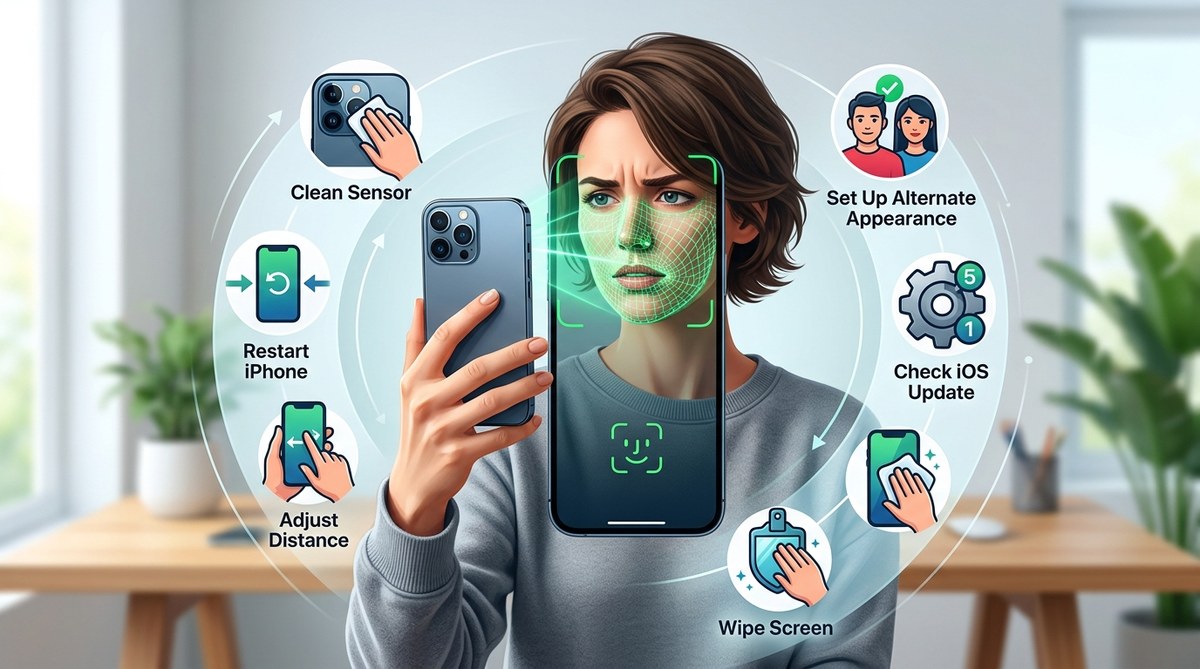
You are holding your iPhone up to your face. You expect it to unlock in a split second. Instead, you see a subtle shake and a prompt for your passcode. That little message, “Face ID is not available,” can feel like a door slamming shut on your morning routine. You are not alone. Since iOS 19 rolled out, many users have hit this exact wall. The good news? Most of the time, the fix is simpler than you think.
Face ID failures usually come down to one of three things: a dirty sensor, a software glitch, or a recent change in your appearance. Before you panic or book a repair, try clearing the TrueDepth camera lens, restarting your device, and re enrolling your face in Settings. If the problem persists after these steps, a simple settings reset or an iOS update can often restore full function without a trip to the Apple Store.
Why Face ID Stops Working
Face ID is a small but complex system. It uses the TrueDepth camera array at the top of your screen. It projects over 30,000 invisible dots onto your face and reads the pattern. When it stops working, the cause is rarely permanent hardware failure. More often, something is blocking the sensor or confusing the software.
Common triggers include a screen protector that covers the notch, a recent drop that shifted internal components, or a software update that reset a key setting. Let’s walk through the fixes that solve 95 percent of these cases.
Start with the Simple Checks
Before you dive into settings and menus, rule out the obvious issues. These take thirty seconds and cost nothing.
- Check the TrueDepth camera for dirt, smudges, or debris. A quick wipe with a soft, dry cloth often solves it.
- Remove any screen protector that covers the notch. Some aftermarket protectors block the sensor.
- Make sure nothing is in front of your face. Masks, scarves, sunglasses (with certain coatings), and even heavy makeup can confuse the system.
- Check for a case that overlaps the top of the phone. A bulky case can cast a shadow over the sensor.
If none of those fix it, move on to the software side.
1. Restart Your iPhone
This sounds too simple. It is also the most effective fix for temporary Face ID failures. A restart clears minor software hiccups that stop the sensor from initializing.
For iPhone models with Face ID (X and later):
1. Press and hold either volume button and the side button at the same time.
2. Drag the power slider to turn off.
3. Wait 30 seconds.
4. Press and hold the side button until the Apple logo appears.
Once your phone restarts, try unlocking with your face again. If it works, you are done. If not, keep reading.
2. Check Face ID Settings
Sometimes a settings toggle gets switched off during an update or after you hand your phone to a child. Go to Settings > Face ID & Passcode and confirm that the toggles for iPhone Unlock, iTunes & App Store, and any other features are turned on.
If you see a message that says “Face ID is not available,” tap on it. iOS will often tell you exactly why it stopped working.
Expert tip: If your iPhone detects a failed TrueDepth camera, it disables Face ID entirely to prevent lockouts. A restart usually resets this sensor check. If the sensor is physically damaged, you will see a persistent “Face ID is not available” message even after a restart.
3. Re Enroll Your Face
Your stored face data can get stale. Gaining or losing weight, growing a beard, or even changing your hairstyle can reduce the match rate. After several failed attempts, iOS may stop trying.
Go to Settings > Face ID & Passcode and tap Reset Face ID. Then tap Set up Face ID and go through the enrollment process again. Hold your phone at arm’s length and rotate your head slowly. Do this in a well lit room.
If you wear glasses daily, enroll with them on. iOS 19 added an option to set up an “alternate appearance” for users who switch between glasses and contacts. You can find that under the same menu.
4. Update to the Latest iOS
Apple releases software updates to fix Face ID bugs. If you are running an older version of iOS, a known glitch might be the culprit.
Open Settings > General > Software Update. If an update is available, download and install it. Make sure your phone has at least 50 percent battery and a Wi-Fi connection before starting.
If you have been putting off the update because you are worried about other issues, check out our guide on how to speed up a slow iPhone after an iOS update. It walks through the common post update slowdowns.
5. Reset All Settings
This is a stronger step. It does not erase your photos, apps, or data. It does reset your network preferences, wallpaper, privacy settings, and keyboard dictionary. For Face ID, it can clear a corrupted settings file that the routine toggles did not fix.
Go to Settings > General > Transfer or Reset iPhone > Reset > Reset All Settings. Your phone will restart. You will need to reconnect to Wi-Fi and re enable a few preferences, but your personal files remain untouched.
If you want to understand what else this affects, read our full walkthrough on how to reset iPhone settings without data loss. It covers the exact differences between each reset type.
6. Check for Physical Damage
Face ID failing after a drop is a different story. The TrueDepth camera is delicate. If you dropped your iPhone on concrete, tile, or even a wooden floor, the sensor may have shifted or the flex cable may have loosened.
Look at the top of your screen. Do you see cracks, black spots, or a misaligned notch? If yes, the hardware is likely damaged. In that case, no software fix will work. You will need a repair.
If you do not see visible damage but Face ID still fails after a drop, try a different angle. Hold the phone farther away. Clean the sensor again. Sometimes a drop dislodges a tiny piece of dust that blocks one of the dot projectors.
7. Restore Your iPhone via Finder or iTunes
This is the nuclear option. A full restore wipes the phone and reinstalls a clean copy of iOS. It fixes any corrupted system file that might be interfering with Face ID.
Back up your iPhone first via iCloud or a computer. Then connect your phone to a Mac or PC. Open Finder (on macOS Catalina and later) or iTunes (on Windows or older macOS). Select your device and click Restore iPhone.
The process will download the latest iOS version and install it. After the restore completes, set up your phone as new or restore from your backup. Then set up Face ID again.
If you run into trouble during the restore, check our article on can’t restore your iPhone from iCloud backup? here’s what to do. It covers common restore errors and how to bypass them.
Common Mistakes That Keep Face ID Broken
| Mistake | Why It Hurts | Better Approach |
|---|---|---|
| Wiping the sensor with a rough cloth | Scratches the lens coating | Use a microfiber cloth only |
| Ignoring the passcode prompt | System thinks you are not the owner | Enter passcode immediately when asked |
| Setting up Face ID in dim light | Sensor cannot map your face properly | Use a well lit room |
| Using the same face data after major weight change | Match rate drops below threshold | Reset and re enroll your face |
| Skipping iOS updates | Known bugs stay active | Check for updates weekly |
When to Visit an Apple Store
If you have tried all seven fixes and Face ID still shows “Not Available,” the hardware is likely damaged. Book a Genius Bar appointment. The technician will run a diagnostic on the TrueDepth camera.
Repairs for Face ID are not cheap. Apple does not repair the sensor separately on most models. They replace the entire phone in some cases. Before you go, make sure your phone is not still under AppleCare+. If it is, the repair may be free.
If you are looking for other ways to keep your iPhone running well, you might also be interested in our guide on top tips to improve iPhone performance and speed up your device. It covers battery health, storage cleanup, and background app management.
A Few Extra Things to Try
These are not guaranteed to fix Face ID, but they have worked for some users in edge cases.
- Toggle Face ID off and on. Go to Settings > Face ID & Passcode, turn off iPhone Unlock, wait a few seconds, then turn it back on.
- Check for third party screen repairs. If your screen was replaced by a shop that did not calibrate the TrueDepth camera, Face ID may stop working. Only Apple authorized service providers can recalibrate the sensor.
- Clean the entire front of the phone. Use a slightly damp (not wet) microfiber cloth. Water damage is rare with Face ID, but moisture in the notch can cause temporary failure.
Why Your iPhone Keeps Asking for the Passcode
Sometimes Face ID works, but your phone still asks for your passcode several times a day. This happens when the sensor is not confident enough in the match. iOS forces a passcode entry every 48 hours, after a restart, or after five failed match attempts.
If this sounds familiar, re enrolling your face usually helps. Also, make sure you are not accidentally covering the sensor with your finger while holding the phone. The TrueDepth camera needs a clear view.
Getting Face ID Back to Normal
Face ID is one of those features you do not appreciate until it is gone. The inconvenience of typing a passcode dozens of times a day adds up fast. But in most cases, the fix is within reach. You do not need to be a technician. You do not need special tools. You just need to follow a logical order: clean, restart, re enroll, then reset.
Try these steps one at a time. After each one, test Face ID before moving to the next. You will likely solve the problem before you reach the restore step.
And if you want to keep your phone running smoothly beyond Face ID, take a look at our complete resource for optimizing your iPhone apps for better speed and responsiveness. Small tweaks in how you manage apps can make a real difference in daily use.
Your face is your key. Let us get it working again.