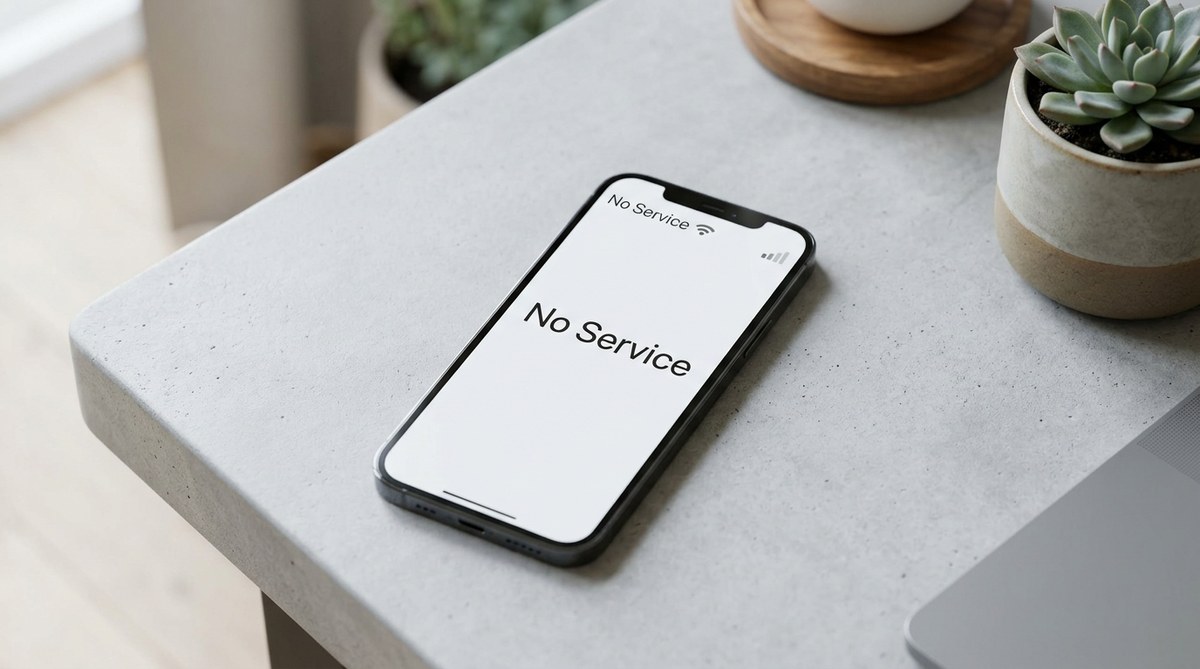
A “No Service” error on your iPhone usually means the device lost connection to your carrier’s network. Most cases are fixed in under five minutes by toggling Airplane Mode, updating carrier settings, or re-seating the SIM card. If those steps fail, a network settings reset or manual carrier selection often resolves the issue. Hardware problems are rare but possible. This guide covers every fix, from the simplest to the most advanced, so you can get back online today.
You are in the middle of an important call, or maybe you are just trying to stream a podcast on your commute. Then it happens. Your iPhone screen shows “No Service” at the top. The signal bars vanish. Your phone becomes a tiny, expensive brick. It is frustrating, and it always seems to happen at the worst time.
If your iPhone keeps showing No Service, you are not alone. This problem affects every model from the iPhone SE to the iPhone 16 Pro Max. The good news is that you can usually fix it yourself without a trip to the Apple Store. Let us walk through the most effective solutions for 2026.
Start with the Simple Toggle
Before you change any settings, try the oldest trick in the book. It works more often than you would think.
- Open Control Center. On iPhones with Face ID, swipe down from the top-right corner. On iPhones with a Home button, swipe up from the bottom.
- Tap the Airplane Mode icon. The icon should turn orange.
- Wait for about 15 seconds. You will see the “No Service” message disappear while the radios are off.
- Tap the Airplane Mode icon again to turn it off.
Your iPhone will scan for the cellular network again. In many cases, the signal bars return immediately. This fix forces your phone to re-register with the tower. It is the fastest way to get a quick iPhone no service fix.
Restart Your iPhone
A restart clears minor software glitches that can interfere with the cellular modem. This step is simple but effective.
- For iPhone X and later: Press and hold the Side button and either Volume button until the power-off slider appears. Drag the slider, wait 30 seconds, then press and hold the Side button until the Apple logo shows.
- For iPhone SE (2nd and 3rd gen) and iPhone 8 or earlier: Press and hold the Side (or Top) button until the slider appears. Slide to power off, then hold the Side button again to turn it back on.
After the restart, check the status bar. If the problem was a temporary network handoff issue, you should see your carrier name again.
Check Your SIM Card
A loose or dirty SIM card is a common cause of the “No Service” error. The SIM card is the small plastic chip that connects your phone to your carrier’s network.
Follow these steps:
- Locate the SIM tray. On most U.S. models, it is on the right side of the phone. On some older models, it is on the top.
- Use a SIM eject tool or a paperclip to push into the small hole. The tray will pop out.
- Remove the SIM card and inspect it. Look for scratches, dirt, or damage.
- Gently wipe the metal contacts with a dry, soft cloth.
- Place the SIM card back into the tray. Make sure it sits flat and fits snugly.
- Insert the tray fully into the iPhone.
If the SIM card is damaged or your phone does not recognize it, contact your carrier for a replacement. This is especially important for users on prepaid plans or MVNOs like Mint Mobile or Visible.
Update Your Carrier Settings
Carriers send small updates to improve network performance. Sometimes your phone misses these updates if you ignore a prompt.
- Make sure your iPhone is connected to Wi-Fi.
- Go to Settings > General > About.
- If a carrier settings update is available, a pop-up will appear. Tap Update.
You can also check for an update by looking at the Carrier line in the About section. If you see an outdated version number, a restart might trigger the update. This fix is often overlooked, but it resolves many connectivity issues.
Manually Select Your Network
Your iPhone usually chooses the best network automatically. Sometimes it gets confused and picks the wrong one or fails to connect at all. You can force it to try again.
- Open Settings > Cellular > Network Selection.
- Turn off Automatic.
- Wait for the list of available networks to load. This can take up to 30 seconds.
- Tap your carrier’s name (for example, AT&T, T-Mobile, or Verizon).
- If it connects, turn Automatic back on after a few minutes.
If you see “No Service” even after selecting your carrier, the issue may be with the tower in your area. Try moving to a different location or going outside.
Reset Network Settings
This is a stronger fix. It erases all saved Wi-Fi passwords, Bluetooth pairings, and VPN configurations. It does not delete your photos, apps, or personal data.
- Go to Settings > General > Transfer or Reset iPhone > Reset.
- Tap Reset Network Settings.
- Enter your passcode and confirm.
Your iPhone will restart. You will need to reconnect to Wi-Fi networks afterward. For many users, this is the definitive iPhone no service fix when other steps fail.
Check for iOS Updates
Apple releases iOS updates that include bug fixes for the cellular modem. If you are running an older version of iOS 19, a known bug could be causing the “No Service” error.
- Go to Settings > General > Software Update.
- If an update is available, tap Download and Install.
- Make sure your battery is above 50% or plug your phone into power.
Keeping your iPhone updated is one of the best ways to avoid problems with your cellular connection. For more tips on keeping your device running smoothly, read our guide on top tips to improve iPhone performance and speed up your device.
When to Contact Your Carrier
Sometimes the problem is not with your phone. It is with your account or the network itself.
Call your carrier if:
– You see “SOS Only” in the status bar. This means your phone can only make emergency calls.
– You recently switched plans or ported a number.
– Your bill is past due.
– There is an outage in your area.
Carriers can refresh your network registration from their end. This process is called a “provisioning reset.” It often fixes the issue in seconds.
Hardware Problems: The Last Resort
If you have tried everything and your iPhone still shows “No Service,” the hardware may be at fault. This is rare, but it happens.
| Symptom | Likely Cause | What to Do |
|---|---|---|
| “No Service” after a drop | Damaged cellular antenna or logic board | Visit an Apple Store or authorized repair shop |
| SIM not detected after cleaning | Faulty SIM reader | Schedule a repair |
| Intermittent signal loss | Loose internal connection or water damage | Check liquid contact indicators; seek professional help |
| “Invalid SIM” or “No SIM” | Corrupted SIM or incompatible carrier | Request a new SIM from your carrier |
Expert advice: If you have dropped your phone recently, the internal antenna cable may have come loose. A technician can reseat it in about 15 minutes. Do not try to open the phone yourself unless you have experience. You could void the warranty or cause more damage.
A Quick Reference Table for Common Mistakes
Many people try fixes that do not work or make things worse. Here is a table of what to avoid.
| Mistake | Why It Does Not Work | Better Approach |
|---|---|---|
| Tapping Airplane Mode on and off too fast | The phone does not have time to reset the radio | Wait 15 seconds before turning it off |
| Removing the SIM while the phone is on | Can cause a system error | Power off the iPhone first, then remove the SIM |
| Using a paperclip that is too thick | Can damage the SIM tray eject mechanism | Use a proper SIM tool or a thin paperclip |
| Ignoring carrier settings updates | Misses critical network patches | Check the About page monthly |
| Factory reset without backing up | Loses all data | Back up to iCloud or a computer first |
What to Do If Nothing Works
You have exhausted every option. Do not panic. You still have a few paths forward.
- Use Wi-Fi Calling. If you have a Wi-Fi connection, you can make and receive calls. Go to Settings > Cellular > Wi-Fi Calling and turn it on. This is a temporary workaround.
- Visit an Apple Store. Book a Genius Bar appointment. The technicians can run a diagnostic test on your cellular hardware.
- Check your warranty. If your iPhone is under AppleCare+, hardware repairs are covered. If not, the cost is usually around $99 for a repair.
- Consider a replacement. If you have an older model like the iPhone 12 or iPhone 11, the cost of repair may be close to the value of the phone. It might be time to upgrade.
While you are troubleshooting, you might also notice your battery draining faster than usual. A weak cellular signal forces the phone to work harder. Check out our guide on how to fix common iPhone battery drain issues quickly for more help.
Staying Connected in 2026
Cellular networks are more reliable than ever, but they are not perfect. The “No Service” error will probably happen to every iPhone user at some point. The key is knowing how to react.
Start with the easiest fix: toggle Airplane Mode. If that does not work, move through the list. Restart the phone. Check the SIM. Update carrier settings. Reset network settings. In most cases, one of these steps will bring your signal back.
If you have tried everything and the problem persists, it is likely a hardware issue. Do not keep resetting your phone over and over. That will only waste time. Contact your carrier or visit a repair shop.
Your iPhone is a powerful tool, but it relies on a steady connection to the outside world. When that connection breaks, it can feel isolating. Take a deep breath. Work through the steps. You will be back online before you know it.
For more help with common iPhone problems, read our guide on how to fix iPhone not connecting to cellular network in 2026.