Your iPhone suddenly goes black. The Apple logo appears. Then you are back at the lock screen. It happens again an hour later. You start to wonder if your phone is broken.
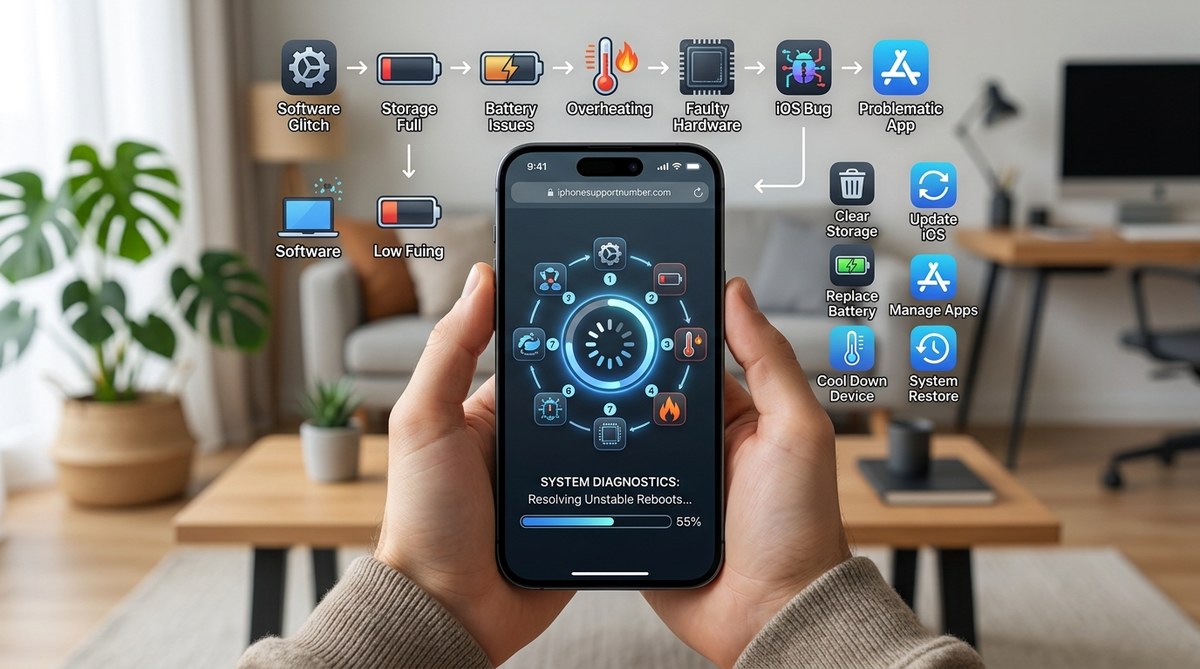
Random restarts are frustrating. They interrupt calls, kill your game progress, and make you nervous about data loss. The good news is that this problem is almost always fixable without a trip to the repair shop. Let us walk through the seven real reasons your iPhone keeps rebooting and the exact steps to stop each one.
Most iPhone random restarts are caused by a bad app, a corrupted system file, or an overheating battery. You can fix the majority of cases by updating your software, uninstalling problematic apps, or running a force restart. If the issue persists after trying all seven fixes, a hardware check or factory reset is the next logical step.
What Triggers an Unexpected Reboot on Your iPhone
Before you can fix the problem, you need to understand what is causing it. An iPhone restart usually falls into one of two camps: software trouble or hardware trouble. Software issues include buggy apps, corrupted system files, or a failed update. Hardware issues involve the battery, charging port, or internal components getting too hot.
Here is a quick reference table to help you match your symptoms with the likely cause.
| Symptom | Likely Cause | Difficulty to Fix |
|---|---|---|
| Restarts only when using one specific app | Corrupted app or cache | Easy |
| Restarts during video calls or gaming | Overheating or battery strain | Medium |
| Restarts after a recent iOS update | System file corruption | Medium |
| Restarts randomly with no pattern | Failing battery or hardware | Hard (may need repair) |
| Restarts when plugged into a charger | Faulty charger or charging port | Easy to medium |
| Restarts with a black screen and no warning | Kernel panic or system crash | Medium to hard |
Now let us go through each fix in order. Start with the easiest ones first.
1. Update Your iPhone to the Latest iOS Version
Apple releases software updates specifically to patch bugs that cause crashes. If you are running an older version of iOS, your phone might be hitting a known glitch that has already been fixed.
Go to Settings > System > Software Update and check for any pending updates. Download and install if one is available. Make sure your phone has at least 50 percent battery or is plugged in before you start the update process. A failed update can actually make the restart problem worse.
If you are stuck on an update loop, read our guide on how to fix an iPhone stuck on the Apple logo in 2026 for help getting unstuck.
2. Force Restart Your iPhone
Sometimes your iPhone just needs a hard reset to clear out a temporary glitch. A force restart is different from a normal restart because it cuts power completely.
Follow these steps exactly:
- Press and hold the Volume Down button and the Side/Power button at the same time.
- Hold both buttons for about 10 seconds.
- Release them when you see the Apple logo appear.
If your iPhone model does not have a physical Side button (like the iPhone 15 and newer), use this method instead:
- Press and hold the Volume Down button and the Power/Volume Up button together.
- Keep holding until the screen goes black and the Apple logo reappears.
This process clears the temporary memory and often stops random reboots immediately. If your phone still restarts after a force restart, move to the next step.
3. Uninstall Problematic Apps
A single bad app can crash your entire operating system. Look for apps you installed around the time the restarts started. Social media apps, games, and third-party keyboards are common culprits.
Open Settings > Apps > Manage Apps and sort by installation date. Remove any app that looks suspicious. Pay special attention to apps that have not been updated in over six months.
After uninstalling, restart your iPhone normally and use it for a few hours. If the restarts stop, you found the problem. If they continue, move on.
For more help with apps that freeze or crash, check out our ultimate guide to resolving iPhone app crashes and freezes.
4. Check for Overheating
Your iPhone has built-in thermal protection. When the internal temperature gets too high, the phone shuts down to prevent damage to the battery and processor. This feels exactly like a random restart.
Feel the back of your phone near the camera lens. If it is warm to the touch, overheating might be the cause.
Common overheating triggers include:
– Using your phone in direct sunlight for more than 15 minutes
– Playing graphics-heavy games while the phone is charging
– Using a thick case that traps heat
– Running multiple apps at the same time during a video call
Let your phone cool down on a flat surface for 20 minutes. Remove the case. Avoid using it while it is plugged into a charger. If overheating is the issue, the restarts will stop once the temperature drops.
If overheating continues to be a problem, read our guide on 7 simple steps to fix iPhone overheating issues in 2026.
5. Check Your Battery Health
A degraded battery can cause voltage drops that trigger an emergency shutdown. This is especially common on iPhones that are more than two years old.
To check your battery health on iPhone 15 and newer models, go to Settings > Battery > Battery Health. You will see a percentage that shows your battery capacity. Anything below 80 percent means your battery is wearing out.
On older iPhones, you can check battery health through the diagnostic menu. Dial *#*#4636#*#* in the phone app and look for the “Battery” section. If the number is low, consider replacing the battery at an Apple Store or authorized repair center.
A failing battery can also cause other issues like iPhone not charging or rapid battery drain. If your phone restarts most often when unplugged, the battery is a strong suspect.
6. Repair System Files Using Recovery Mode
If none of the above steps have worked, your iPhone might have corrupted system files. This often happens after a failed iOS update or a sudden power loss during an update.
Put your iPhone into recovery mode and reinstall the operating system. This process does not erase your personal data, but you should still back up your phone first.
- Connect your iPhone to a computer with a USB cable.
- Open Finder (on Mac) or Apple Device Manager (on Windows).
- Put your iPhone into recovery mode by holding the Volume Down button while connecting the cable.
- Select Update or Reinstall iOS from the recovery menu.
Your computer will download the latest iOS version and install it on your phone. This replaces the corrupted system files while keeping your photos, messages, and apps intact.
If you run into problems during this process, check our guide on can’t restore your iPhone from iCloud backup for troubleshooting help.
7. Perform a Factory Reset (Last Resort)
A factory reset wipes everything on your phone and returns it to the state it was in when you first unboxed it. This is the nuclear option, but it almost always stops random restarts caused by software corruption.
Before you do this, back up your photos, contacts, and files to iCloud or a computer. A factory reset will erase all local data.
To factory reset your iPhone:
- Go to Settings > System > Reset > Erase All Content and Settings.
- Enter your passcode when prompted.
- Confirm that you want to erase everything.
Your phone will restart and walk you through the initial setup process. After setup, restore your data from the backup you created. Do not restore apps from a backup that was made when the restarts were happening. Instead, download apps fresh from the App Store.
A factory reset is also a good time to manage storage space on your iPhone and remove apps you no longer use.
Common Mistakes That Make Random Restarts Worse
Some troubleshooting actions can actually increase the frequency of reboots. Avoid these common errors.
- Ignoring app updates. An outdated app can conflict with a newer iOS version. Keep all apps updated.
- Using uncertified chargers. Third-party chargers that do not meet Apple’s power standards can cause voltage fluctuations. Stick with Apple-branded or certified third-party chargers.
- Skipping backups. If your phone eventually needs a factory reset, you will lose everything without a current backup.
- Letting the battery drain to zero. Lithium-ion batteries perform best between 20 percent and 80 percent charge. Deep discharges stress the battery and can trigger shutdowns.
A note from an Apple repair specialist: “Nine times out of ten, a random restart is caused by a single app that went rogue. Before you do anything drastic, look at your recently installed apps and remove them one by one. You might solve the problem in five minutes without touching your system settings.”
What to Do If Nothing Works
You have tried all seven fixes and your iPhone still restarts randomly. At this point, the issue is likely hardware related. A loose internal connection, a swollen battery, or water damage can all cause unpredictable reboots.
Schedule a diagnostic appointment at your local Apple Store or an authorized repair center. They can run hardware tests that are not available to regular users. If your phone is still under warranty, this service is free. If it is out of warranty, the diagnostic fee is usually applied to any repair costs.
You can also try our iPhone won’t turn on guide for additional troubleshooting if your phone has stopped powering on entirely.
Putting Your iPhone Back on Stable Ground
Random restarts are annoying, but they are rarely a sign that your phone is dying. Start with the easiest fix: update your software and uninstall any recently added apps. If that does not work, move through the list in order. A force restart clears temporary glitches. A recovery mode reinstall fixes corrupted system files. A factory reset is the final software solution before hardware repair becomes necessary.
Take it one step at a time. Most people find the fix within the first three steps and never see another random restart again. Your iPhone is built to be reliable. With these tools, you can help it get back to that state.