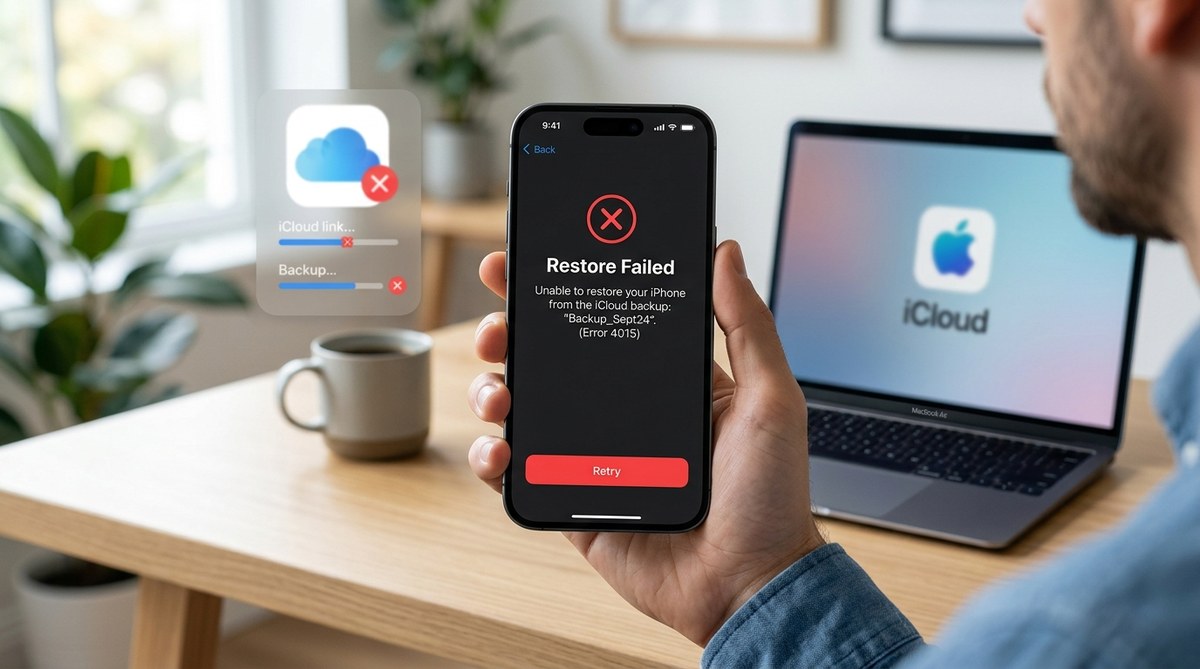
If you’re reading this, you’ve probably been staring at a progress bar that never moves. Or worse, you saw the dreaded message: “Cannot Restore Backup.” The “iPhone iCloud backup restore failed” error is one of the most frustrating things that can happen when setting up a new device or recovering an old one. But take a breath. This is almost always fixable, and you don’t need to be a tech wizard to do it. Every solution below is something you can try right now, at home, without any special tools.
A failed iCloud restore is usually caused by a bad Wi‑Fi connection, insufficient iCloud or device storage, outdated iOS, or an incorrect Apple ID password. In rare cases the backup itself is corrupt. The fixes range from simple network resets to using a computer. None of them require you to lose data permanently if you follow the steps carefully.
Why Restoring from iCloud Can Fail
iCloud backups work great most of the time. But when they fail, it’s typically for one of a handful of reasons. Understanding the cause helps you pick the right fix. Let’s break down the most common culprits.
| Cause | What It Looks Like | How Often It Happens |
|---|---|---|
| Unstable Wi‑Fi | The restore hangs at a certain percentage, then shows an error. | Very common |
| Insufficient iCloud storage | The backup exists but can’t be fully downloaded. | Common if you’re near 5 GB limit |
| Low device storage | The backup is larger than free space on your iPhone. | Common |
| Outdated iOS | The backup is from a newer iOS version than your current phone. | Less common |
| Incorrect Apple ID password | You get repeated password prompts or a “Cannot verify” message. | Common |
| Corrupted backup | The restore starts but stops with a generic failure message. | Rare but happens |
Step 1: Check Your Wi‑Fi Connection
The restore process downloads your backup from Apple’s servers. If your Wi‑Fi is weak or intermittent, the download will fail. Start with this easy check.
- Make sure you’re connected to a 5 GHz network if possible (it’s faster and less congested).
- Move closer to your router. Thick walls, metal objects, and even large appliances can block the signal.
- Restart your router: unplug it for 30 seconds, then plug it back in.
If other devices in your house lose connection often, you might need a mesh system. But for a quick test, try using a different Wi‑Fi network, like a friend’s or your phone’s personal hotspot (careful of data limits).
Expert Advice: If you’re restoring a brand new iPhone, skip the iCloud setup and use a computer instead. Connect your old iPhone to a Mac or PC, make an encrypted local backup, then restore that backup to your new device. It’s often faster and more reliable, especially if your Wi‑Fi is spotty.
Step 2: Free Up iCloud and Device Storage
Even if the backup appears in your list, you might not have enough space to download it. iCloud storage is shared across all your Apple devices. Check your iCloud storage first.
- On your iPhone, go to Settings > [your name] > iCloud > Manage Account Storage.
- Look at the bar at the top. If it’s mostly full, you need to make room.
- Delete old backups of devices you no longer use. Tap “Backups” and remove any that aren’t your current phone.
- You can also turn off iCloud backups for apps you don’t need, like old games or work apps.
After clearing space, try the restore again. The device itself also needs enough free storage. A backup can be 20 GB or more. Go to Settings > General > iPhone Storage and see what’s left. If you’re low, delete unused apps, photos you’ve already saved, or large video files. You can always re‑download apps later.
For a more thorough cleanup, see our guide on how to manage storage space on your iPhone in 2026.
Step 3: Update iOS (If You Can)
A restore might fail because the backup was made on a newer version of iOS than the one running on the device you’re restoring to. For example, if your backup was created on an iPhone running iOS 19.1 and your new phone is still on iOS 18, it won’t let you restore.
- If you can still access the phone’s home screen (you haven’t erased it yet), update to the latest iOS in Settings > General > Software Update.
- If you’ve already erased the phone, you’re stuck in the setup assistant. In that case, you can either use a computer to update the phone first (via Finder or iTunes) or skip the restore and set up as new, then update later.
If you’re having trouble with the update itself, check our post on can’t update to iOS 19? Here’s what to do.
Step 4: Verify Your Apple ID Password
It sounds obvious, but many people mistype their password under pressure. The restore process asks for it multiple times. If you get repeated prompts or a “Cannot restore backup” error that mentions password verification, try this:
- Sign in to iCloud.com on a computer with the same Apple ID. If you can log in there, the password is correct.
- If you can’t log in, reset your password using the “Forgot Apple ID or password” link.
- After resetting, wait at least 10 minutes (sometimes Apple’s servers sync slowly) and try the restore again.
Step 5: Reset Network Settings
If the Wi‑Fi seems fine but the restore still stalls, your iPhone’s network settings might be the problem. This clears saved Wi‑Fi passwords and VPN configurations, but it doesn’t erase your data.
- Go to Settings > General > Transfer or Reset iPhone > Reset > Reset Network Settings.
- Enter your passcode and confirm.
- The phone will restart. Reconnect to your Wi‑Fi network (you’ll need the password again).
- Attempt the restore once more.
This fix is especially effective if you’ve recently changed routers or moved to a new location. For other iPhone performance issues after a restore, our guide on top tips to improve iPhone performance and speed up your device can help.
Step 6: Restore Using a Computer (The Most Reliable Method)
When nothing else works, a computer‑based restore almost always succeeds. You’ll need a Mac (with Finder) or a PC (with iTunes installed). Here’s how:
- Connect your iPhone to the computer using a USB cable.
- Open Finder (macOS Catalina or later) or iTunes (Windows or older macOS).
- Trust the computer on your iPhone if prompted.
- Click the iPhone icon when it appears.
- Choose Restore Backup.
- Select the iCloud backup from the list. Wait for the process to finish. Keep the phone connected until it restarts.
This method downloads the backup through your computer’s internet connection, which is often more stable than your phone’s Wi‑Fi antenna. It also uses the local storage on your computer, bypassing the phone’s storage limits.
What If the Backup Seems Corrupted?
Rarely, the backup itself is damaged. This can happen if the backup process was interrupted (phone died during backup, for example). In that case, you have two options:
- Try going back to an older backup. In the “Choose a Backup” screen, tap “Show All Backups” and pick one from a few days or weeks earlier.
- If no older backup exists, you may need to set up the phone as new and manually restore your apps and data. After that, make a fresh backup right away so you don’t lose progress again.
Preventing Future Restore Failures
Once you’re back up and running, take a few minutes to set yourself up for success next time.
- Keep iOS updated. Always install the latest iOS version before making a backup. This avoids version mismatches.
- Maintain at least 2 GB of free iCloud storage. Turn off backups for apps you don’t care about, like large games.
- Make encrypted local backups on a computer occasionally. They’re faster to restore and include Health and password data.
- Test your backup periodically. Go to Settings > [your name] > iCloud > iCloud Backup and tap “Back Up Now.” If it fails, you’ll know there’s a problem before you need the restore.
When to Seek Additional Help
If you’ve tried everything and the “iPhone iCloud backup restore failed” message still appears, the issue might be something unique to your setup. Before you panic, remember that your data is still in the cloud. You can always set up the phone as new and use iCloud syncing for photos, contacts, and notes. For more stubborn troubleshooting, we also have guides on how to reset iPhone settings without data loss and troubleshooting guide for iPhone Wi-Fi connectivity problems. Apple Support can also walk you through personalized steps, but the solutions above cover 95% of cases.
Restoring with Confidence
A failed iCloud restore doesn’t mean lost data. It’s almost always a temporary roadblock with a clear fix. Start with the simplest steps: check your Wi‑Fi, free up storage, and update iOS. If that doesn’t work, reset network settings or turn to a computer. You’ve got this. Take it one step at a time, and soon enough your iPhone will be running like it never missed a beat.