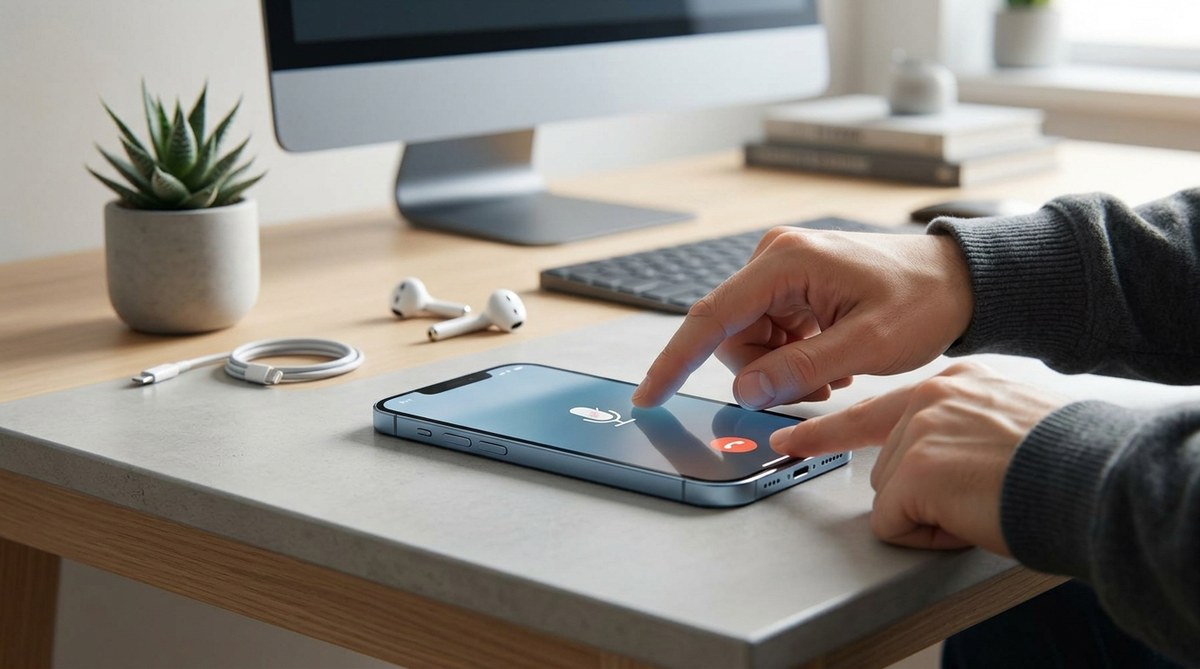
There you are, trying to have an important conversation, and the person on the other end keeps saying, “You’re breaking up,” “I can’t hear you,” or “Are you still there?” You hang up, call back, and the same thing happens. Your iPhone microphone works fine when you record a video or send a voice text, but the moment you dial a number, it goes silent. This is a maddening problem, and you are not alone. The good news? Most of the time you can resolve it yourself, without a trip to the Apple Store.
If your iPhone microphone stops working during phone calls but still works in apps like Camera or Voice Memos, the culprit is almost always a blocked microphone grille, a misbehaving Bluetooth device, or a software setting that got jumbled. This guide walks you through seven proven fixes you can try in under 15 minutes. We also cover when it’s time to call in professional help. No app to download, no data to lose.
Why your iPhone microphone might fail during calls but work everywhere else
Your iPhone has multiple microphones. The one at the bottom near the charging port handles regular phone calls. The rear microphone near the camera lenses is used for video recording and speakerphone. A third microphone, located on the front near the earpiece, helps with noise cancellation. When someone can’t hear you on a call, the bottom microphone is usually the troublemaker.
Because those other microphones still work, apps like Voice Memos, FaceTime (when on speaker), and the Camera can still capture audio just fine. That’s why the problem feels so confusing. It’s not a full microphone failure, just a partial one that targets the most used mic for calls.
Start with the simplest fix: give your phone a good look
Before you dive into settings, take a moment to inspect the bottom of your iPhone. Grab a flashlight and look at the tiny mesh grille next to the charging port. That is where your call mic lives. Pocket lint, dust, or a bit of pocket fuzz can block sound. Even a thin layer of grime can muffle your voice.
Here is what you can do:
- Turn off your iPhone completely. This prevents any accidental touches or button presses.
- Use a soft, dry toothbrush or a clean, dry paintbrush to gently sweep across the grille. Brush in one direction only, from the charging port toward the speaker holes. Do not poke anything inside.
- If you see visible debris, you can carefully use a piece of tape. Press a strip of Scotch tape against the grille and pull it away to lift out stubborn particles.
- Turn your iPhone back on and make a test call.
Many people find that this alone fixes the issue. If not, move to the next step.
Check your microphone permissions for the Phone app
Sometimes the Phone app itself loses permission to use the microphone. This can happen after an iOS update or if you accidentally changed a setting.
To check:
- Open Settings and scroll down to Privacy & Security.
- Tap Microphone.
- Look for the entry labeled “Phone.” Make sure the toggle is green.
- If it is off, turn it on. If it is already on, try turning it off, wait five seconds, and turn it back on.
While you are there, take a quick look at other apps like FaceTime, Voice Memos, and any third-party calling apps you use (WhatsApp, Zoom, etc.). Make sure they all have microphone access. Sometimes an iOS update resets permissions for multiple apps at once.
Disconnect any Bluetooth devices that might be stealing the audio
Your iPhone loves to connect to Bluetooth devices, and sometimes it picks a Bluetooth headset or car system without you noticing. When that happens, the call audio routes to the external device, and your built-in microphone appears dead.
The fast way to test this:
| Symptom | Likely cause | What to try |
|---|---|---|
| People can’t hear you on calls | Bluetooth device is connected but not actually working | Turn off Bluetooth in Control Center, then test a call |
| You hear them, but they don’t hear you | Phone is sending audio to a headset that isn’t worn | Open Settings > Bluetooth, tap the info icon next to each device, and tap “Forget This Device” |
| Mic works in apps but not calls | Noise-cancellation mic is fine, bottom mic may be blocked | (If Bluetooth test fails, proceed to cleaning steps above) |
Turn off Bluetooth from Control Center by tapping the Bluetooth icon. Make a call. If the other person hears you clearly, a Bluetooth device was the culprit. For a permanent fix, go to Settings > Bluetooth, tap the “i” next to any paired devices you don’t use, and select “Forget This Device.”
Restart or force restart your iPhone
You would be surprised how often a simple restart resolves microphone issues. A restart clears temporary software glitches that might be interfering with the call audio path.
- On an iPhone with Face ID: Press and hold either volume button and the side button until the power-off slider appears. Drag the slider, wait 30 seconds, then press and hold the side button until the Apple logo appears.
- On an iPhone with a Home button: Press and hold the side (or top) button, then drag the slider.
If a normal restart does not help, try a force restart (this does not erase any data):
- On iPhone 8 or later: Press and release Volume Up, press and release Volume Down, then press and hold the Side button until you see the Apple logo.
- On iPhone 7: Press and hold both the Volume Down and Sleep/Wake buttons until the Apple logo appears.
- On iPhone 6s and earlier: Press and hold both the Home and Sleep/Wake buttons until the Apple logo.
After the forced restart, test a call. If it works, the glitch is gone.
Update your carrier settings and iOS version
Carrier settings updates are small bundles from your mobile provider that fine-tune network and call behavior. Sometimes an outdated carrier setting can cause microphone issues during calls.
To check: Make sure your iPhone is connected to Wi-Fi. Go to Settings > General > About. If an update is available, you will see a pop-up that says “Carrier Settings Update.” Tap “Update.”
Next, check for an iOS update. Apple frequently patches bugs like this. Go to Settings > General > Software Update. If iOS 19 or any update is available, download and install it. This is especially important if you have not updated in a while. You can find more help in our guide to handling iOS update problems.
Test the microphone using Voice Memos
This step helps you figure out which microphone is actually failing. Open the Voice Memos app and record a short note. Then play it back.
- If the recording sounds clear and loud, your main bottom microphone is probably fine, and the issue is software-based. Proceed to the next section.
- If the recording is faint or muffled, the bottom microphone is likely blocked or damaged. Try the cleaning method again. If that doesn’t help, it might be hardware.
Now, while still in Voice Memos, tap the waveform to edit and then tap the “Replace” button. Speak again, but this time hold the phone so your mouth is near the top earpiece (the receiver). If that recording is clear, your front microphone and rear microphone are working, but the bottom one needs attention. If all recordings are poor, you may have multiple blocked microphones or a deeper hardware issue.
Reset all settings (without losing your data)
If software is the problem but restarting didn’t fix it, resetting all settings is the next logical step. This returns your network settings, keyboard dictionary, location settings, and privacy settings to factory defaults. Apple specifically designed this option for situations like yours.
Go to Settings > General > Transfer or Reset iPhone > Reset > Reset All Settings. Your phone will restart. You will need to reconnect to Wi-Fi and re-enable things like Face ID or Touch ID, but none of your photos, contacts, apps, or messages are deleted.
For a more detailed walkthrough of this process, check out our guide on how to reset iPhone settings without data loss.
After the reset, make a test call. Many users report this solves the problem permanently.
When to seek professional help
If you have tried all the steps above and your microphone still does not work during calls, the issue is likely hardware. A drop, water exposure, or a manufacturing defect could have damaged the microphone component.
Expert tip from Apple support forums (2026): “If you’ve cleaned the grille, updated iOS, and reset settings without success, do not attempt to open the phone yourself. The microphones on modern iPhones are tiny and soldered onto the logic board. DIY repairs often worsen the problem. Instead, book an appointment at an Apple Store or an authorized service provider.”
Before you go, run the Voice Memos test one more time and write down which microphones seem affected. This information helps the technician diagnose quickly. Also, back up your iPhone before handing it over.
A final word on keeping your microphones clear
Prevention is easier than repair. From now on, get into the habit of gently cleaning the bottom grille every few months, especially if you carry your phone in a pocket full of lint. Avoid using compressed air cans, which can push debris further inside. A simple toothbrush or a piece of tape is all you need.
If you have other nagging issues like battery drain or slow performance, we have a guide to fixing common iPhone battery drain issues that might interest you. And if your phone has been acting sluggish lately, our tips on improving iPhone performance could help.
You don’t need to live with a silent phone. Start with the cleaning step, then work through the list. In most cases, you will be back to clear, frustration-free calls within minutes. And if not, you now know exactly what to tell the technician. That is the real power of troubleshooting, you go in prepared.