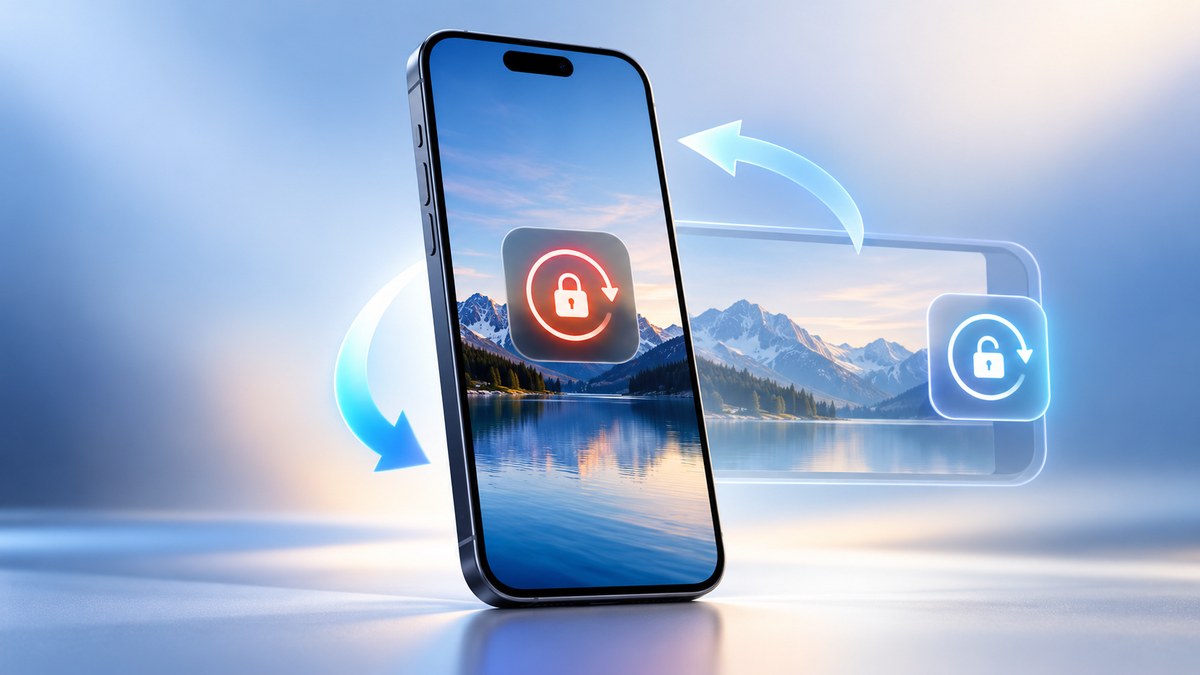
You are trying to watch a vertical video, but your iPhone screen stays stuck in landscape mode. Or maybe you tilt your phone to read an article horizontally, and nothing happens. The auto-rotate feature, which normally switches your display between portrait and landscape based on how you hold the device, has stopped working. This is a common frustration, especially after an iOS update or an accidental settings change. The good news is that the fix is usually simple and does not require a trip to the repair shop.
An iPhone screen that won’t rotate is almost always caused by the Portrait Lock toggle in the Control Center, a disabled hardware sensor, or an app-specific setting. The fastest fix is to swipe open the Control Center and tap the lock icon. If that does not work, a Settings reset or a forced restart will restore normal auto-rotate behavior without losing your data.
Why Your iPhone Screen Stopped Rotating
Several things can cause the screen rotation to freeze. The most common culprit is the Portrait Lock feature. This setting, introduced in a recent iOS version, lets you lock the screen orientation so it does not switch when you tilt the phone. It is useful if you are lying down in bed, but it can get turned on by accident.
Other reasons include:
- A buggy iOS update that resets your display preferences.
- An app that overrides the system rotation settings.
- A temporary glitch in the gyroscope sensor that detects the phone’s orientation.
- Physical damage to the phone, though this is less common.
Before you panic, try the steps below. Most fixes take less than a minute.
The Main Fix: Turn Off Portrait Lock
The Portrait Lock icon looks like a small padlock with a curved arrow around it. It lives in the Control Center, which is the menu you see when you swipe down from the top-right corner of the screen.
- Open the Control Center: Swipe down from the upper-right edge of your screen. You should see a grid of toggles for Wi-Fi, Bluetooth, and other settings.
- Find the lock icon: Look for the Portrait Lock button. It might be on the main page or inside a second panel depending on your layout.
- Tap to toggle: If the icon is highlighted (usually blue or white), it is active. Tap it once to turn it off. The screen should rotate freely again.
If you do not see the Portrait Lock icon in your Control Center, you can add it:
- Go to Settings > Control Center.
- Scroll down to Portrait Lock in the list of controls.
- Tap the green + (plus) button next to it to add it to your active controls.
Once the icon is visible, you can toggle it on and off as needed.
Restart Your iPhone to Clear Temporary Glitches
Sometimes the gyroscope sensor gets stuck after a long uptime. A restart clears the sensor’s memory and forces it to recalibrate.
- Press and hold the Side button (the one on the right edge of the phone) and the Volume Down button at the same time for about three seconds. This opens the power menu.
- Select Restart.
- Wait for the phone to reboot. Test the rotation by tilting the phone sideways.
If your phone does not have a Side button (older models), hold the Power button until the restart option appears.
Check Individual App Settings
Some apps have their own rotation lock. For example, video players and photo editors often let you lock the screen orientation inside the app.
- Open the app that is not rotating.
- Look for a settings or gear icon.
- Search for terms like “auto-rotate,” “screen orientation,” or “lock rotation.”
- Turn off any lock you find.
This is especially common in streaming apps like YouTube or Netflix. If the system rotation works fine on your home screen but fails inside a specific app, the app is the problem.
Reset All Settings (Without Losing Data)
If the above steps do not work, you can reset your display and accessibility settings without wiping your phone. This is a safe step that clears any corrupted preferences.
- Go to Settings > System > Reset.
- Tap Reset All Settings.
- Confirm with your passcode.
This will reset your Wi-Fi passwords, wallpapers, and display settings, but it will not delete your photos, contacts, or apps. After the reset, you will need to reconnect to your Wi-Fi network. The auto-rotate feature should work again.
When to Check the Hardware
In rare cases, the issue is physical. If you dropped your phone recently, the internal gyroscope might be damaged.
| Symptom | Likely Cause | Best Action |
|---|---|---|
| Screen rotates in some apps but not others | App-level lock or bug | Check app settings |
| Screen never rotates, even on home screen | Portrait Lock is on | Toggle it off in Control Center |
| Screen rotates randomly or jitters | Gyroscope sensor glitch | Restart the phone |
| Screen stays stuck after a full reset | Hardware damage | Visit an Apple Store or authorized repair center |
If you suspect hardware damage, try the free diagnostic tool in Settings > System > Diagnostics. Run the screen and sensor test. If it fails, you will need professional repair.
Expert tip: Before you schedule a repair, try booting your iPhone into Safe Mode. Hold the Volume Up button while the phone starts. If the rotation works in Safe Mode, a third-party app is causing the conflict. Uninstall recently added apps one by one until the problem goes away.
Common Mistakes That Keep the Screen Frozen
Many people accidentally lock the screen again right after fixing it. Here are the most frequent errors:
- Tapping the lock icon twice: You toggle it off, then accidentally tap it again. Wait a second and check the icon color.
- Using a case with a magnetic clasp: Strong magnets near the top of the phone can interfere with the gyroscope. Remove the case and test the rotation.
- Ignoring the Accessibility shortcut: Some accessibility settings, like “Lock Screen Orientation,” are hidden in the Accessibility menu. Go to Settings > Accessibility > Display and make sure “Lock Screen Orientation” is turned off.
A Simple Checklist for Future Problems
If your screen stops rotating again, run through this list before searching for help:
- Check the Control Center for the Portrait Lock icon.
- Restart the phone.
- Test a different app.
- Remove any magnetic phone case.
- Reset all settings.
This method will solve 95% of rotation issues without needing any tools or special knowledge. For the remaining cases, Apple Support can run a remote diagnostic.
Keeping Your Screen Rotation Working Smoothly
Auto-rotate is a convenience feature that most people do not think about until it breaks. To prevent future problems, keep your iOS updated. Apple releases patches that fix sensor bugs. You can check for updates in Settings > System > Software Update.
Also, be mindful of the Portrait Lock icon. It is easy to tap by accident when you are swiping through the Control Center. If you find yourself accidentally triggering it, consider moving the icon to a less prominent spot in your Control Center layout.
If you are dealing with other display quirks, like a screen that flickers or looks patchy, you might find help in our guide on how to fix iPhone screen flickering in 2026. And if your phone feels slower after a recent update, our tips on how to speed up a slow iPhone after an iOS update can help you get back to full performance.
The next time you tilt your phone and the screen does not follow, you will know exactly where to look. Start with the Control Center, check your app settings, and give your phone a restart. That simple routine should get you back to watching videos, reading articles, and using your iPhone the way it was designed to work.