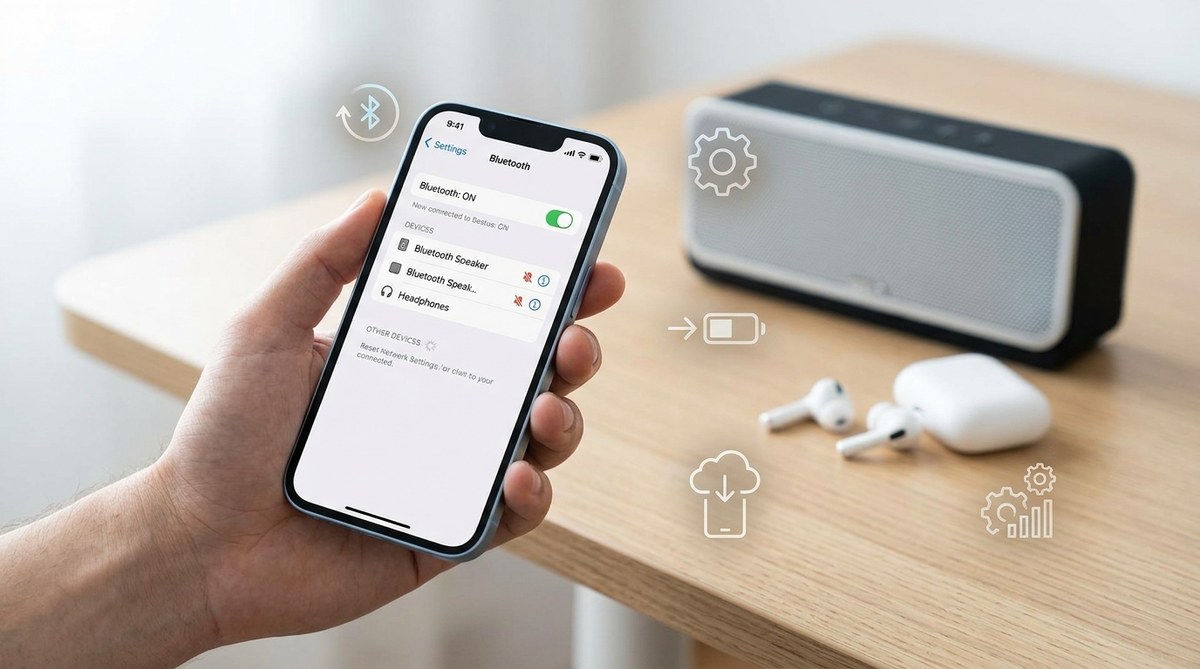
If your iPhone Bluetooth keeps disconnecting mid song or during an important call, it is frustrating. You are trying to listen to a podcast on your commute, and suddenly the audio cuts out. Your wireless earbuds lose connection, and you have to fuss with settings again. This problem happens to many iPhone users, especially after an iOS update or when using specific accessories like car kits or headphones. The good news is you can often solve it in minutes without a trip to the Apple Store. Let us walk through the most effective fixes.
iPhone Bluetooth disconnects usually stem from software glitches, interference, or outdated settings. Start by toggling Bluetooth off and on, forgetting the device, and restarting your iPhone. If that does not work, reset network settings and update to the latest iOS. Most connection problems can be fixed at home without professional help. Persistent drops after trying these steps may point to a hardware issue.
Why Your iPhone Bluetooth Drops the Connection
Bluetooth problems on iPhones often trace back to one of a few common causes. Understanding the why helps you choose the right fix.
- Software updates that introduce bugs. Every major iOS release (including iOS 19 in 2026) can temporarily affect Bluetooth stability. Apple usually patches these in later updates, but you may need to wait or apply a workaround.
- Interference from other wireless signals. If you are using Bluetooth near a busy Wi Fi router, a microwave, or another device broadcasting on the 2.4 GHz band, the connection can become unstable.
- Device incompatibility or outdated firmware. Your headphones, car stereo, or smart speaker may need a firmware update to work smoothly with the latest iPhone. Older models sometimes struggle with newer Bluetooth protocols.
- Corrupted network settings. Bluetooth settings are stored alongside Wi Fi and cellular data in your iPhone’s network preferences. A misconfiguration here can cause disconnections.
- Hardware wear. While less common, a damaged Bluetooth antenna or aging battery can interfere with wireless performance.
If you also notice your battery draining faster than normal, check out our guide on how to fix common iPhone battery drain issues. A failing battery can sometimes contribute to radio frequency problems.
The 5 Step Fix for Bluetooth Disconnections
These actions are arranged from simplest to most thorough. Try them in order. Most people find relief after step two or three.
-
Toggle Bluetooth Off and On. Open Control Center, tap the Bluetooth icon to turn it off, wait ten seconds, then turn it back on. This forces your iPhone to rediscover nearby devices. It is the equivalent of a handshake reset.
-
Forget and Reconnect the Device. Go to Settings > Bluetooth, tap the info (i) icon next to the problematic device, then choose “Forget This Device.” After that, put the accessory back into pairing mode and connect again. This clears any stored pairing data that may have become corrupt.
-
Restart Your iPhone. A simple restart clears temporary glitches in the Bluetooth stack. Press and hold the side button and volume button until you see the power off slider. Slide to turn off, wait thirty seconds, then turn it back on. For iPhones without a home button, use the side button and either volume button.
-
Reset Network Settings. This step is more powerful. It wipes all saved Wi Fi passwords, Bluetooth pairings, and cellular settings. Your personal data remains intact. Go to Settings > General > Transfer or Reset iPhone > Reset > Reset Network Settings. After your iPhone restarts, you will need to re pair your Bluetooth devices. This often resolves stubborn disconnection issues that other steps miss.
-
Update iOS and Device Firmware. Check for a system update in Settings > General > Software Update. If an update is available, install it. Also check the manufacturer’s website or app for your headphone or car kit to see if a firmware update exists. Keeping both sides current fixes many compatibility bugs.
Common Mistakes vs. Effective Solutions
| What Many People Try | Why It Often Fails | What Works Better |
|---|---|---|
| Turning Bluetooth off for a few seconds | Does not clear the internal cache for the connection | Resetting network settings |
| Buying a new Bluetooth device | Hardware is rarely the issue; software glitches repeat | Forgetting and re pairing the existing device |
| Only restarting the accessory | iPhone’s Bluetooth stack remains unchanged | Restarting the iPhone itself |
| Disabling Bluetooth via Control Center for a day | Does not reset pairing data | Resetting network settings or forgetting device |
Expert advice from Apple Support forums: “If your iPhone Bluetooth keeps disconnecting after an iOS update, wait for the next patch. But in the meantime, resetting network settings is the number one fix that reduces calls to AppleCare. Just remember to write down your Wi Fi passwords first.”
If your iPhone also experiences Wi Fi drops, read our troubleshooting guide for iPhone Wi Fi connectivity problems. Many of the same network resets help both radios.
When Hardware Might Be the Real Problem
If you have tried all five steps and your iPhone Bluetooth keeps disconnecting from every device, there could be a physical issue. These signs point to hardware:
- The Bluetooth icon in Control Center appears grayed out or won’t stay blue.
- Your iPhone does not detect any Bluetooth devices at all, even after resetting network settings.
- You see a “Bluetooth not available” message in Settings.
- The drops happen only when you hold the phone a certain way, or after a recent drop or water exposure.
In those cases, the internal Bluetooth antenna or the main logic board may be damaged. Apple’s diagnostics can confirm this. You can schedule a Genius Bar appointment, or if your device is out of warranty, consider a reputable third party repair shop.
If you plan to reset settings and want to avoid losing data, see our guide on how to reset iPhone settings without data loss. It covers the exact steps to preserve your information while clearing network glitches.
How to Keep Bluetooth Stable Going Forward
Prevention is better than a fix. A few habits help you avoid disconnections in the future.
- Keep your iPhone updated. Apple releases iOS updates that often include Bluetooth stability improvements. Set your phone to download updates automatically.
- Forget devices you no longer use. A long list of saved Bluetooth profiles can slow down the connection process. Remove old earbuds, speakers, and car kits you no longer need.
- Avoid physical obstructions. Keep your iPhone within 30 feet of the Bluetooth device, and avoid placing it in metal bags or against your body in a way that blocks the signal.
- Charge your devices. Low battery on either side can cause intermittent disconnections. Keep your iPhone and accessories topped up.
- Restart your iPhone once a week. This clears cumulative memory leaks that may affect Bluetooth performance.
If you want to improve overall device speed, check out our top tips to improve iPhone performance and speed up your device. A smoother phone handles Bluetooth tasks more reliably.
Your Connection, Restored
No one should have to tolerate a Bluetooth connection that drops every few minutes. The methods here solve the vast majority of cases. Start with the simple toggles, then move through the reset steps. Write down any saved Wi Fi passwords before resetting network settings. Most of all, stay patient. Bluetooth issues are rarely permanent.
You can now enjoy your music, podcasts, and hands free calls without interruption. If the problem ever returns, you know exactly where to start.