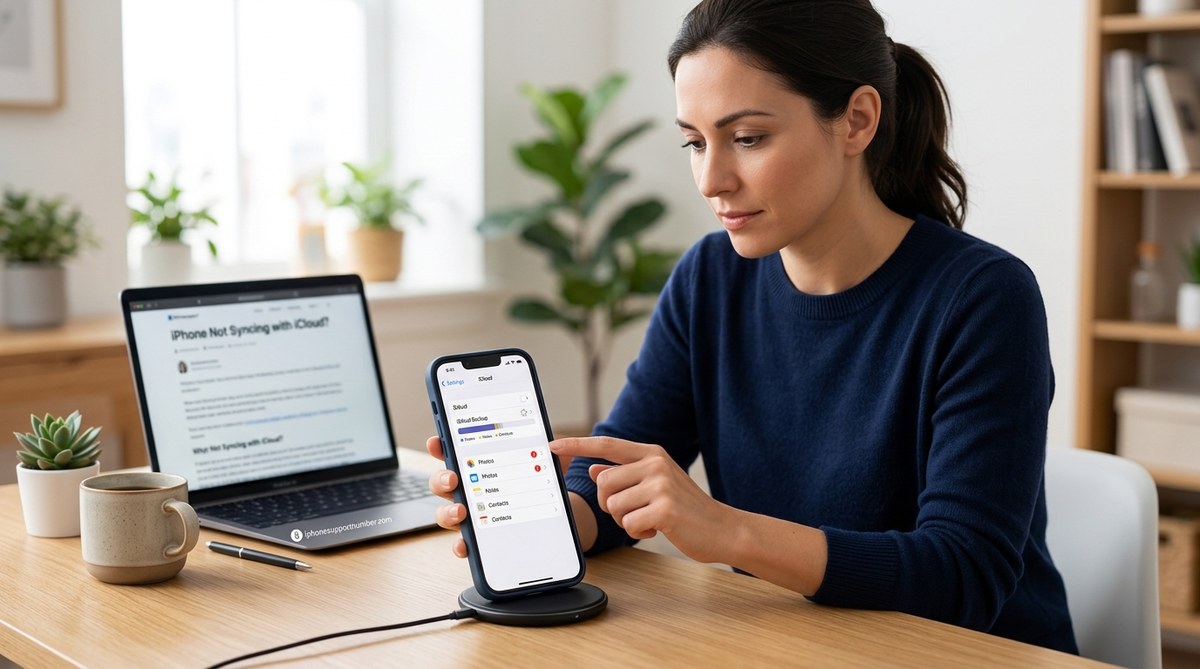
Your iPhone and iCloud are supposed to be best friends. You snap a photo, and it appears on your iPad. You save a contact, and it’s on your Mac. But sometimes that friendship breaks down. Your photos stay stuck on your phone. Your calendar events vanish into thin air. And your reminders just won’t show up anywhere else.
That’s frustrating. But you don’t need to live with it. Let’s walk through why this happens and how you can get everything syncing again.
Most iCloud sync problems boil down to one of five issues: a server outage, a wrong setting, a network glitch, low storage, or a stale connection to your account. You can fix every single one without losing data. Try the numbered steps below in order. Nine times out of ten, step 3 (checking date and time) or step 5 (signing out of iCloud) does the trick.
Why iCloud Sync Stops Working
iCloud sync is a quiet background service. It runs 24/7, moving data between Apple’s servers and your devices. But it depends on a few things being just right. Your iPhone needs to be on a stable internet connection. It needs the correct date and time. Your iCloud account has to be properly authenticated. And the specific app toggles need to be turned on.
When any of those pieces slip, sync pauses. Sometimes it pauses silently. You open your Photos app and see “Syncing paused” with no explanation. Or your Contacts app shows items that live only on that one phone.
The good news? The fixes are simple. Here are the five things to check.
1. Confirm iCloud Is Actually Running
Before you mess with any settings on your phone, check Apple’s server status. iCloud outages happen. Sometimes a regional server goes down for maintenance.
- Open your browser and go to Apple’s System Status page.
- Look for iCloud Account & Sign In, iCloud Backup, iCloud Drive, iCloud Photos, and any other services you use.
- If any box is yellow or red, Apple is working on it. Wait a few hours and try again.
If everything is green, move on to the next step. Don’t skip this check. It saves you from chasing a problem that isn’t on your end.
2. Verify Your iCloud Account and Storage
Your iPhone can’t sync if it doesn’t know who you are. Go to Settings > [your name] > iCloud. Make sure you’re signed in with the Apple ID you use everywhere. If you have multiple Apple accounts, pick one and stick with it.
Then scroll down and look at Storage. If your iCloud storage is full, sync stops for almost everything. Apple won’t upload new photos or back up your device until you free up space.
- Check how much storage you have left.
- If you’re over the limit, you can upgrade your plan, delete old backups, or remove large files from iCloud Drive.
For a detailed walkthrough, see our guide on how to manage storage space on your iPhone in 2026.
Pro tip: A 50 GB plan costs less than a coffee a month. If you rely on iCloud for work or family photos, it’s worth the upgrade.
3. Check Date, Time, and Network
This one trips up a lot of people. Your iPhone uses the network time to encrypt and decrypt iCloud data. If the time is wrong, sync refuses to work.
- Go to Settings > General > Date & Time.
- Turn on Set Automatically.
- If it’s already on, toggle it off, wait 10 seconds, then turn it back on.
Next, make sure your internet connection is solid. iCloud needs steady Wi Fi or a strong cellular signal. Even a weak signal can cause sync to pause.
- Try loading a website in Safari. If it’s slow, restart your router.
- On your iPhone, go to Settings > Wi Fi. Forget your network and reconnect.
- If you’re on cellular, check that Settings > Cellular > iCloud Drive is enabled.
If you’re still having network issues, check our troubleshooting guide for iPhone Wi-Fi connectivity problems.
4. Force iCloud Sync for Specific Apps
Sometimes an app’s own toggle gets turned off. Or it gets stuck in a “pending” state. You can wake it up manually.
- Go to Settings > [your name] > iCloud.
- Under Apps Using iCloud, tap Show All.
- For each app you care about (Photos, Contacts, Calendars, Notes, Safari), make sure the toggle is green.
- If it’s already on, toggle it off, wait 30 seconds, then toggle it back on.
Doing this forces the app to reinitialize its connection to iCloud. It often jumpstarts stalled syncs.
| App | What to do if it’s stuck |
|---|---|
| Photos | Turn off iCloud Photos, wait, turn on. Check for “Paused” status in the Photos app. |
| Contacts | Toggle Contacts off/on. Then open the Contacts app to see if changes appear. |
| Calendars | Toggle Calendars. Open Calendar and pull down to refresh. |
| Notes | Toggle Notes. Check if any note says “Not syncing.” |
5. Sign Out of iCloud and Sign Back In
This is the nuclear option, but it works. Signing out completely resets your iCloud connection on the device. Do this only after trying the steps above.
- Go to Settings > [your name] > Scroll to bottom > Sign Out.
- You’ll be asked what to keep on your iPhone. For most people, keeping a copy of contacts, calendars, and Safari data is smart.
- Sign out completely. The process may take a minute.
- Restart your iPhone (press and hold side button and volume down, then slide to power off).
- After the phone restarts, go to Settings > Sign in to your iPhone. Enter your Apple ID and password.
Important: Signing out removes iCloud Photos and iCloud Drive files from your phone until you sign back in. Your data stays safe on Apple’s servers. Once you sign in again, everything downloads.
If you’re worried about losing settings, read our guide on how to reset iPhone settings without data loss. It covers a lighter approach that keeps your personal data intact.
When None of These Fixes Work
Sometimes the problem is deeper. Maybe your iOS version is outdated. Or a corrupt system file is blocking sync. Before you give up, try these last resorts.
- Update your iPhone: Go to Settings > General > Software Update. Install any pending update. Apple releases patches that fix sync bugs.
- Reset network settings: Go to Settings > General > Transfer or Reset iPhone > Reset > Reset Network Settings. This clears saved Wi-Fi passwords, so have them handy.
- Contact Apple Support: If you still can’t sync, it could be an account issue on Apple’s end. Chat or call Apple and explain the steps you’ve already tried.
Your iCloud Data Belongs Everywhere You Are
You take photos to share them. You save contacts to reach people. You write notes so you don’t forget. When iCloud sync breaks, those connections snap. But you’ve now got a clear path to fix it.
Start with the server status. Then check your account and storage. Verify date and time. Toggle the apps. And if nothing else works, sign out and sign back in. One of these five steps will get your iPhone talking to iCloud again.
Give it a try now. Open your Settings, pick a step, and see if your data starts moving. Your other devices are waiting.