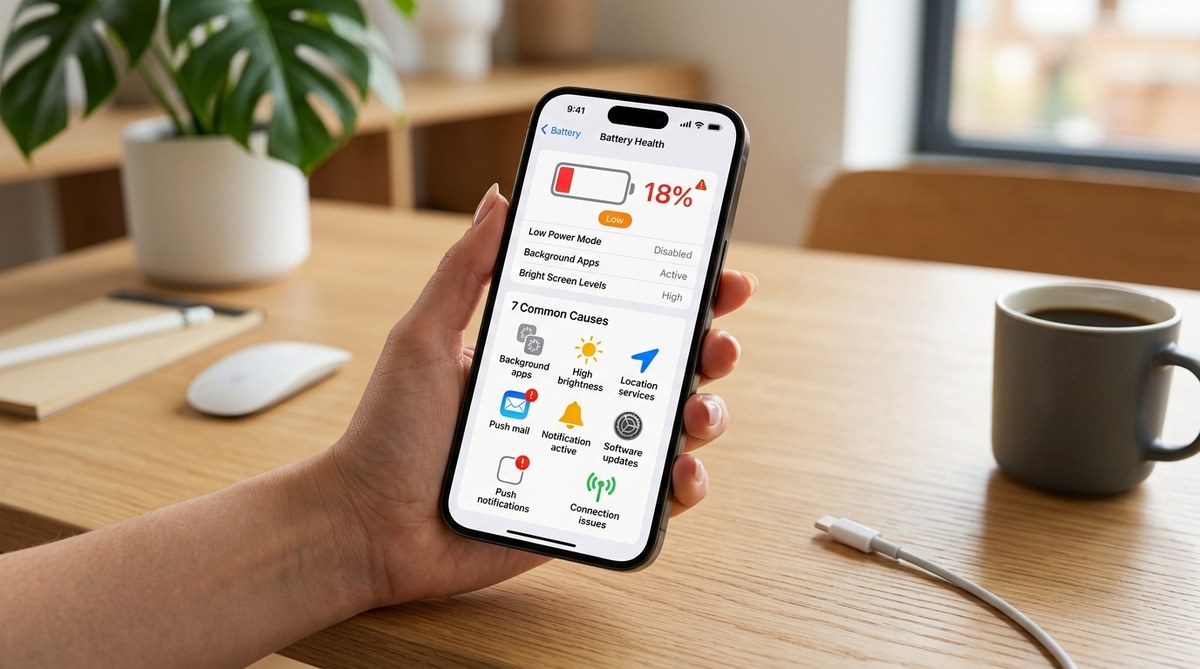
You look down at your iPhone and see 19% battery. You just unplugged it two hours ago. That feeling of panic is real, especially when you need your phone to last through a long day of work, errands, or a weekend trip. A fast draining battery isn’t just annoying. It can leave you stranded without navigation, messages, or a way to pay for coffee. The good news is that most causes of rapid battery drain are easy to identify and fix yourself. Let’s walk through the most common reasons your iPhone battery is draining so fast and what you can do about each one.
iPhone battery drain usually stems from seven causes: high screen brightness, background app refresh, aggressive location services, poor cellular signal, outdated iOS, an aged battery, and extreme temperatures. Most fixes are free and take less than a minute. Start by checking your battery health in Settings. If capacity is below 80%, a replacement may be your best bet. Otherwise, tweak brightness, background activity, and location settings to reclaim hours of use.
Check your battery health first
Before you start changing settings, find out the real condition of your battery. Every iPhone has a built in battery health feature. Go to Settings > Battery > Battery Health & Charging. Look at the Maximum Capacity number.
- If it’s 90% or higher, your battery is still in good shape.
- If it’s between 80% and 89%, you may see some degradation.
- If it’s below 80%, your battery is considered worn and will drain noticeably faster.
Apple recommends replacing the battery when its maximum capacity drops below 80%. A worn battery cannot hold a full charge, so it will deplete much faster than when it was new. Think of it like a gas tank that keeps getting smaller.
If your battery health is below 80%, the most effective fix is to get a replacement. You can do this at an Apple Store, an authorized service provider, or even mail it in. Until then, the other tips here can help slow the drain.
For a deeper look at keeping your phone running smoothly, read our Ultimate Guide to Setting Up Your New iPhone for Seamless Use.
7 common causes of fast battery drain (and how to fix them)
Here are the seven usual suspects behind a quickly draining iPhone battery. Each cause comes with a fix you can try right now.
-
Overly bright screen or always on display – The display is the biggest battery hog. If you keep brightness maxed out or use the always-on display on iPhone 14 Pro or newer, expect faster drain. Fix: Turn on auto-brightness (Settings > Accessibility > Display & Text Size > Auto-Brightness). Also disable the always-on display if you don’t need it by going to Settings > Display & Brightness > Always On Display and toggling it off.
-
Background app refresh – Apps like social media, news, and weather refresh content even when you aren’t using them. This uses battery. Fix: Go to Settings > General > Background App Refresh. Turn it off entirely, or manually select only the apps you truly need (like messaging or navigation). Most apps can handle loading new data when you open them.
-
Aggressive location services – Many apps request your location constantly. Even weather apps may check your GPS every few minutes. Fix: Go to Settings > Privacy & Security > Location Services. Review the list. For most apps, switch from “While Using the App” or “Always” to “Ask Next Time” or “Never”. Only navigation and weather apps really need your location.
-
Poor cellular signal – When your iPhone struggles to hold a signal, it increases power to the antenna. This drains battery rapidly. Fix: If you’re in a weak coverage area, switch to Wi-Fi calling or turn on Airplane Mode when you don’t need service. Also, keep Wi-Fi turned on whenever possible. For more help, see our Troubleshooting Guide for iPhone Wi-Fi Connectivity Problems.
-
Outdated software – Apple fixes battery bugs in each iOS update. Running an older version can cause unnecessary drain. Fix: Update to the latest iOS. Go to Settings > General > Software Update. If you’re on iOS 19, make sure you have the latest point release. After a major update, your phone may index files for a day or two, which also drains battery temporarily.
-
Aged battery – As mentioned, batteries degrade over time. If your iPhone is more than two years old, the battery likely has reduced capacity. Fix: Check battery health. If it’s below 80%, plan for a replacement. While you wait, enable Low Power Mode (Settings > Battery) to extend runtime.
-
Extreme temperatures – Both heat and cold can damage battery chemistry and cause rapid drain. Leaving your iPhone in a hot car on a summer day or using it in freezing weather will drop the charge faster. Fix: Keep your phone between 32°F and 95°F (0°C to 35°C). Avoid direct sunlight for long periods. If your phone gets hot, remove the case and let it cool down.
Quick settings to adjust today
Sometimes a few simple changes can make a big difference. Try these right now:
- Enable Low Power Mode when your battery falls below 40%. It reduces background activity and dims the screen.
- Turn off Push for email. Go to Settings > Mail > Accounts > Fetch New Data and switch to Fetch or Manual.
- Reduce motion effects. Go to Settings > Accessibility > Motion > Reduce Motion to stop animations and parallax.
- Disable unnecessary widgets. Long press on the Home Screen, tap the minus icon on widgets you rarely use.
- Check for app updates. Go to the App Store, tap your profile icon, and update all apps. Buggy apps drain battery.
Compare the impact of common settings
The table below shows how different settings affect battery life. Use it to decide where to cut back.
| Setting | Battery impact | What to change |
|---|---|---|
| Screen brightness at 100% | High | Enable auto-brightness or lower to 50-60% |
| Always-on display | Medium | Turn off in Display & Brightness |
| Background app refresh | Medium | Disable for most apps |
| Location services for all apps | High | Set to “While Using” or “Ask” |
| Push email for 5 accounts | Medium | Switch to fetch every hour or manual |
| Cellular data instead of Wi-Fi | High | Prefer Wi-Fi when available |
| Bluetooth always on | Low | Turn off when not using accessories |
A quick win is to reduce screen brightness and location usage. Those two alone can buy you an extra hour or two of battery life.
When to consider a battery replacement
If you’ve tried all the settings adjustments and your iPhone still drains fast, a new battery might be the answer. Signs that a replacement is needed:
- Your phone shuts down unexpectedly at 20-30% charge.
- Performance feels sluggish (iOS throttles performance on older batteries to prevent crashes).
- Battery Health shows “Service” or maximum capacity below 80%.
- You’ve had the phone for more than two years.
Apple charges around $89 to replace the battery on most recent iPhones (prices vary by model). Third-party shops may charge less, but stick with authorized providers to avoid voiding warranty or losing water resistance. If you’re not ready to replace, try 7 Simple Steps to Fix iPhone Overheating Issues in 2026 because heat accelerates battery wear.
Still draining? Try these advanced fixes
These steps take a bit more time but can resolve deeper software issues.
- Reset all settings – This doesn’t erase your data, but it resets Wi-Fi passwords, wallpapers, and accessibility settings. Go to Settings > General > Transfer or Reset iPhone > Reset > Reset All Settings. You’ll have to re-enter Wi-Fi passwords, but it often fixes battery drain caused by corrupted settings.
- Restore from a backup – If a recent iOS update caused the drain, restore your iPhone to an earlier backup. Use a computer and iTunes or Finder. How to Reset iPhone Settings Without Data Loss can guide you.
- Check for rogue apps – Open Settings > Battery and look at the list under “Battery Usage By App”. If one app uses more than 30% of your battery and you barely used it, uninstall and reinstall it. Some apps get stuck in a power loop.
- Turn off 5G – 5G networks can drain battery faster than LTE, especially if the signal is weak. Go to Settings > Cellular > Cellular Data Options > Voice & Data and select LTE. Your iPhone will still use 5G when needed but won’t constantly search.
- Backup and erase – As a last 2026 resort, back up your iPhone, then erase all content and settings. Set it up as new and manually install only essential apps. This removes any deep software glitch. You can always restore your backup later if needed.
If you experience other problems after fixing the battery drain, check our Top Tips to Improve iPhone Performance and Speed Up Your Device.
Your iPhone battery can last longer
Your iPhone doesn’t have to die by lunchtime. By understanding the seven causes and making a few adjustments, you can easily extend battery life. Start with the screen and background activity, then check your battery health. Most people see a noticeable improvement within a day. If you still need help, the iPhone Support Hub at iphonesupportnumber.com has more guides. Take back control of your battery and keep your phone running when you need it most.